View and grade Assessment results

Updated over 2 weeks ago

Automatic vs. manual grading

If your Assessment consists of multiple-choice or multiple-selection questions, you have the option to have these questions automatically graded when a user completes the Assessment.

Tip:

When using automatic grading, send an email to your Assessment submitter with a link to the results of their completed, graded assessment using After Submission Settings.
​

For paragraph or file upload Assessment questions, you can view and export the results of a completed Assessment to see the details of each question response.

Tip:

If you include more than one question type in your auto-graded Assessment, only the multiple-choice and multiple-selection questions will be automatically graded. Paragraph and file upload questions won't be auto-graded or included in the total percentage completed.

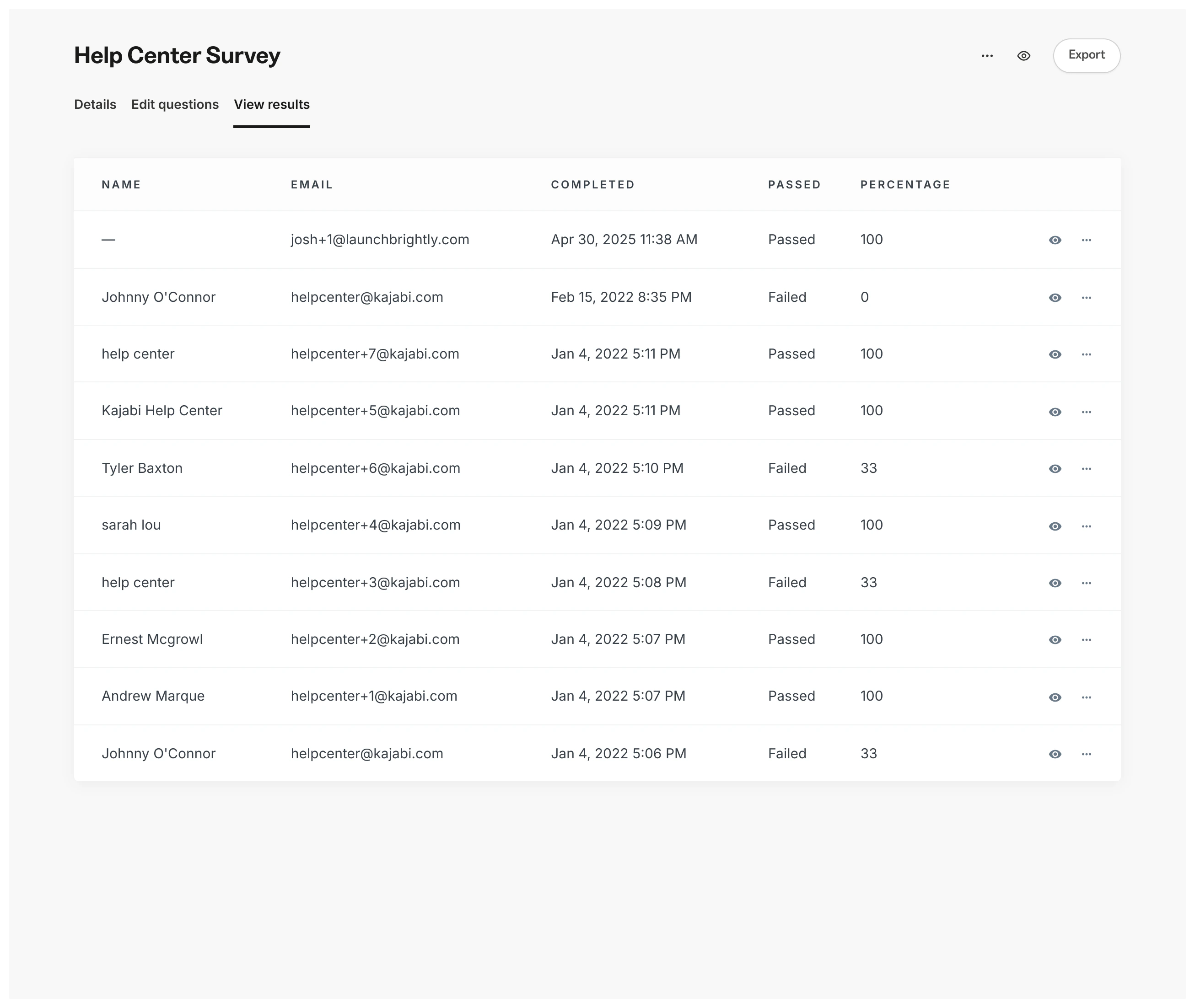
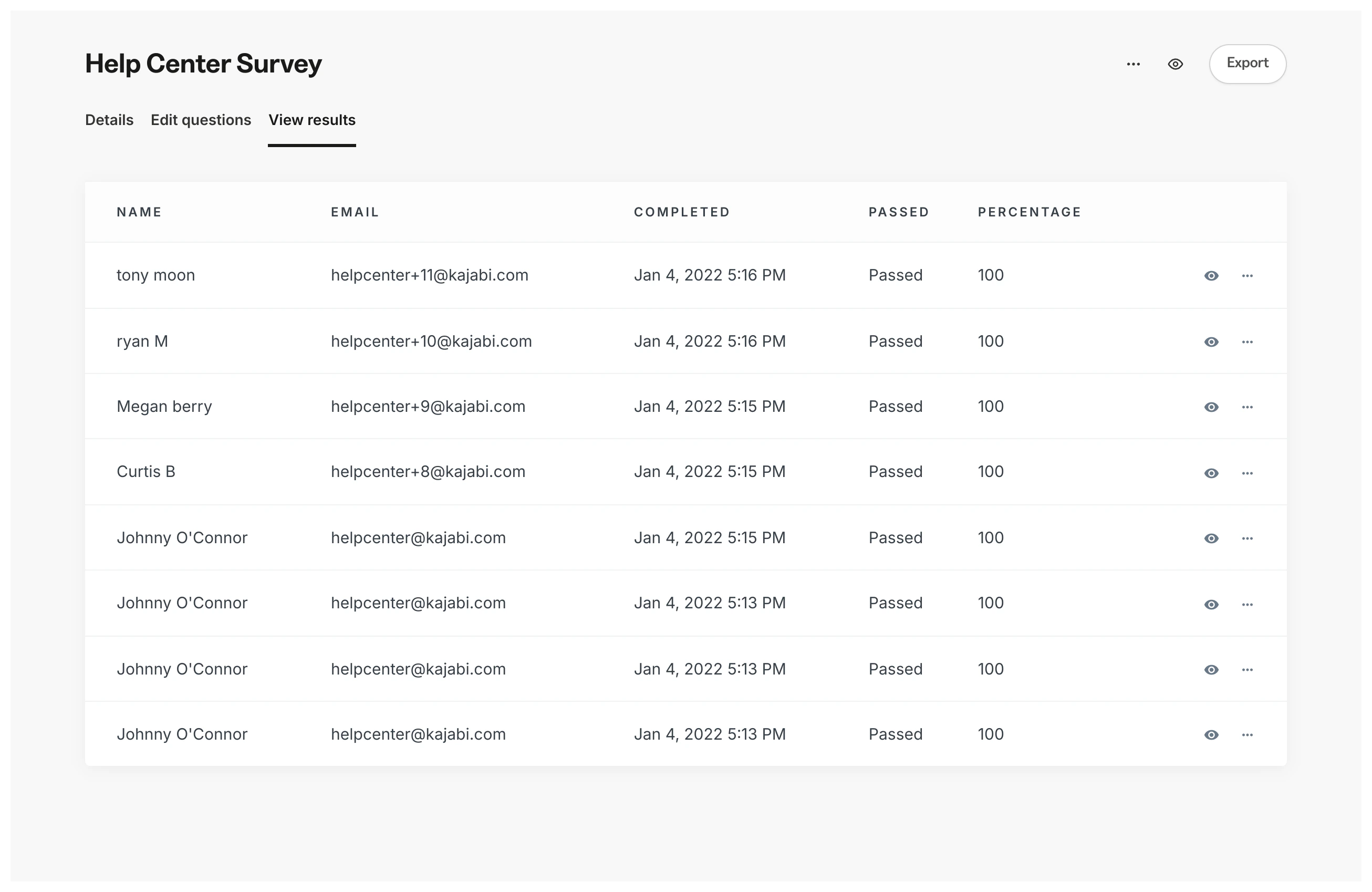
If you choose to create an Assessment that is automatically graded, the results will display a Passed status and a Percentage value for each Assessment submission. If your Assessment is not set to automatically grade each submission, all results will display as Passed.

Automatically graded:

74F5FC3D-07CB-4A08-8C41-E7B214D9FECF.png


​Manually graded:

59EF67E0-D745-4094-BF66-707F99E51C85.png

How to view Assessment results

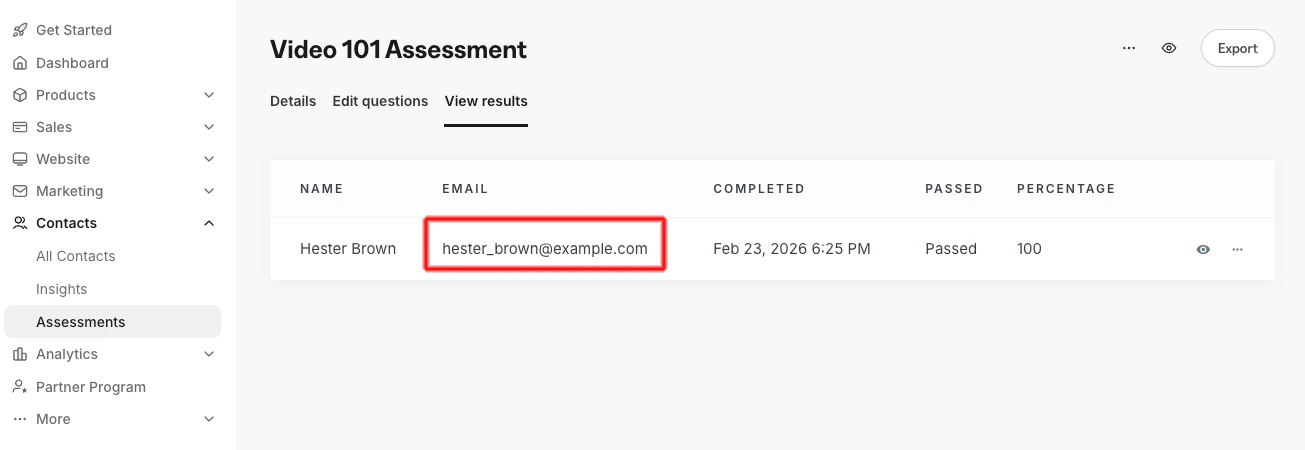
To view the results of your Assessment:

  1. Open the Contacts tab from the Dashboard.

  2. Select Assessments.

  3. Click the Title of the Assessment you wish to view.

  4. Select the View Results tab.

  5. View each contact's responses by clicking their email address or by exporting the Assessment results:

How to export Assessment results

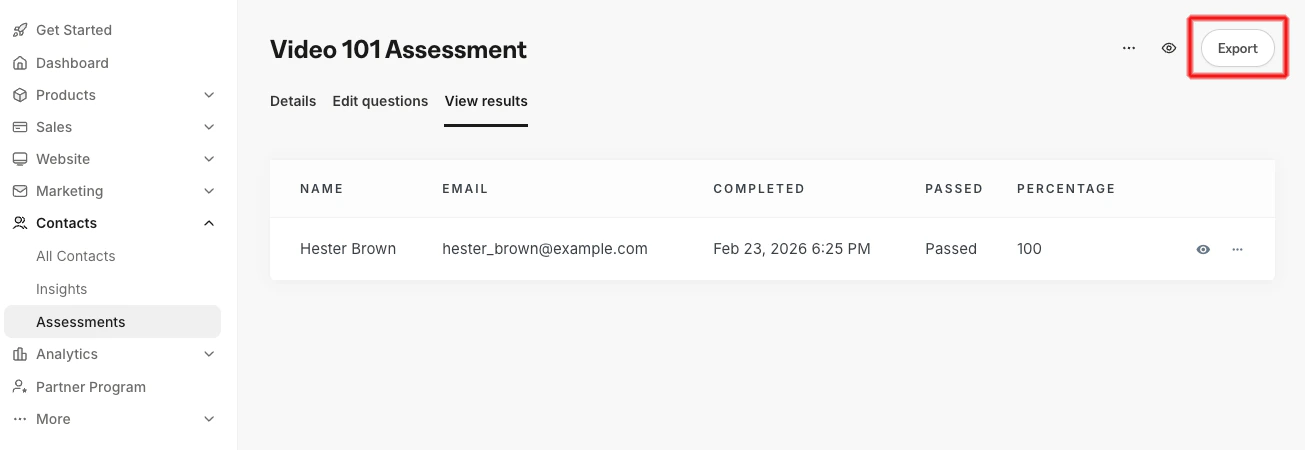
To export results in CSV format:

  1. Open the Contacts tab from the Dashboard.

  2. Select Assessments.

  3. Click the title of the Assessment you wish to export.

  4. Select the View Results tab.

  5. Click the Export button at the top right of the page:
Your exported Assessment results will be sent to the email associated with your Kajabi account. Check your email inbox for an email from Kajabi Support with the Subject line "Assessment results export completed!".

From that email, download your exported Assessment results (a CSV file) to see more details for each submission.

Automatically graded:

A4B9D2EF-7141-47DA-A992-BE74E5DB4D96.png

Manually graded:

72B46B1E-68D4-4FB5-B7D3-ADBD418396AB.png

Note:

Assessments inside Courses have been sunset. They may still appear in older accounts. Quizzes are now available inside Courses and Offers' advanced functionality. Assessments may still be added to Web Pages.

Did this answer your question?