Contacts tab Filters

Use Filters to narrow your Contact results & create segments

Updated today

Overview

The Contacts tab is a powerful organizational tool to help you manage the information for your contacts. In other words, the Contacts tab is your built-in Customer Relationship Management System (CRM) on Kajabi.

In Kajabi, all of your contacts are added to a single list to easily view, access, and manage their accounts. Within the Contacts tab, you can manage existing contacts with Segments and Filters, and add new contacts to your site.

Filters help you narrow down your list by various topics or categories. This is a great way to manage contact accounts and create Segments.


How to use Filters

To filter your list:

  1. Open the Contacts tab from the Dashboard.

  2. Click Filters.

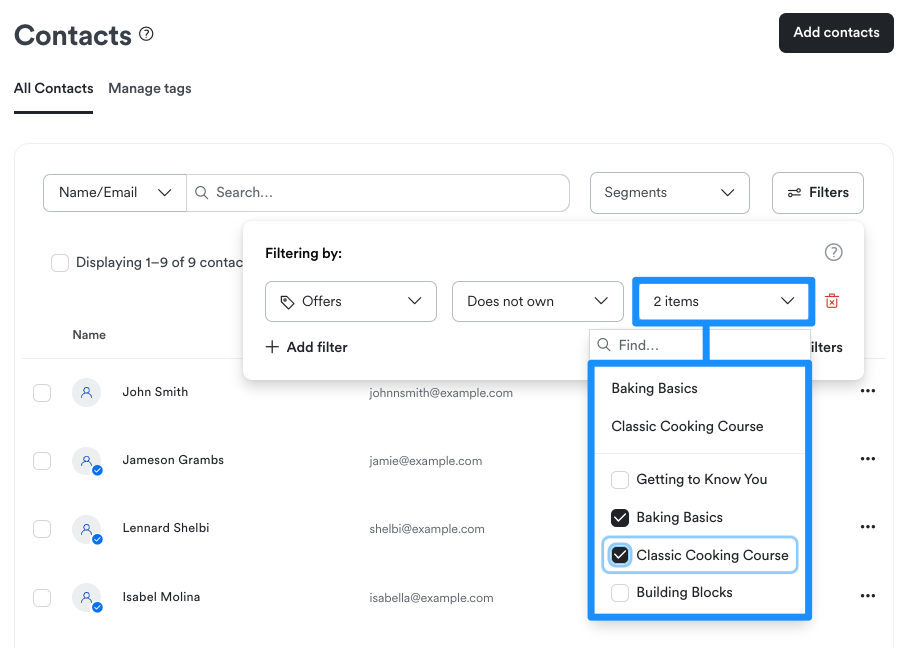
  3. Select your Category, Conditional, and Value.

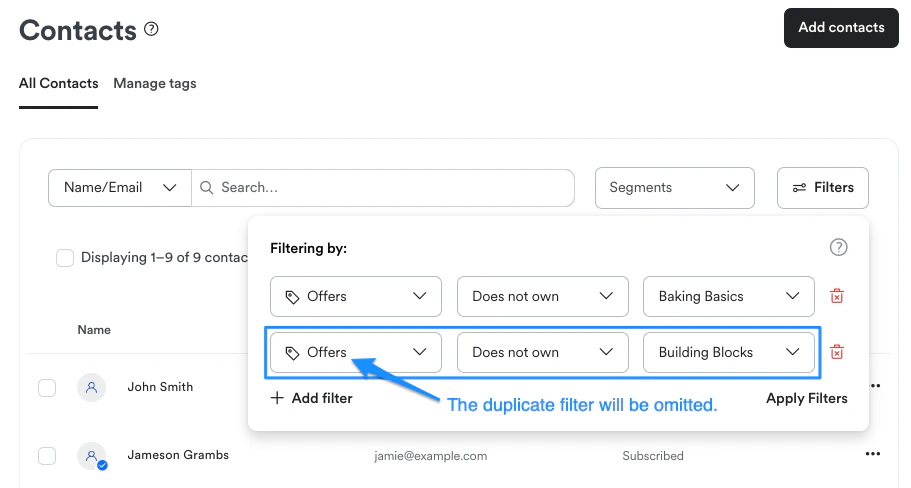
  4. If desired, you can add additional filters to further narrow your results by clicking +Add filter.

  5. Remove any Filter by clicking the trash can.

  6. Click Apply Filters to see your results.

  • Category: A specific division or category on Kajabi (e.g., Email Activity).

  • Conditional: Dynamic requirements or conditions specific to the category selected.

  • Value: The specified parameter for the Category and Conditional.


Contacts tab Filters

Available Categories:


Assessment

Available Conditional settings:

  • Completed

  • Passed

  • Failed

The Value will be any Assessment(s) you have created.


Contacts

Available Conditional settings:

  • Contact was added

  • Contact was not added

  • Contact is hidden

Then, specify the date range as the Value:

  • 7 Days

  • 15 Days

  • 30 Days

  • 60 Days

  • 90 Days


Coupon

Available Conditional settings:

  • Coupon used

The Value will be any Coupon(s) you have created.


Custom Fields

Available Conditional settings:

  • Any custom fields created on your site.

Then, specify a Value for the selected custom field.


Default Fields

See results specific to your Default Form fields. Learn more about Form fields.

Available Conditional settings:

  • Name contains

  • Email contains

  • Phone number contains

  • Address contains

  • Address line 2 contains

  • City contains

  • State contains

  • Country contains

  • Zip code contains

Then, specify a Value for the selected default field.


Email Activity

Available Conditional settings:

Then, specify a date range as the Value:

  • 7 Days

  • 15 Days

  • 30 Days

  • 60 Days

  • 90 Days


Email Broadcast

Available Conditional settings:

The Value will be any broadcast email(s) you have sent.


Email Engagement

Available Conditional settings:

  • Healthy Contacts

  • Passive Contacts

  • Unengaged Contacts

  • Inactive Contacts

Then, select one of two Values:

  • Include email open data

  • Exclude email open data


Email Sequence

Available Conditional settings:

  • Subscribed to

  • Not subscribed to

The Value will be any Email Sequence(s) you have created.


Events

Available Conditional settings:

  • Registered to

  • Not registered to

The Value will be any Event(s) you have created.


Forms

Available Conditional settings:

  • Submitted

  • Not submitted

The Value will be any Form(s) you have created.


Marketing Status

Available Conditional settings:

  • Subscribed

  • Hard bounced

  • Marked spam

  • Manually unsubscribed

  • Unsubscribed

  • Opted out

  • Never subscribed

Then, specify a date range as the Value:

  • 7 Days

  • 15 Days

  • 30 Days

  • 60 Days

  • 90 Days

  • All time


Customers

Available Conditional settings:

  • Customer was active

  • Customer was not active

  • Customer joined in last

  • Is a customer

Then, specify a date range as the Value:

  • 7 Days

  • 15 Days

  • 30 Days

  • 60 Days

  • 90 Days

  • All time


Offers

Available Conditional settings:

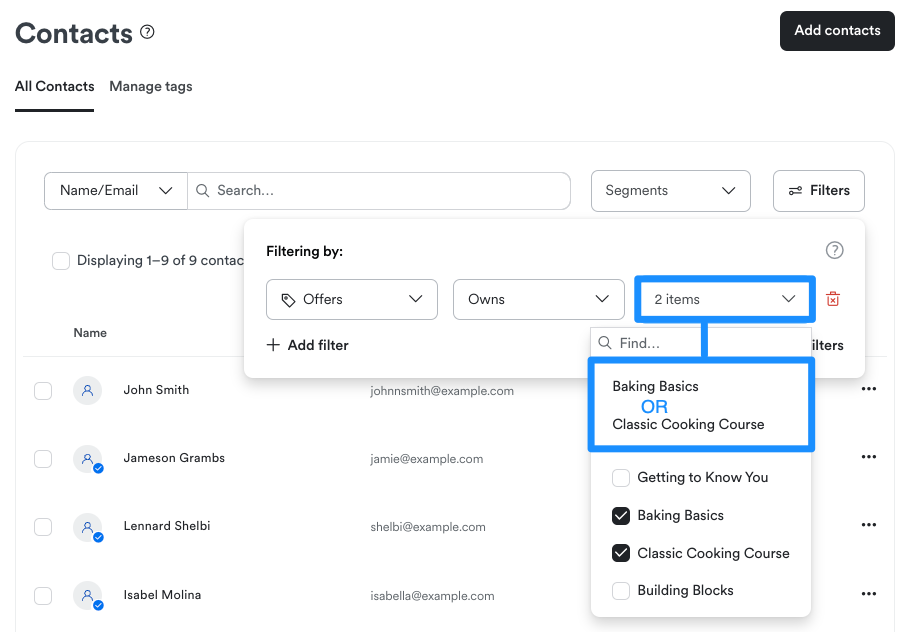
  • Owns

  • Does not own

  • Previously owned

  • Canceling

The Value will be any Offer(s) you have created.


Products

Available Conditional settings:

  • Has

  • Does not have

  • Previously owned

The Value will be any Product(s) you have created.


Tags

Available Conditional settings:

  • Has any

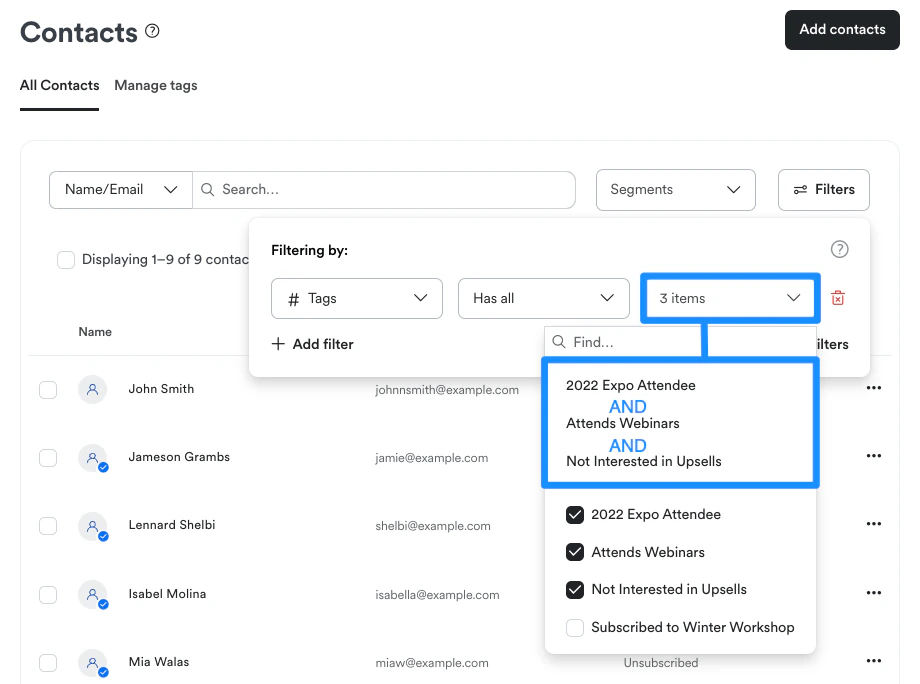
  • Has all

  • Does not have

The Value will be any Tag(s) you have created.

Did this answer your question?