

This feature is being rolled out gradually. Some things are still being refined, and more detailed how-to articles are on the way. If you run into anything unexpected, reach out to payments.support@kajabi.com and the team will assist.
Data in this report begins at the launch of Enhanced Upsells in Spring 2026. Upsell activity prior to that date is not included.
- Tracking upsell purchase activity over time across all offers.
- Measuring gross revenue generated from upsells.
- Monitoring conversion rate trends to identify which time periods or changes had the most impact.
Access the Upsell Purchases Over Time report
- Go to Analytics > Reports.
- Search for or select Upsell Purchases Over Time.
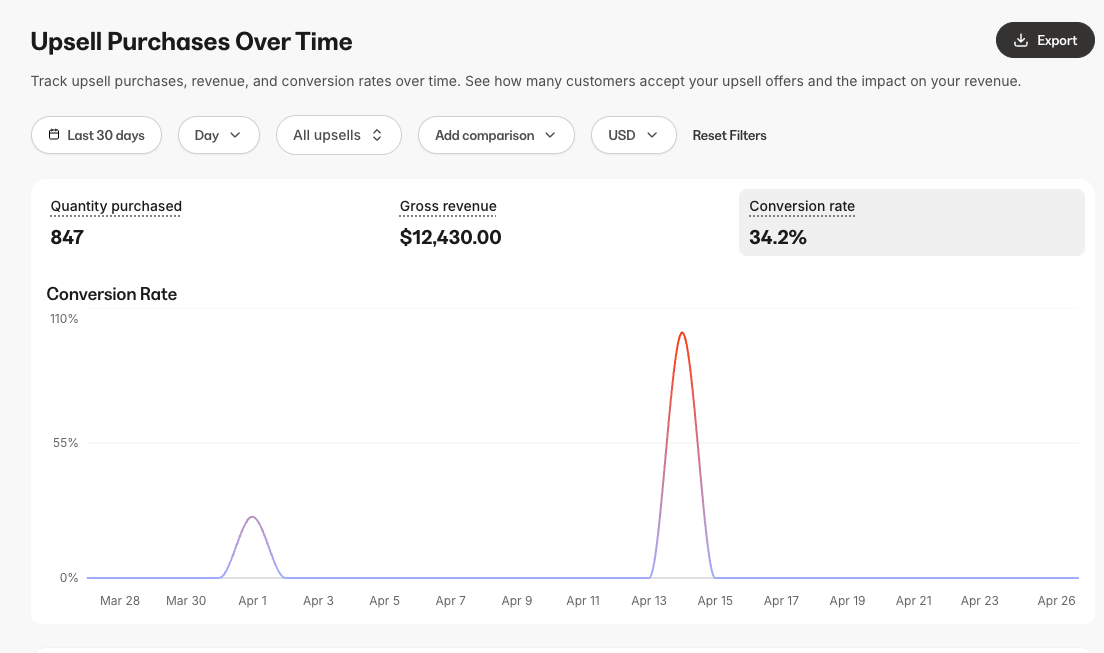
Data presented in this report
Visual chart
Upsell Purchases Over Time (line chart) Displays upsell data over time. Use the chart toggle to switch between the following metrics:- Quantity purchased — total count of accepted upsell purchases within the selected time range. If a single order contains multiple accepted upsells, each counts individually.
- Conversion rate — percentage of customers who viewed an upsell and completed the purchase. Calculated as: (number of completed upsell purchases / number of upsells presented) x 100.
- Gross revenue — total revenue generated from accepted upsell purchases within the selected time range.
Data table
The table displays the following columns, broken down by date based on the selected granularity:
Click any column header to sort the table in ascending or descending order.
Filters
Use the filter bar to customize the data displayed in the report and table. Changing any filter updates both the chart and the table.- Timeframe — defaults to last 30 days. Select a preset range or choose a custom date range.
- Granularity — defaults to Day. Choose how data is grouped: Day, Week, Month, or Year.
- Upsells — defaults to All upsells. Filter to a specific upsell to see its individual performance.
- Comparison — disabled by default. Choose to compare against a past period. When enabled, the chart overlays the comparison period.
- Currency — view stats in your preferred currency.
Export
Exporting the report generates a file that matches the columns currently displayed in the table and reflects any filters you have applied. Export columns include:- Date
- Presented
- Conversion rate
- Gross revenue
- Quantity