

Note:
The Affiliate feature is only available with Growth and Pro Plans. See kajabi.com/pricing for more details.
Commission status and timing
Every affiliate commission displays a Status so you can quickly see where it stands in the payout process:- Pending: The commission is recorded but not yet eligible for payout according to your delay schedule.
- Due: The commission has met the payout delay requirements and is now payable.
- Paid: The commission has been paid out to your affiliate.
- Canceled: The commission was canceled and will not be paid out.
Commission lifecycle
- Transaction occurs. An affiliate earns a Commission on a qualifying sale.
- Due Day countdown. You set a Commission Due Day (2–365 days; 30 days recommended).
- Commission becomes Due. After the countdown, it becomes payable.
- Payout method applies. You pay commissions manually or let Kajabi process them automatically.
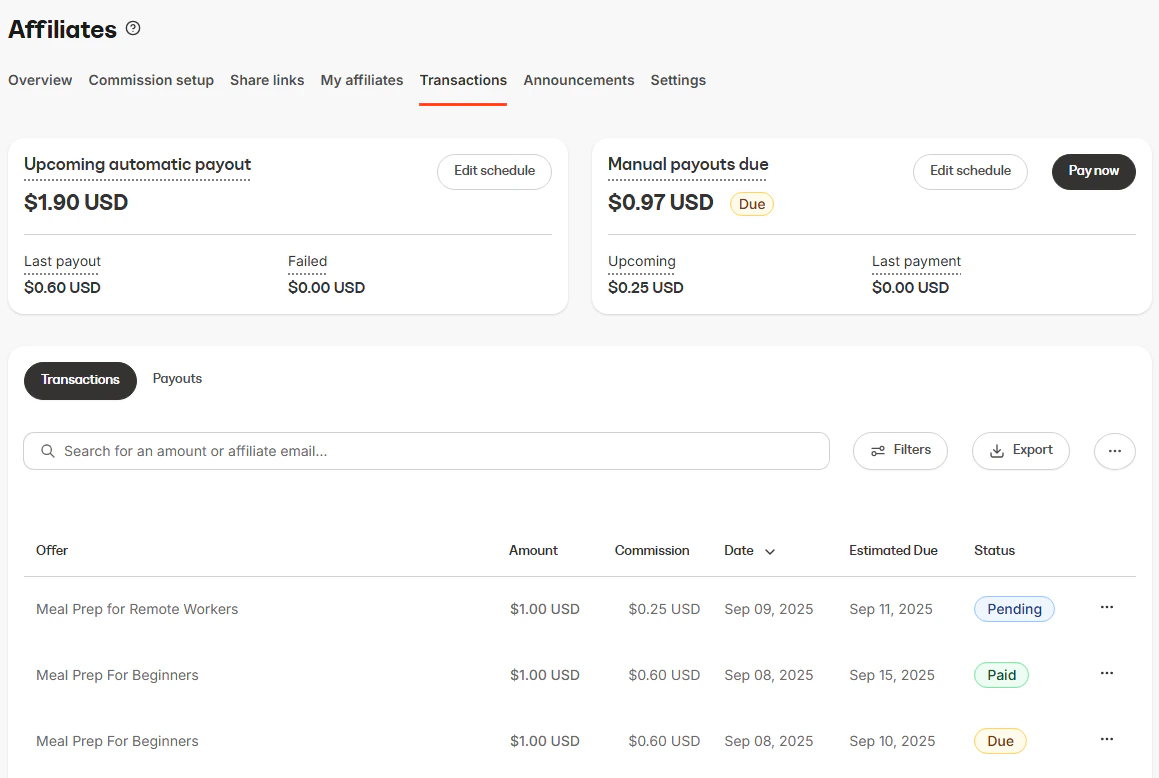
- Change Pending → Due to accelerate payout eligibility.
- Change Pending or Due → Paid to record a manual payout.
- Change Pending or Due → Canceled to prevent payout.
Manual payouts
Manual payouts give you full control over when and how affiliates are paid. Kajabi helps you track and batch Due commissions, but you send the money outside Kajabi (for example, PayPal, Wise, or cash).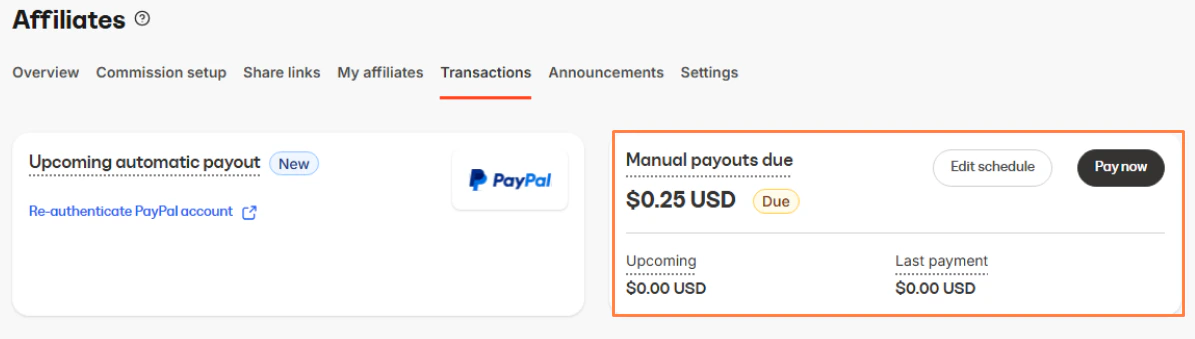
Key settings
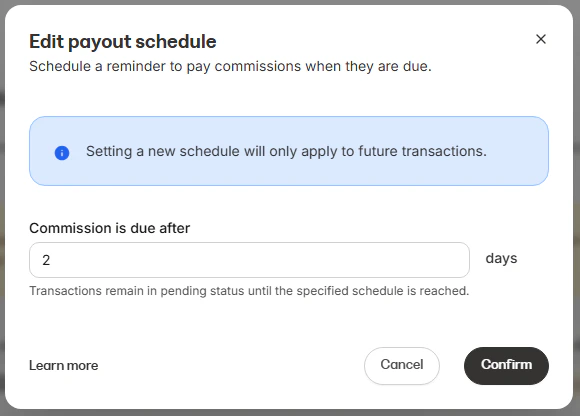
- Commission Due Day: Choose 2–365 days (Kajabi recommends at least 30 days). This buffer helps you verify transactions and account for any refunds or disputes before payment.
Complete manual payouts
- When commissions become Due, visit Affiliates > Transactions.
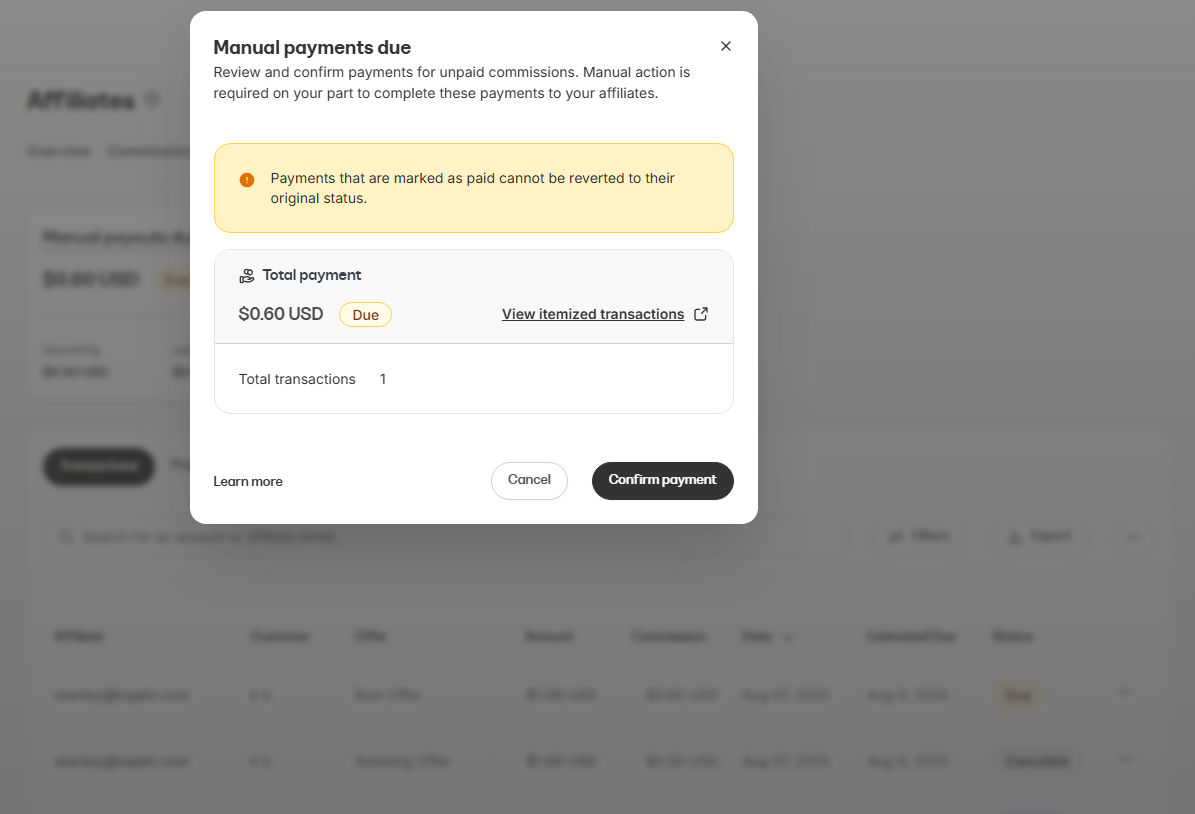
- Select Pay Now to mark commissions as Paid in Kajabi.
-
View Itemized Transactions and Download the PayPal mass payout report for easier bulk payments.
-
Complete the payment in PayPal (or your preferred method).
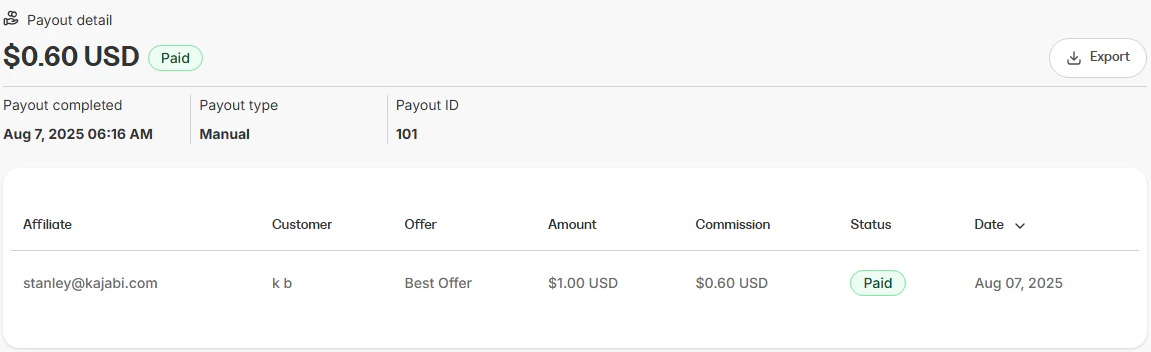
- Select Confirm payment in Kajabi. We will automatically record a single Payout entry in your Payouts tab containing those commissions.
Note:
A sale happens on Day 0. With a 30-day Commission Due Day, the commission becomes due on Day 30. You see the commission with a Due Status on the affiliates’ Transaction page, then you complete the Pay Now workflow. Review the itemized transactions, download the PayPal mass payout report, pay your affiliates, and confirm this action within Kajabi. All transactions will be marked as Paid.
Automatic payouts
Automatic payouts reduce manual work by scheduling payments directly through PayPal.Key settings
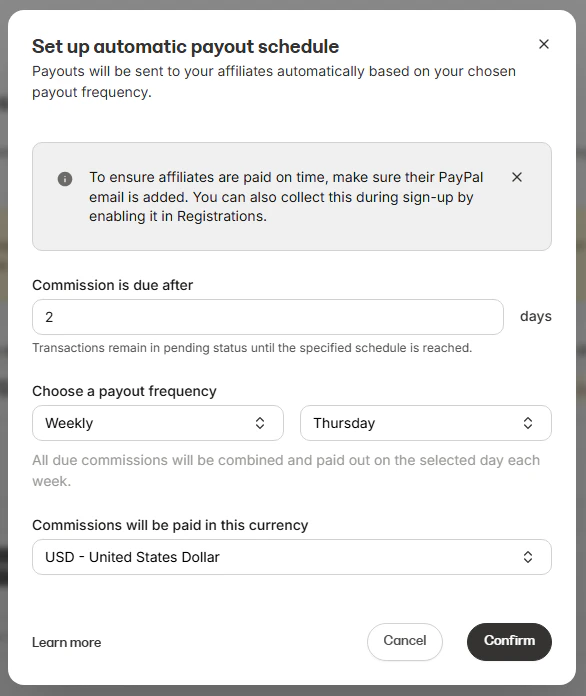
- Commission Due Day: Determines when each commission becomes due (choose 2–365 days; Kajabi recommends at least 30 days).
- Payout Frequency & Date (schedule): Choose Weekly (a day of the week) or Monthly (a specific calendar day). Kajabi enforces this schedule and triggers payouts on that day.
- Currency: Choose the currency with which PayPal will attempt to pay out to all of your affiliates. Generally, if the affiliate has a wallet with a different currency, currency conversion will automatically occur.
Note:
To use automatic payouts, ensure that you have a PayPal Business account, as Personal accounts do not support the critical Mass Payouts feature.
Complete automatic payouts
- Commissions reach their Due Day.
- On your chosen Payout Date, Kajabi triggers PayPal to send payments.
- You receive an email notification two days before the payout with a summary of included transactions.
- Review the snapshot, verify transactions, and ensure your PayPal wallet has sufficient funds.
Note:
For example, with a 30-day commission Due Day and a monthly payout schedule set to the first of the month: a sale on January 1st becomes due on January 31st, and a sale on January 15th becomes due on February 14th. On February 1st, Kajabi would only pay out the first transaction because it became due before that date. The second transaction would not get paid out until March 1st.
Authenticate PayPal
- In the Transactions tab, select the option to set up automatic payouts.
- Re-authenticate PayPal if you already have it integrated for payment processing, otherwise Connect PayPal.
- Grant Kajabi LLC permission to connect to your PayPal account. This allows Kajabi to access transaction data to manage payouts automatically.
- Once confirmed, you will also need to verify that the Mass Payout feature is enabled on your PayPal Account via the following PayPal resource: https://www.paypal.com/payoutsweb/landing. This will be required for automatic payouts to function.
Note:
If you encounter errors setting up PayPal, ensure that PayPal is fully connected to Kajabi, including verifying the enabled Mass Payouts feature. If errors persist, check connectivity, permissions granted, and the account type in PayPal to resolve issues.
Edit affiliate commission
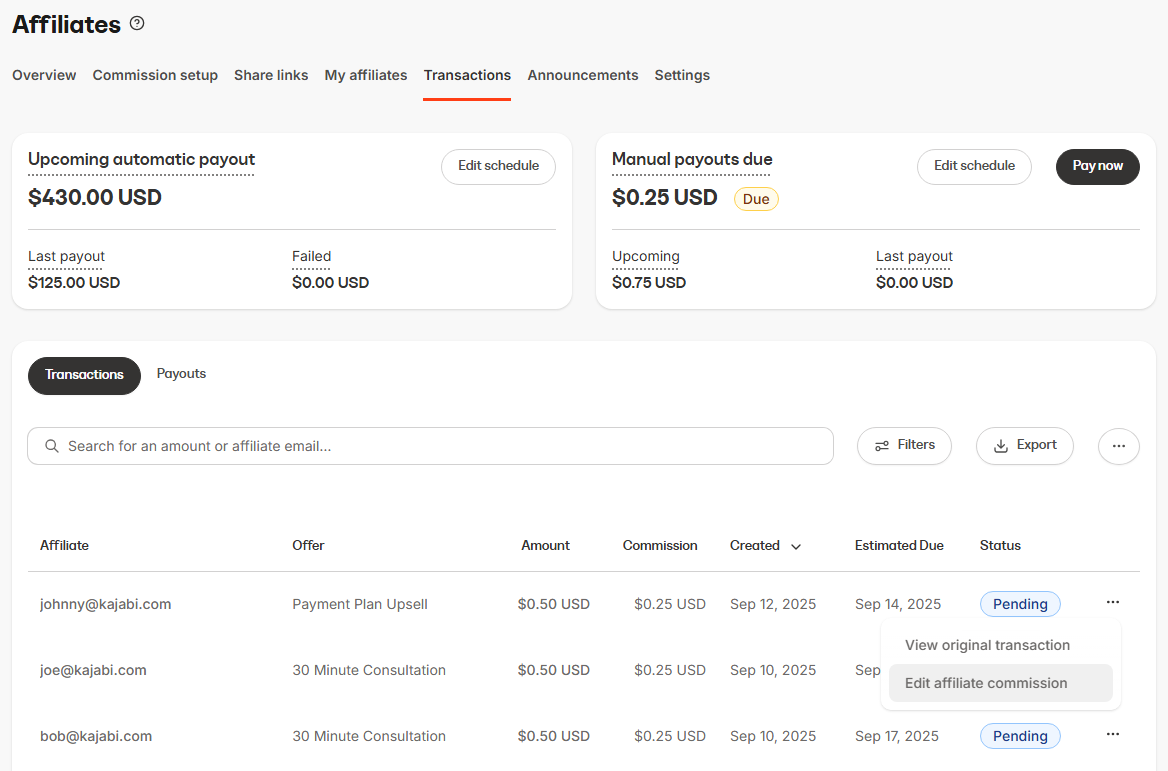
There may be times when you need to adjust an affiliate’s commission, for example correcting the amount, reassigning the sale to a different affiliate, or updating the payout status. Kajabi provides two entry points for editing an affiliate commission:- Navigate to Affiliates > Transactions.
- Locate the commission you want to edit.
- Click the 3-dot menu (···) beside the transaction.
- Select Edit affiliate commission.
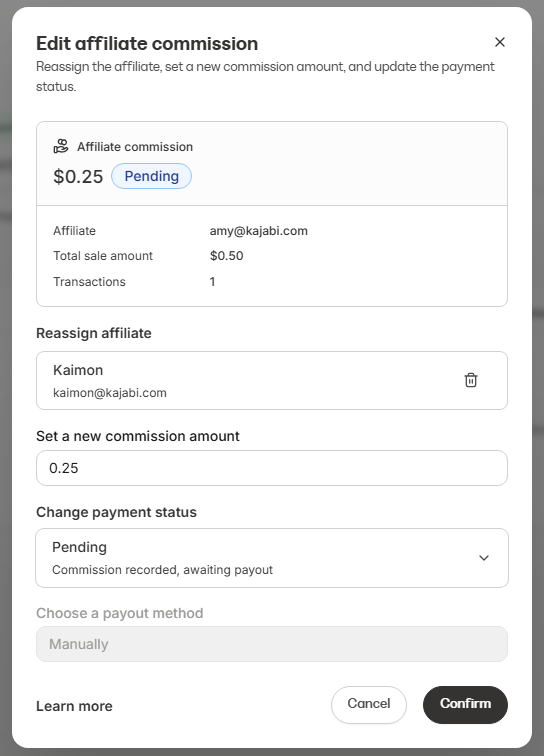
Edit Affiliate commission window
Once you open the edit window, you can update the following fields:- Reassign affiliate: Transfer the commission to another affiliate if needed.
- Set a new commission amount: Adjust the commission tied to the transaction.
- Change payment status: Choose whether the commission remains Pending, is marked as Paid, or updated to another available status.
Failed payouts
If an automatic payout fails
- Kajabi marks the payout attempt as failed if the entire payout failed or partially failed if only part of the payout failed (example 1 out of 5 transactions in the payout failed to send). In addition, the commission transactions within the payout that failed will be marked as failed.
- When failed commission transactions are present, Kajabi will show the failed amount and surface a retry button. Once you’ve resolved the failure issue (for example, insufficient PayPal balance) you will be able to retry paying out these failed commission transactions.
- Verify that PayPal Mass Payouts is enabled, ensure sufficient balance in your PayPal wallet, and check for any account limitations or connectivity issues before retrying the payout.
Customize the Transactions table
You can personalize the Transactions table to display the information most relevant to you. By customizing the columns, you can quickly view details such as commission amounts, payout types, or customer names without needing to open each transaction.Customize columns
- Navigate to Affiliates > Transactions.
- Click the 3-dot menu (···) in the upper right corner of the table.
- Select Customize columns.
- Toggle columns on or off based on the information you want to display.
- Drag and drop columns to reorder them.
- Click Apply to update your view.
- If you want to reset your table back to the default view, select Reset to default.
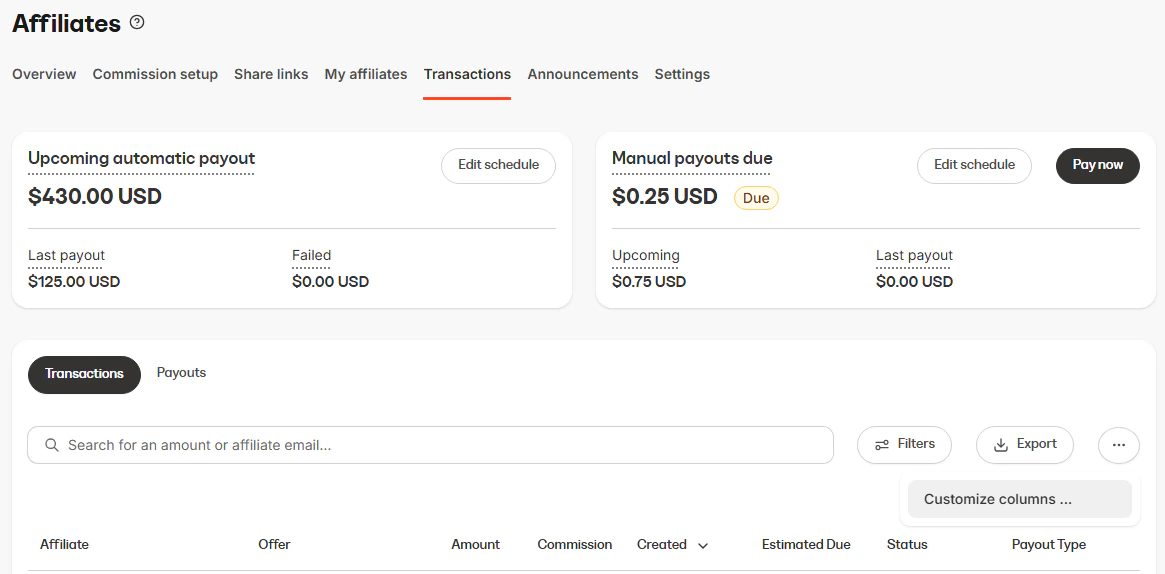
Available columns
- Affiliate
- Offer
- Amount
- Commission
- Created
- Estimated Due
- Status
- Payout Type
- Customer
- Type
- Due
- Payout Paid Date
- Payout ID
- Refunded
Export Transactions
You can export affiliate transaction data from the Transactions tab to review payout history, reconcile payments, or process bulk payouts.- Go to the Transactions tab.
- Click Export.
- Choose a report format and select the date range you want to export.
-
PayPal Mass Pay Report
- Affiliate PayPal email
- Commission amount
- Currency of commission earned
-
Summary Report
- Affiliate name
- Affiliate email
- PayPal email
- Commission earned
- Currency
-
Details Report
- Transaction ID
- Stripe Charge ID
- KP Charge ID
- Date
- Offer ID
- Offer title
- Affiliate name
- Affiliate PayPal email
- Refunded status
- Transaction amount (in cents)
- Commission type
- Commission rate
- Commission earned
- Currency
- Reason (for manually added transactions)
- Customer name
- Customer email