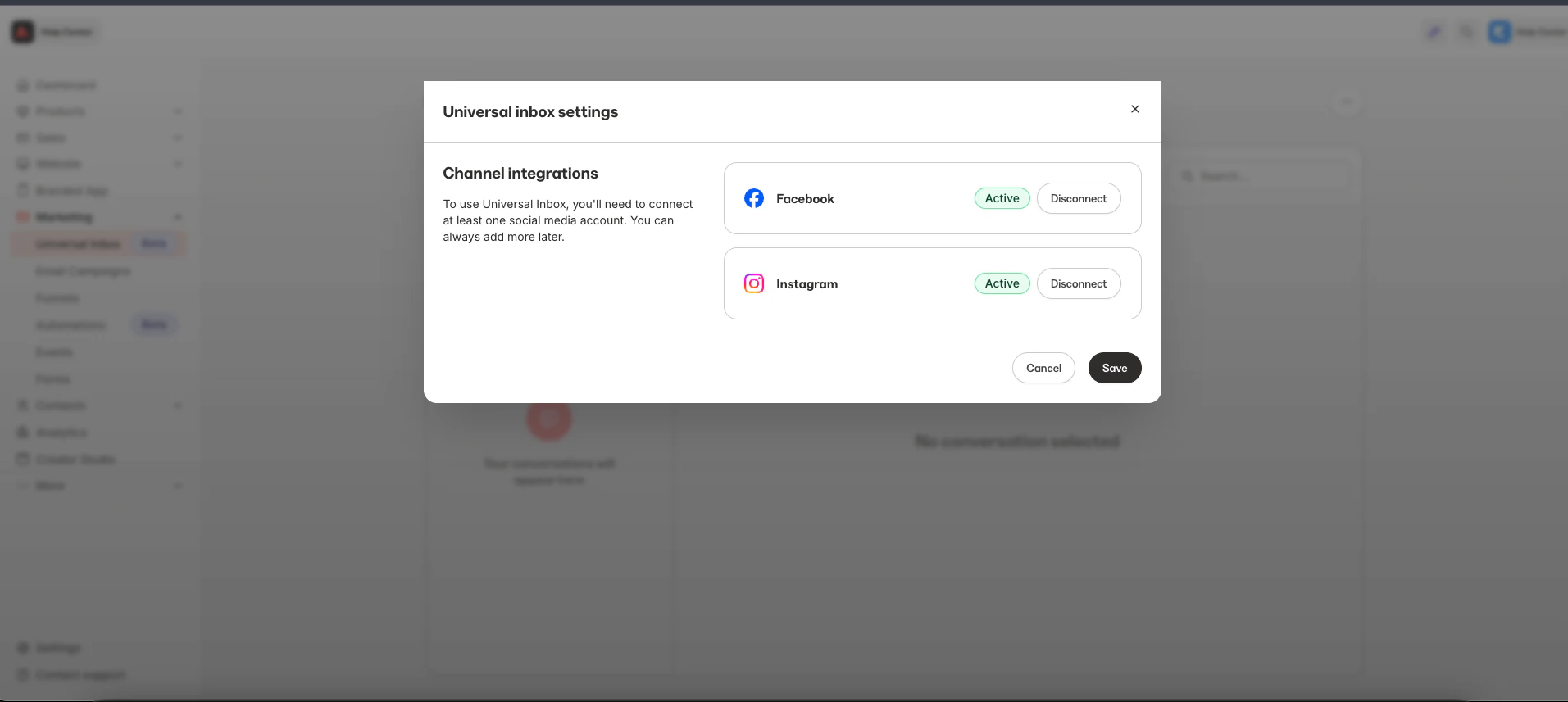
Note: Universal Inbox and Comment-to-DM are only available with Growth and Pro plans. Check out kajabi.com/pricing for more details. To use Comment-to-DM for Instagram, you must have an Instagram Professional account.
Set up the Universal Inbox
To connect your Instagram DMs and Facebook Messenger chats with Universal Inbox:- Click Marketing > Universal Inbox from your Kajabi Dashboard.
- Use the All Channels drop-down menu to select Instagram or Facebook Messenger.
- Log in to your Instagram or Facebook account in the pop-up window.
- Convert to an Instagram Professional account if prompted.
- Allow Kajabi Marketing Services access to finish the integration.
Set up Comment-to-DM
Comment-to-DM uses Kajabi Automations. Setup is quick when you use the premade Instagram or Facebook Comment-To-Conversation Automation blueprint. You can also start from scratch when creating a Comment-to-DM Automation.Note: Trigger words are not case sensitive. For example, if your trigger word is
KAJABI, a customer comment of Kajabi will still trigger the Automation.- From the Kajabi Dashboard, select Marketing > Automations.
- Click +New Automation.
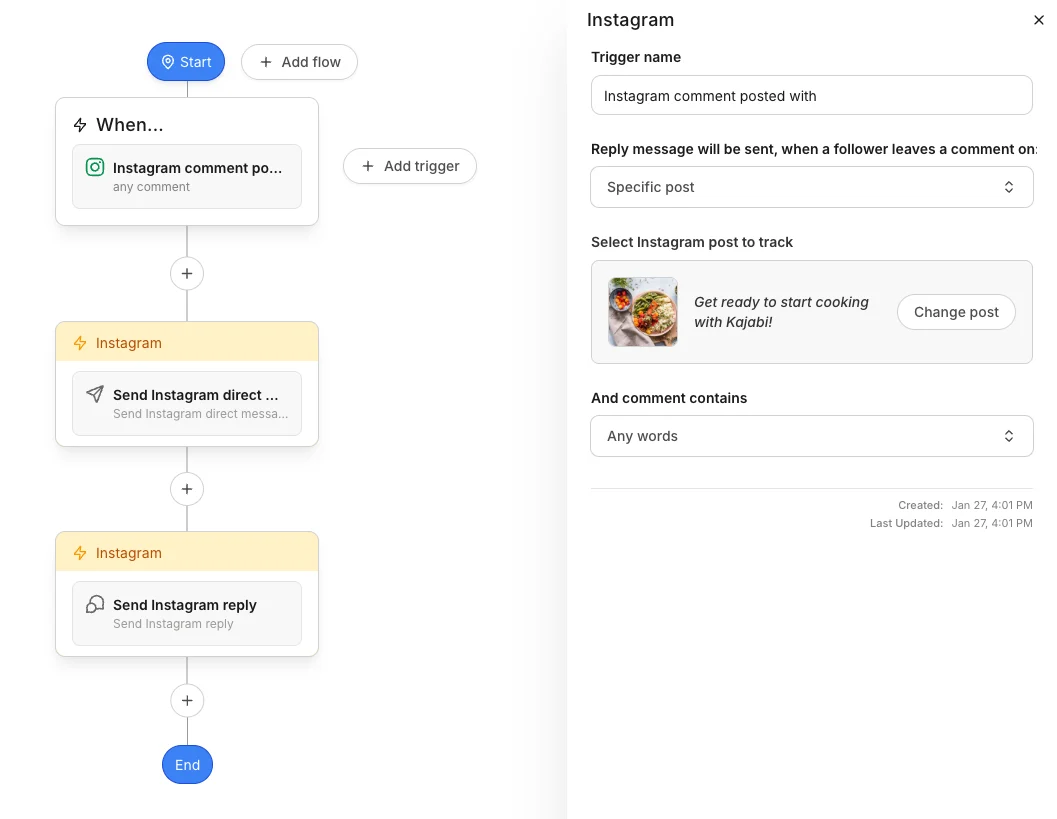
- Choose the Instagram Comment-to-Conversation blueprint.
- For the When trigger, select a specific Instagram post or choose Any post to apply the Automation to any future Instagram posts.
- Click Save Trigger.
- Customize the automated direct message that will be sent when the post receives a comment.
- (Optional) Customize an automatic Instagram reply to comments on the post.
- Click Save.
- From the Kajabi Dashboard, select Marketing > Automations
- Click +New Automation
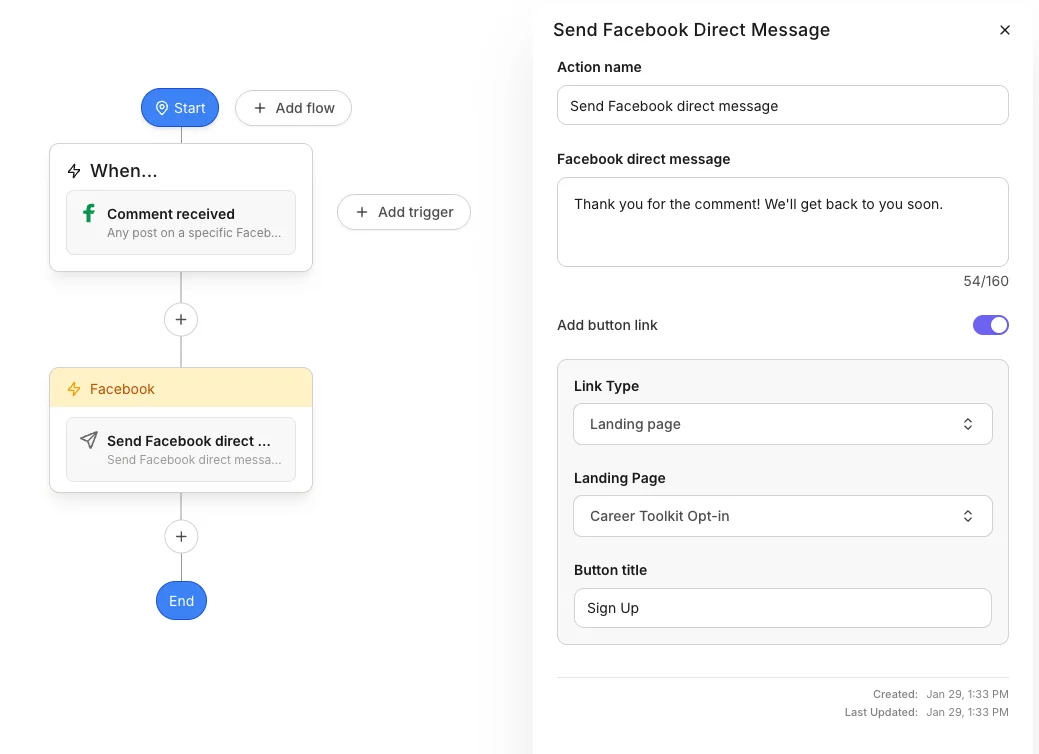
- Choose the Facebook Comment-to-Conversation blueprint
- For the When trigger, select a specific Facebook Page or choose Any page to apply the Automation to all your Facebook Pages
- For specific Facebook Pages, select a specific Facebook post or choose Any post to apply the Automation to any future posts on the selected Page
- Click Save Trigger
- Customize the automated direct message that will be sent when the page receives a comment
- (Optional) Customize an automatic Facebook reply to comments on the post
- Click Save\
Important: Facebook may temporarily block automated and manual comment replies when comment reply volume is high across posts (e.g., 250+ per day). If you expect high volume, consider skipping the comment reply action. Automated DMs are unaffected. Instagram comment replies are not subject to this limit.
Comments and keyword guidelines
| Setting | Description | Details / Examples |
|---|---|---|
| Any Comments | Triggers on every comment received | Use for general welcome messages or broad engagement |
| No Comments | Disables the trigger | Use to temporarily pause Automations |
| Specific Keywords | Triggers only when comments match your keyword rules | See keyword matching rules below |
| How keyword matching works | Keywords are matched as individual words, not exact phrases. Case does not matter (HELP = help = Help) | What works: Single words: help, pricing, info. Numbers: 112, 2024. Emojis: ❤️, 👍, 🔥. Mixed lists: help, pricing, ❤️, 112. Exact phrases: how much, discount code. What does not work: Phrases such as how much will match comments containing both “how” and “much” anywhere. Partial words: help will not match “helpful” |
| Include Keywords | Comment must contain at least one of these words | Example keywords:pricing, cost, price. Matches: “What’s the pricing?” Matches: “This costs too much” (contains “cost”) |
| Exclude Keywords | Comment must not contain any of these words | Example keywords:spam, fake, bot. Blocks: “This looks like spam” |
| Combined Rules | Both Include and Exclude rules must pass | Example: Include: help, support. Exclude: never, don't. Matches: “I need help”. Blocks: “I don’t need help” (contains “don’t”) |
FAQs
What happens if I have an existing Inbox Automation set up through Meta?
Both Automations will trigger. We recommend centralizing all your Automations in Kajabi or ensuring there are no overlapping triggers.Can I set up Comment-to-DM Automations on posts that are not yet live?
Yes. Once the post goes live and receives comments, the automated DMs will trigger.Are there post types where Automations are not supported?
Automations cannot be built from Facebook album posts because Meta does not support this capability.Create Contacts from Universal Inbox conversations
- Click Marketing > Universal Inbox from your Kajabi Dashboard
- Select the conversation with the person you want to make a Contact
- Click the i icon on the right
- Press +Add Details
- Add the email address for that Contact
- (Optional) Add any relevant Tags or notes
- Click Save to create the Contact
Disconnect an account
- Click Marketing > Universal Inbox from your Kajabi Dashboard
- Select the … drop-down menu
- Click Manage Integrations
- Press Disconnect for the integration you want to disconnect