

Beta:
This feature is currently in beta and is being tested by a select group of Kajabi users. The Beta testing for this feature has been paused and no new testers are being added at this time. We will update this in the future when we are ready to resume testing.
This feature is currently in beta and is being tested by a select group of Kajabi users. The Beta testing for this feature has been paused and no new testers are being added at this time. We will update this in the future when we are ready to resume testing.
Note: Currently, Kajabi SMS is only available in the U.S.
Create a Twilio Account
Estimated Time: 10–15 minutesSign Up for Twilio
- Visit Twilio’s sign-up page.
- Enter your name, email, and password.
- Verify your email address and phone number as prompted.
- Don’t forget to save your recovery code in case you lose your phone or don’t have access to a verification device.
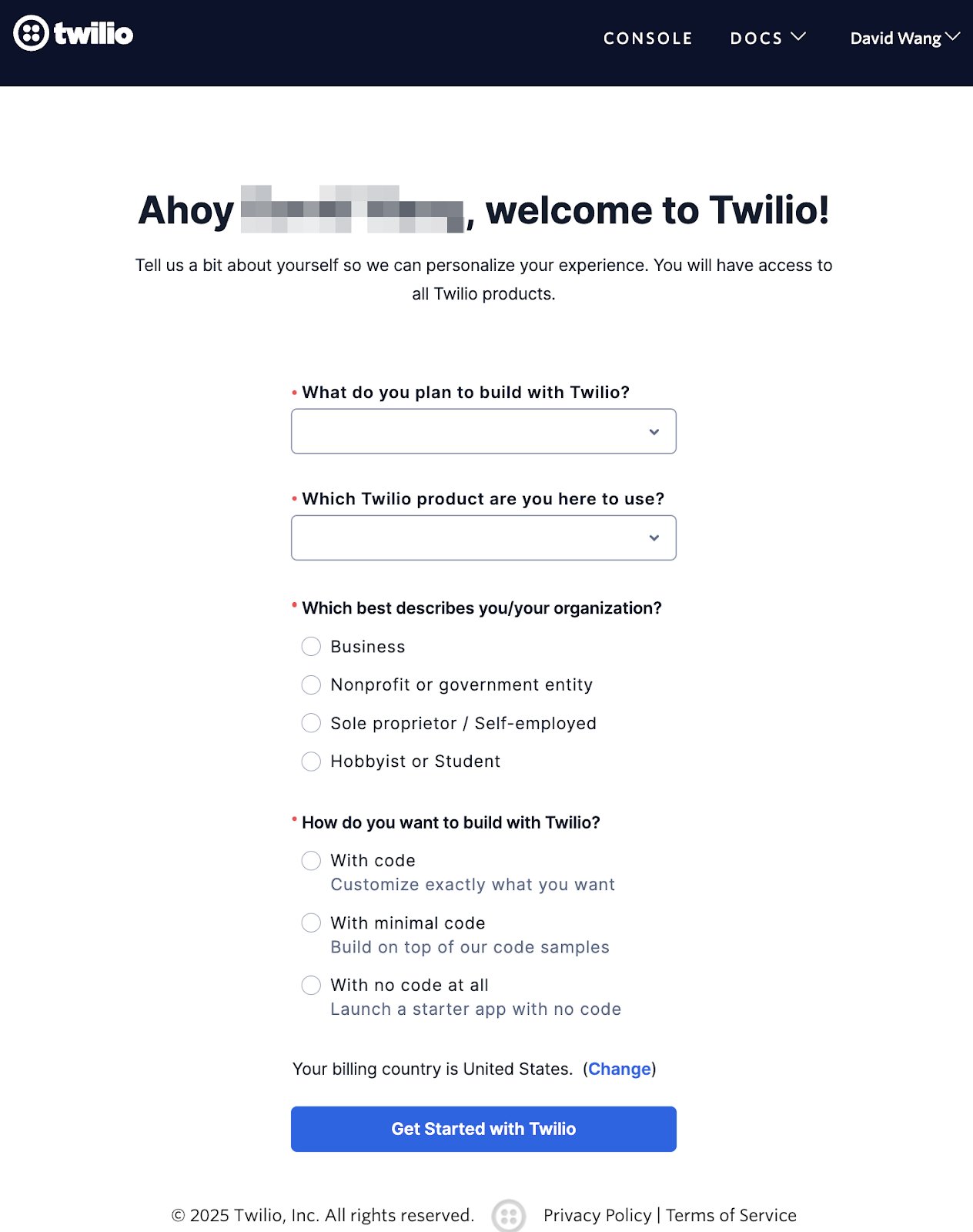
Upgrade to a paid account
When you first sign up for Twilio, you get a free trial — it’s great for testing, but it’s limited. To actually send texts to your real customers, you’ll need to upgrade to a paid account. When you upgrade, you’re asked to add $20 to your account. That’s not a charge — it’s like topping up your balance. That credit will go toward things like:- Your phone number (~$2.15/month)
- Each text you send (~$0.0075–$0.01 per message)
- Cover compliance steps like verification
- Twilio fees are constantly updated. See the latest prices here.
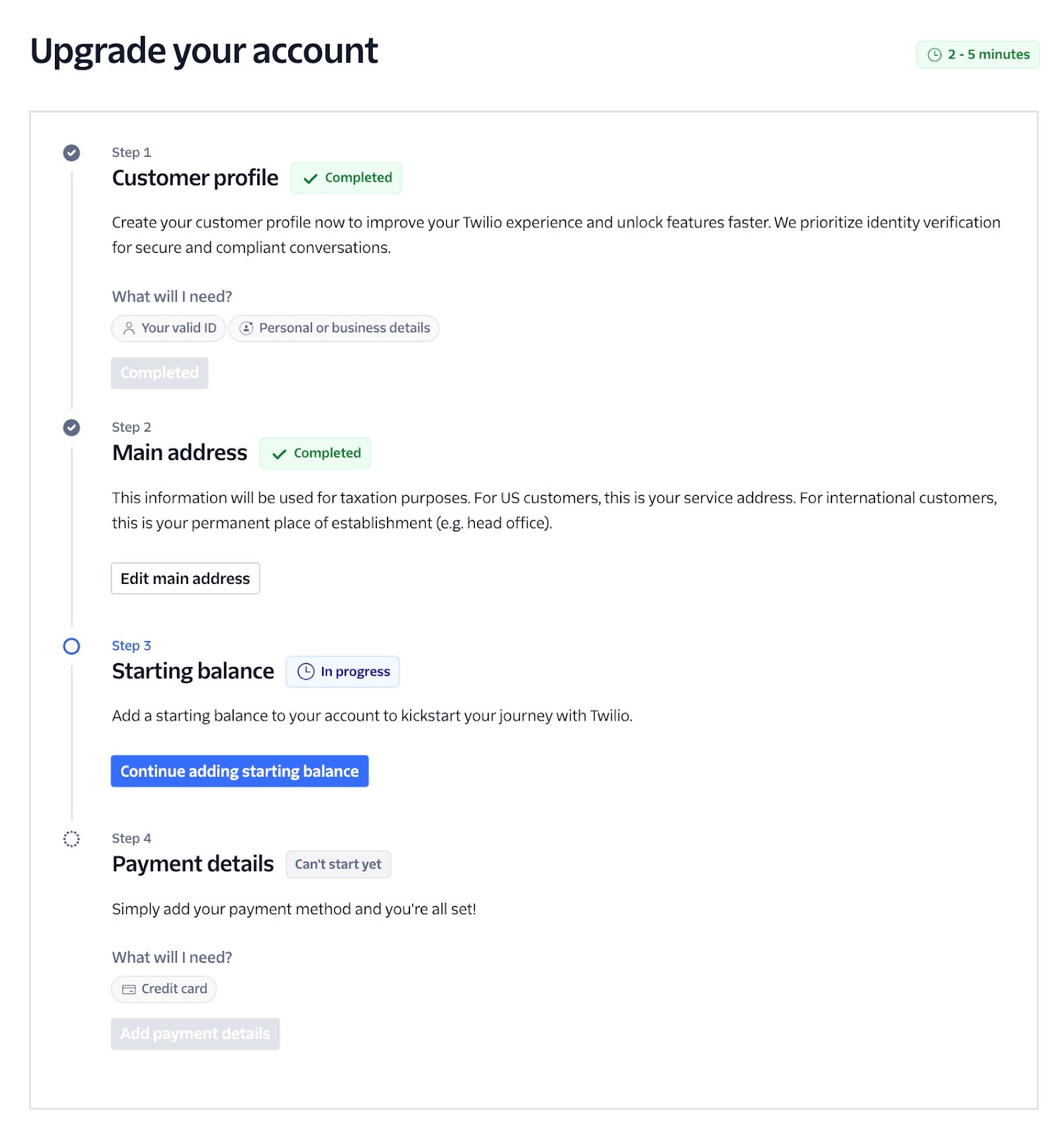
Upgrade Twilio
- Log in to the Twilio Console.
- Click Upgrade and follow the instructions to add billing information.
- You will need:
- Your valid ID
- Personal or business details
- Credit card
Purchase a Toll-Free Number
Estimated Time: 15–30 minutes to complete forms; approval times vary (see below) Once you have completed your Twilio account upgrade, you can register for a Toll-Free Number to send SMS.What is a Toll-Free Number? (And why it’s useful)
A toll-free number is a phone number that starts with 800, 888, 877, or similar. It lets your customers call or text you without being charged—you pay for the messages instead. It’s a common type of number used by businesses because it works across the U.S. and gives your brand a more professional, trustworthy feel. Toll-free numbers are especially useful if you’re just getting started with SMS. They’re easy to set up, don’t require as much paperwork as local numbers, and can handle a lot of messages. You can use one number for everything — sending updates, answering customer questions, or even letting people call you. Once verified (which takes about 5–14 days), your messages are more likely to get delivered without being flagged as spam.Step-by-Step: Register for a Toll-Free Number
- Access your Twilio Console
- Navigate to Phone Numbers:
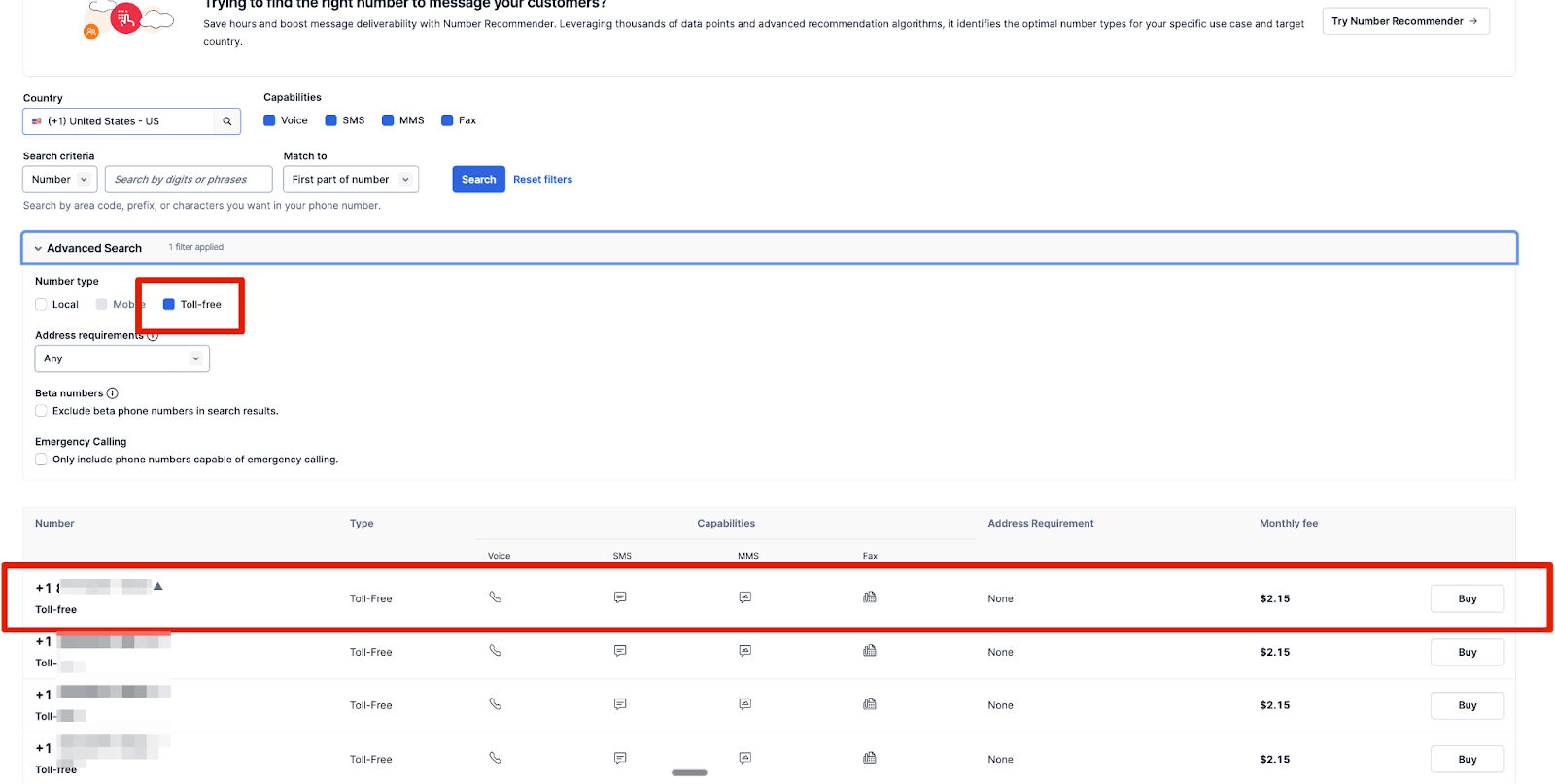
- Go to Phone Numbers > Manage Numbers > Buy a Number.
- Search for Toll-Free Numbers:
- Set the Country to (+1) United States - US
- In the Advanced Search filter, select Toll-Free
- Click Search to view available toll-free numbers:
- Select and Purchase:
- Choose a number that suits your business needs.
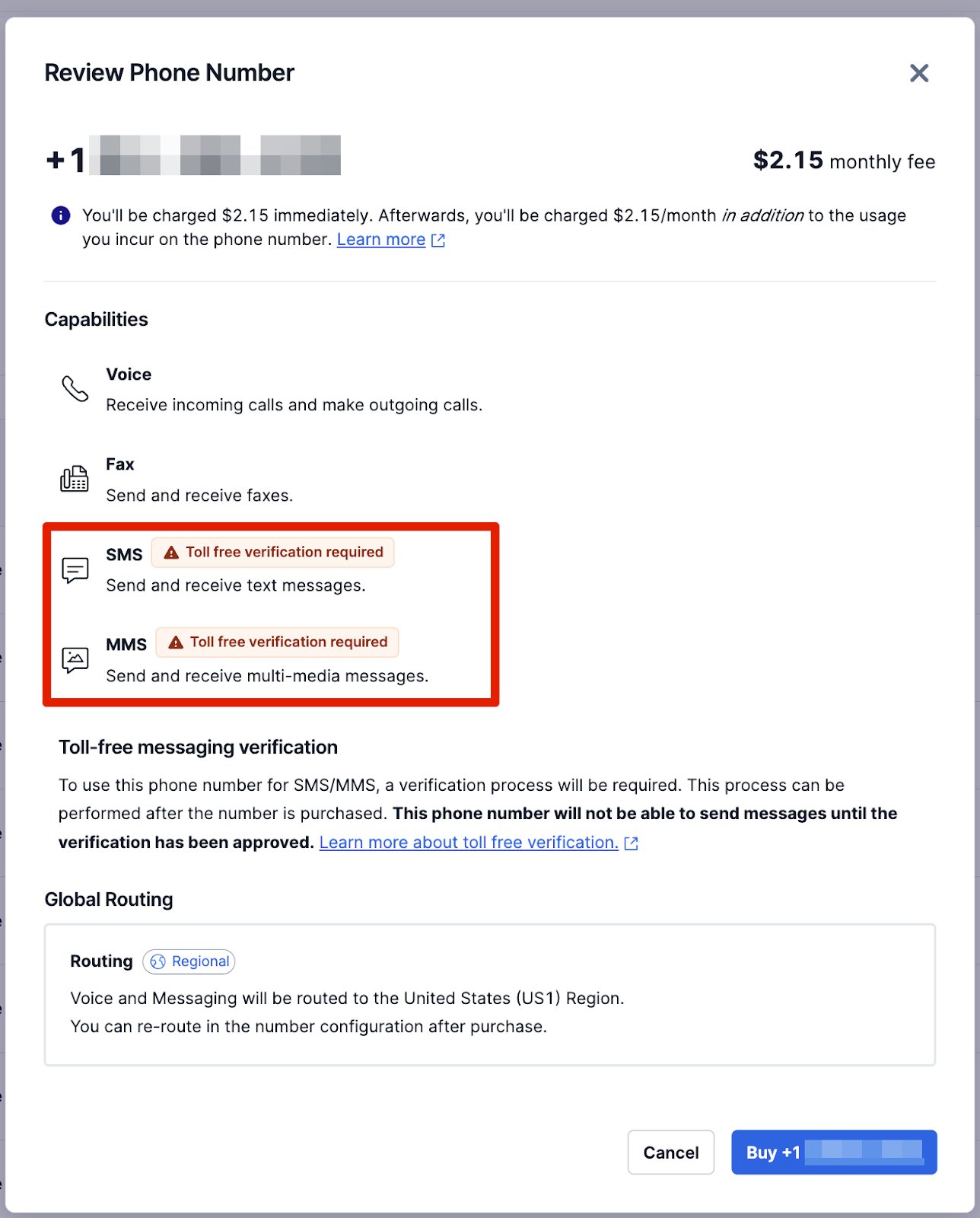
- Click Buy and confirm the purchase:
Submit Toll-Free verification
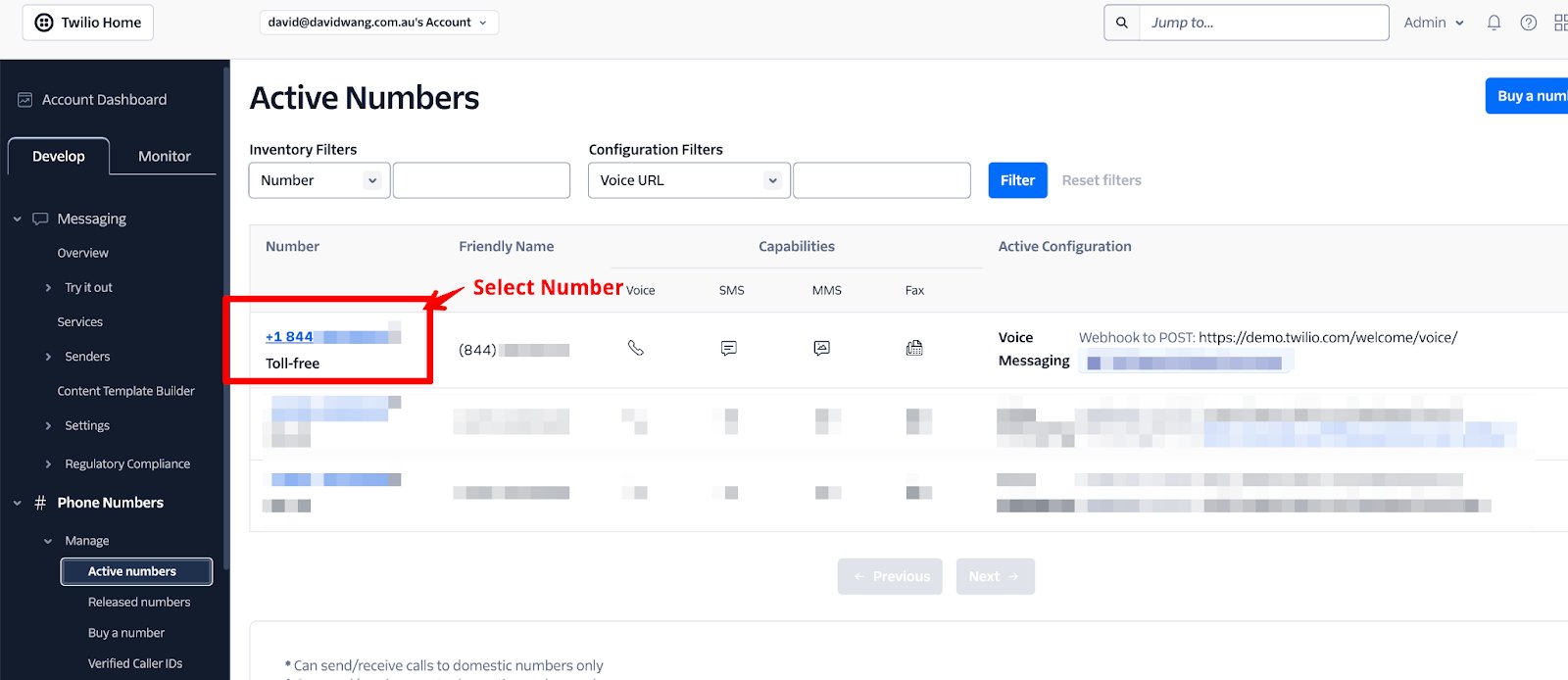
Verifying your toll-free number ensures reliable message delivery and compliance with carrier regulations. Access Active Numbers:- In the Twilio Console, navigate to Phone Numbers > Manage Numbers > Active Numbers.
- Select your Toll-Free Number:
- Click on the toll-free number you purchased.
- Initiate verification:
- Go to the Regulatory Information tab.
- Click on Verify this toll-free number.
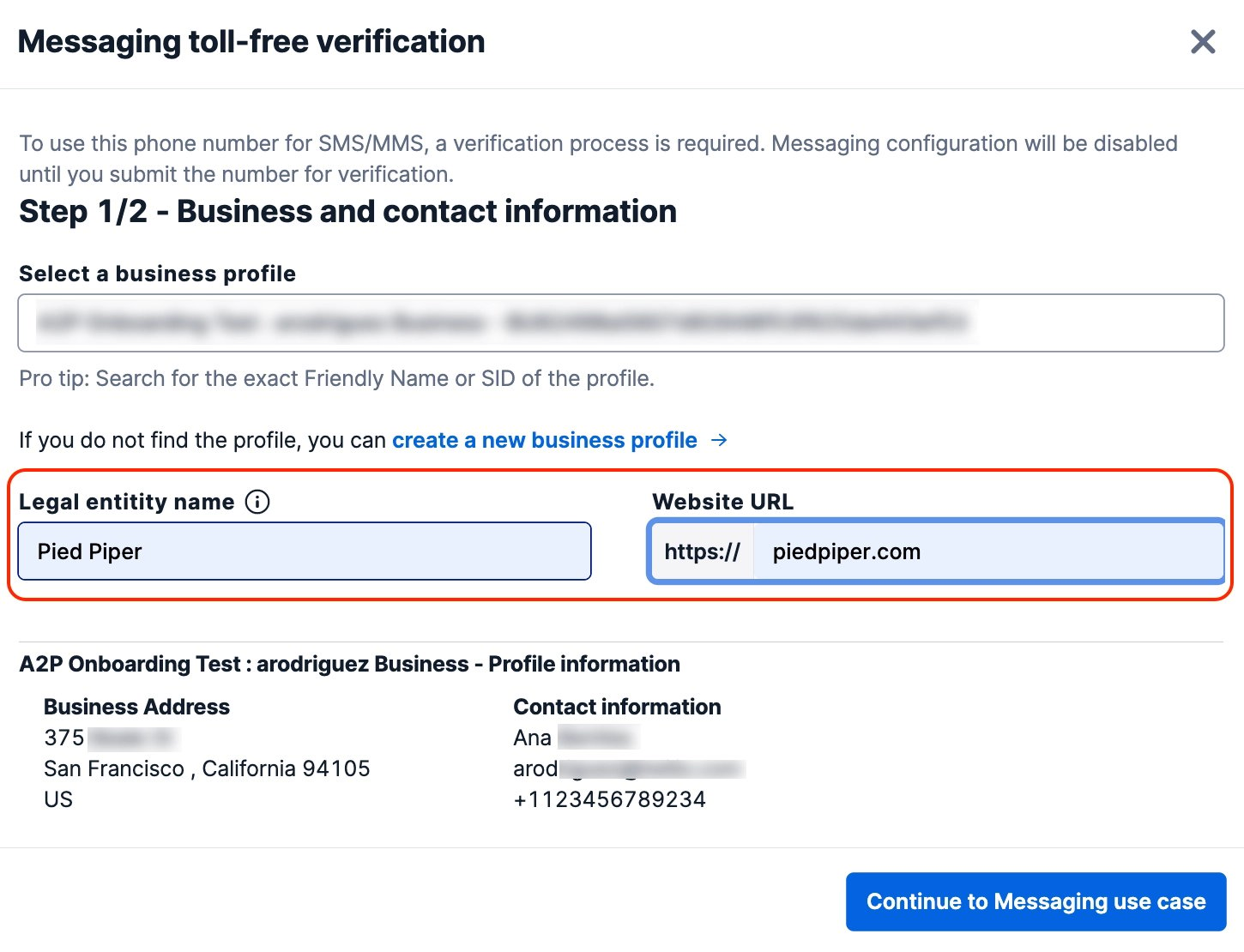
- Provide business information:
- If you have an existing Customer Profile, select it and confirm the details.
- If not, create a new profile by entering:
- Business Name and Address
- Contact Information
- Business Website
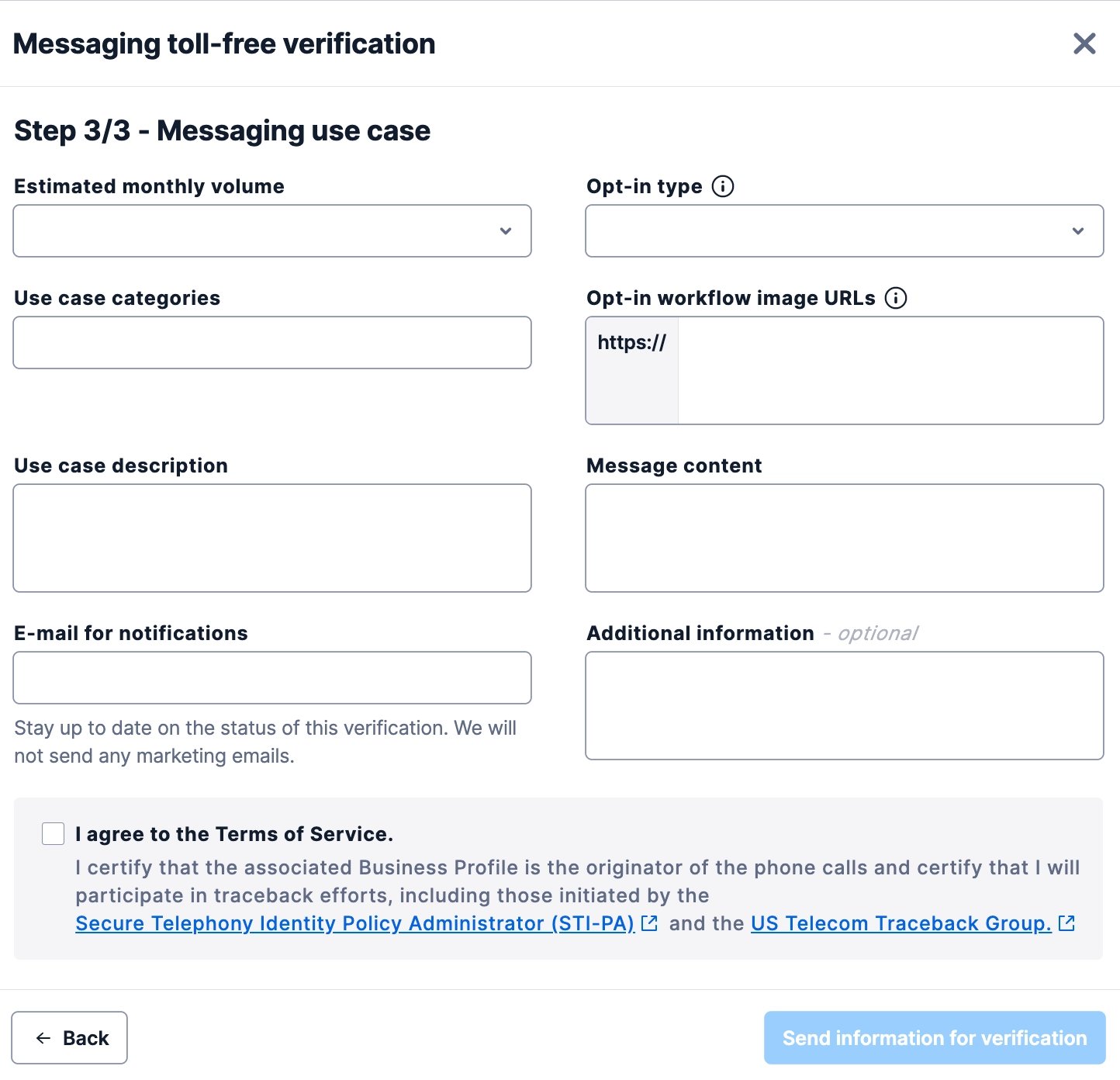
- Clearly outline the purpose of your messages (e.g., appointment reminders, promotional alerts).
- Provide sample messages that reflect your typical content.
- Detail how recipients consent to receive messages from your business.
- Example: We send SMS notifications to students who enroll in our online wellness courses. Messages include course reminders, motivational tips, and updates on new content.
Important: Explain the Opt-in Process in more detail
This part tells mobile carriers how your audience gives permission to receive your messages. It’s one of the most critical sections — campaigns are often rejected if unclear. To start, there are three things you need to do:- You need to create a compliant SMS consent form (read this guide here)
- You need to have a clear privacy policy and terms and conditions (read this guide here)
- You need to create a document to walk Twilio through the process (see below)
Note:
This is provided as an illustrative example. While it reflects best practices, campaign approvals are subject to Twilio’s review process, and we cannot guarantee specific outcomes.
This is provided as an illustrative example. While it reflects best practices, campaign approvals are subject to Twilio’s review process, and we cannot guarantee specific outcomes.
- Message Content Examples
- Provide sample messages that reflect the typical content you’ll be sending. This demonstrates the nature of your communications.
- Examples:
- Hi [First Name], welcome to Healthy Habits! Your first course module is now available. Keep going!
- Reminder: Your live coaching session starts in 1 hour. See you soon.
- We have a member-exclusive offer this Black Friday: 25% off for all courses at Healthy Habits. [Link]
- Opt-In Workflow Description
- Explain how users consent to receive SMS messages from you. This is crucial for compliance and ensures that your audience has agreed to your communications.
- Example: Users opt in by entering their phone number on our Kajabi course enrollment page and checking a box that states, “I agree to receive course updates and reminders via text message.”
- Additional information (optional):
- Opt-In Confirmation Message
- If you send a confirmation message after users opt in, provide its content. This reassures users of their subscription and provides opt-out information.
- Example: Thank you for subscribing to Healthy Habits course updates! You’ll receive reminders and tips via text. Reply STOP to unsubscribe.
- Message Frequency
- Indicate how often users can expect to receive messages from you. This sets clear expectations and helps prevent potential complaints.
- Example: Subscribers will receive up to 2 messages per week related to course content and updates.
- Opt-In Confirmation Message
- Review all information for accuracy.
- Submit the verification request.
Await verification approval
The verification process typically takes 3–5 business days. During this period:- Monitor your email for any communication from Twilio regarding your submission.
- Check the status in the Twilio Console under Phone Numbers > Manage Numbers > Active Numbers by selecting your toll-free number and viewing the Regulatory Information tab.
- You can go to Manage -> Active Numbers -> Select Your Number:
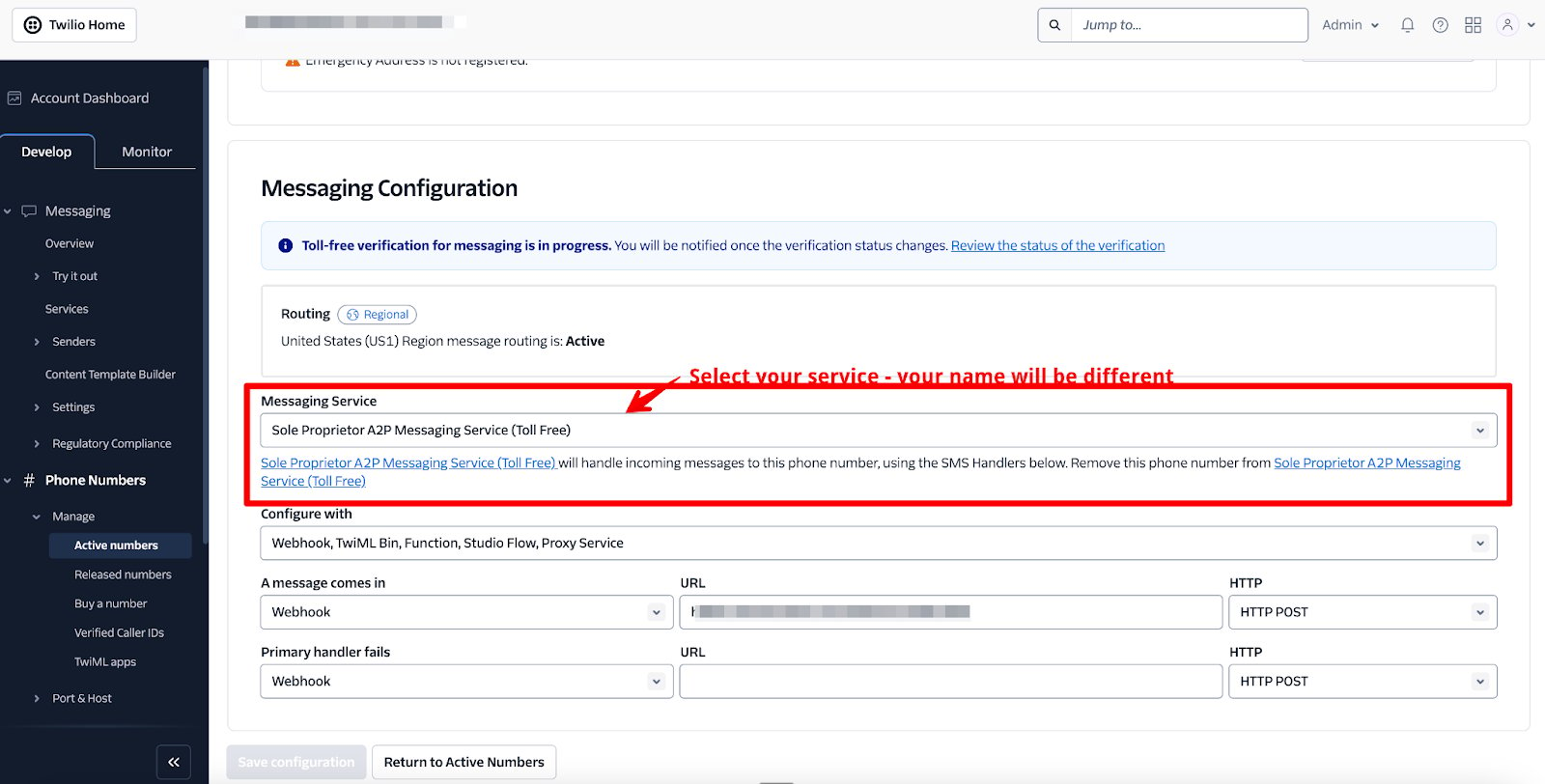
- Go to Configure:
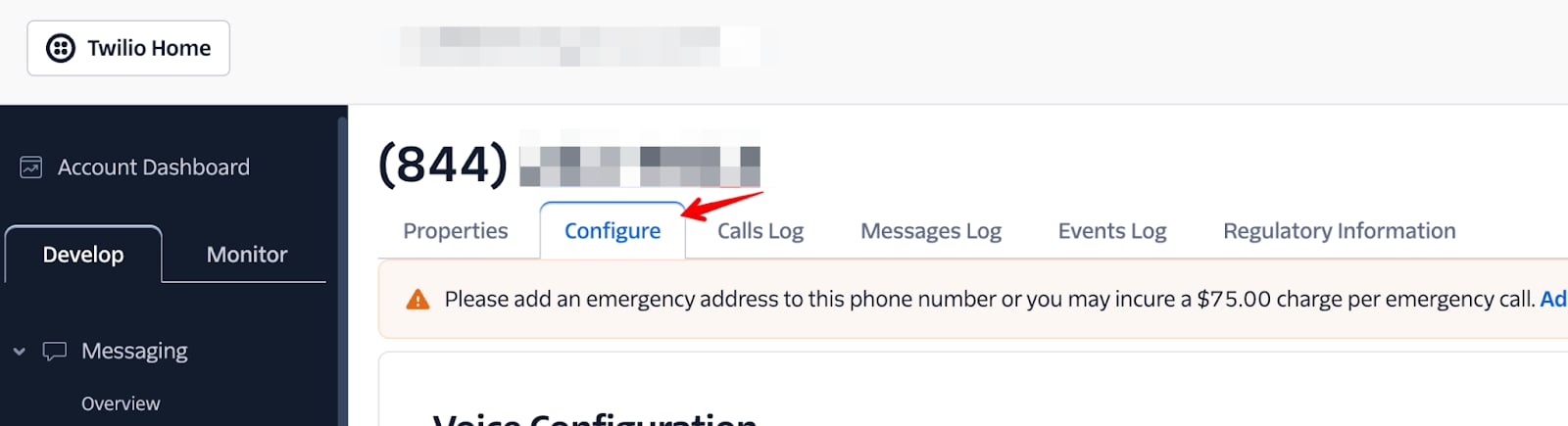
- Scroll down to the Messaging Service section and select the Messaging Service you want to associate with:
During the waiting period
- You cannot send SMS messages from your Twilio number using this campaign until it’s approved.
- However, you can still finish your Kajabi setup so you’re ready to go as soon as you’re approved. (See here to connect your Twilio Account with Kajabi SMS)