

Documentation Index
Fetch the complete documentation index at: https://help.kajabi.com/llms.txt
Use this file to discover all available pages before exploring further.
Overview
After connecting your custom website domain to Kajabi by choosing the “Connect domain to Kajabi” option and updating your domain nameservers, check to make sure that the DNS records for your webmail service have been imported to Kajabi.What happens after connecting a custom domain to Kajabi
Every website has a domain host that manages the DNS (Domain Name System) records on the backend of the site. Examples of domain hosting providers include GoDaddy, Bluehost, and Cloudflare. When you change your nameservers to point your website domain to Kajabi, Kajabi becomes the new DNS authority for your site. This means that any time you need to update your DNS records, you’ll do so directly in your Kajabi DNS Settings. If you have a webmail service connected to your custom website domain, Kajabi will need to know the DNS records associated with your webmail in order to keep it up and running. Common examples of webmail providers include Google Workspace and Office 365. Learn how to manage your DNS settings in Kajabi here. After you follow the steps to connect your custom domain to Kajabi, your DNS records (including any webmail records) should automatically import as part of the connection process. However, in some cases this import can fail. We strongly recommend that you screenshot all of your original DNS records prior to changing nameservers in case you need to manually add them later.Test the domain connection
Follow these steps to check if the DNS records for your webmail are imported correctly.Step 1. Wait for a connection confirmation
After connecting your website domain to Kajabi, you’ll receive an email confirmation that the connection process has completed. If you don’t see this email within about 24 hours, check your Kajabi Domain Settings to see if your domain is connected: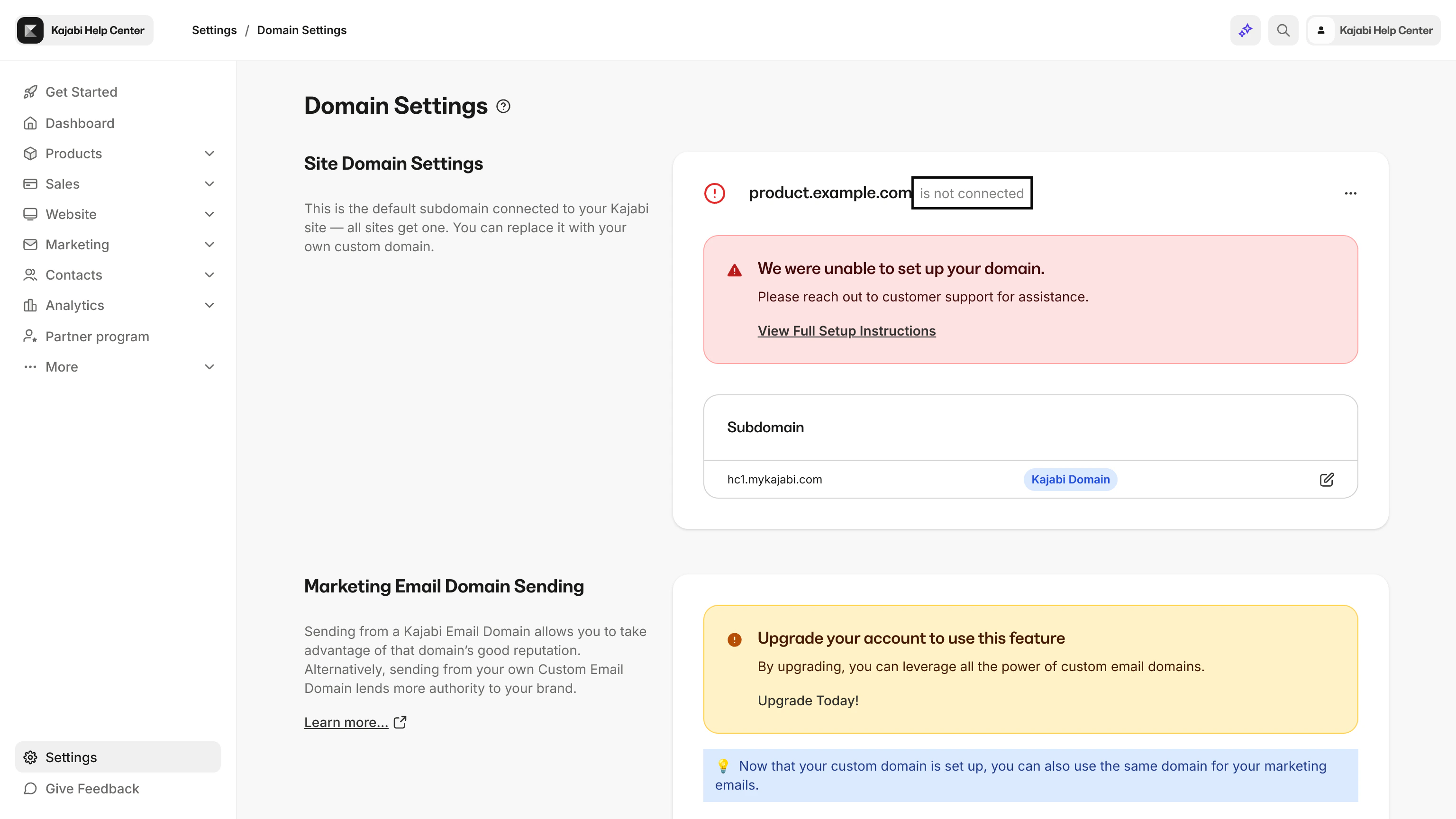
Step 2. Check your Kajabi DNS settings
Once you’ve received confirmation that your domain is connected to Kajabi, check your Kajabi DNS Settings for webmail MX records:- Open the Settings tab at the lower left of your Kajabi Dashboard.
- In your Site Settings, select Domain.
- Click the DNS Settings link at the top left of your Domain Settings page.
- Navigate to the MX Record section of your Advanced Settings: