

Universal links (also known as deep links) allow a Branded App to automatically open and navigate to the correct screen when a user taps a link from email, text messages, other apps, or a mobile web browser. Kajabi’s Branded App fully supports universal links for a wide range of Community, Course, and Product experiences. The following sections describe which deep links are supported and how to enable Associated Domains to ensure the app can use Universal Links.Documentation Index
Fetch the complete documentation index at: https://help.kajabi.com/llms.txt
Use this file to discover all available pages before exploring further.
What types of deep links are supported?
Community links
Posts & Discussions- Direct links to individual community posts
- Links to posts within a specific channel
- Links to channel/circle pages
- Community home page
- Meetups and events
- Individual meetup pages
- Resources
- Live events
- Leaderboards
- Challenges
- Community mention notifications
- Reply notifications
- Direct message notifications
Course & product links
Universal links are supported for:- Direct links to specific courses or products in the user’s library
- Direct links to individual lessons within a course
Where universal links work
Universal links work across the following surfaces:- Email clients (Gmail, Apple Mail, Outlook, etc.)
- SMS/text messages
- Other apps that render clickable URLs
- Safari and Chrome mobile browsers
- Push notifications (when the link is included in the payload)
Enable universal links for an iOS Branded App
Open Apple Developer identifiers
- Log in to the Apple Developer account
- Visit: https://developer.apple.com/account/resources/identifiers/list
- You’ll see a list of all app identifiers
Select the app
- Click the Identifiers tab
- Select the app from the list to open its capability settings
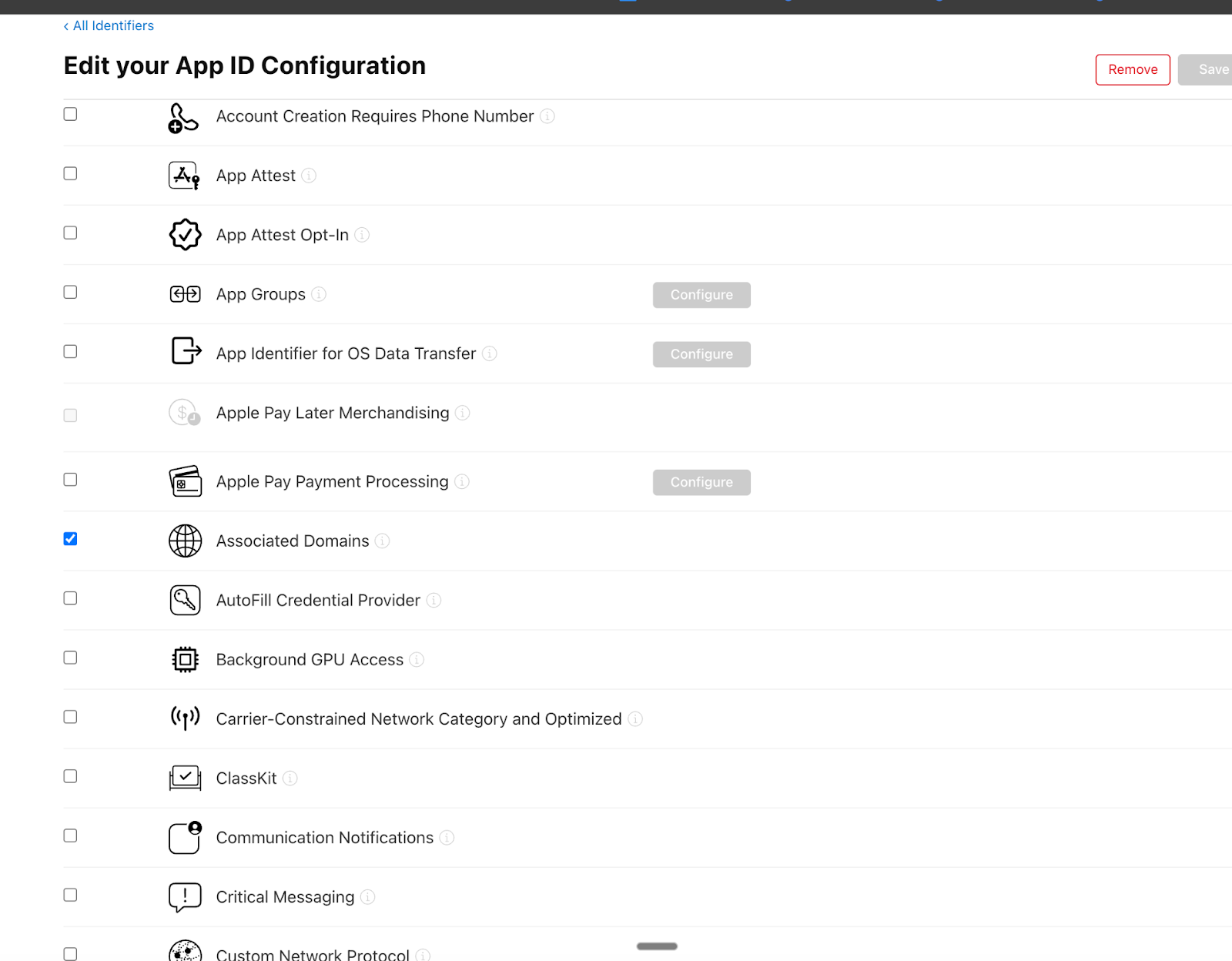
Enable Associated Domains
- Scroll through the list of capabilities
- Locate Associated Domains
- Toggle it on
- Click Save to apply the changes
Update Kajabi Branded App settings
- Return to the Kajabi dashboard
- Go to Settings > Branded App Settings
- Click Revisit Apple, then navigate to the App ID section
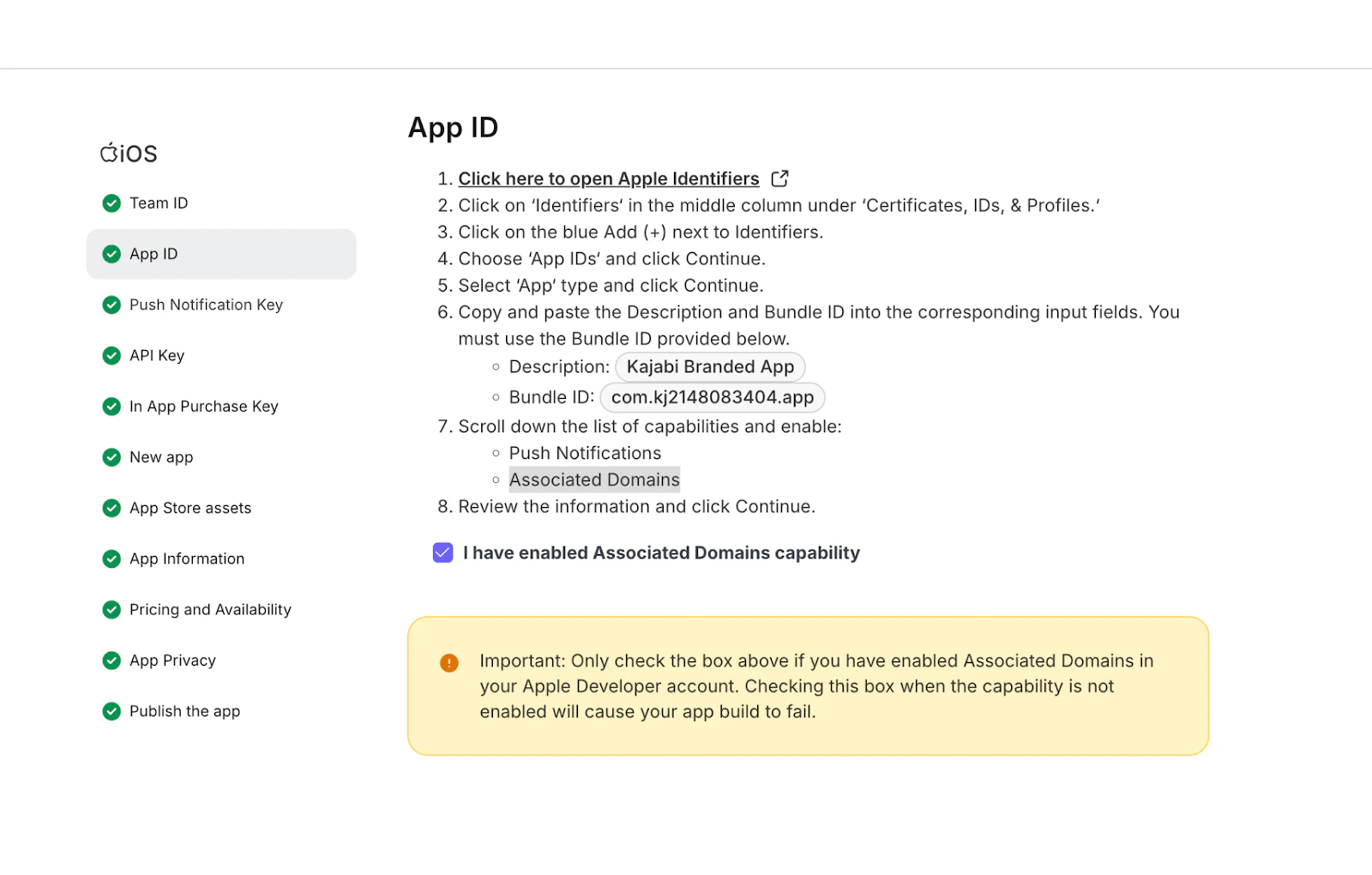
Confirm the capability is enabled
- Check the box confirming you have enabled the Associated Domains capability in Apple
- Click Continue and save the changes throughout the flow