

System status and incident history
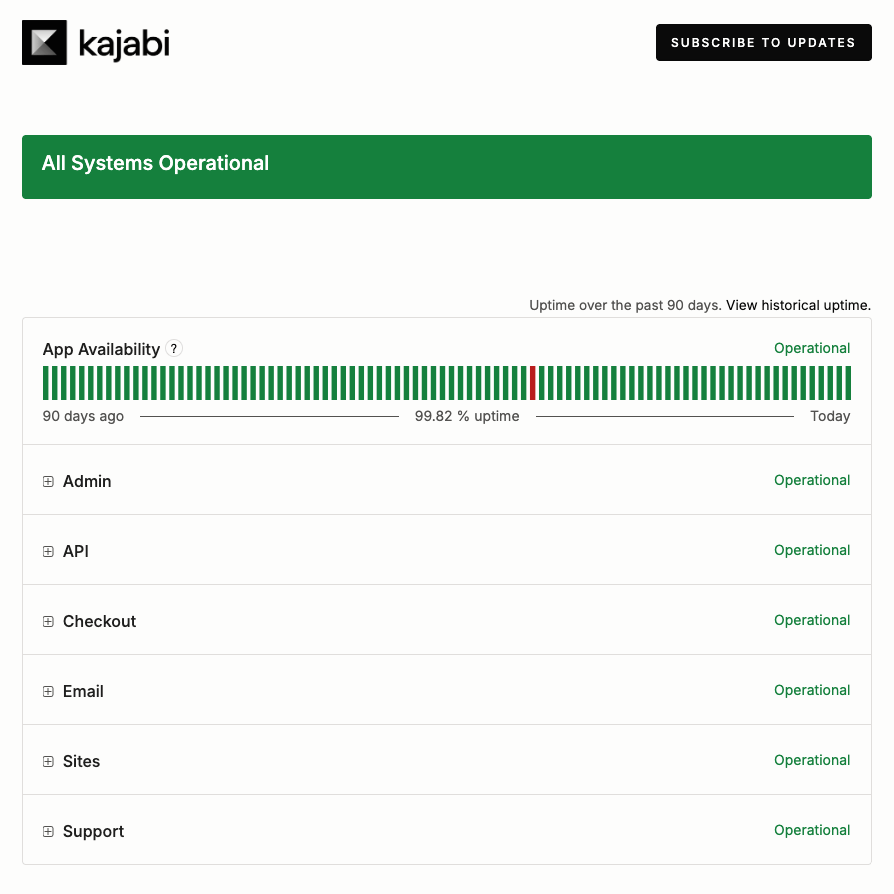
The top of the Status Page shows the current status of the platform as a whole, followed by the uptime recorded over the past 90 days. Click View historical uptime to see uptime beyond that window.Components
Status is reported for each part of the platform and its sub-components:- App Availability — The general uptime of Kajabi, including the admin panel and access to product sites.
- Admin — Coupons
- API — Inbound Webhooks from external services used for granting Offers.
- Checkout — Offer Checkout, both multi-step and seamless Checkout and forms, Affiliate tracking, Upsells, Order bump, Coupon, and Webhooks
- Email — Automated Site Emails (Email Templates and delivery of automated messages), Custom Email Domain Setup (CEDS), Marketing Email Editing and Scheduling (Creating and editing of Email Broadcasts, Email Sequences, or Event Emails)
- Sites — Page rendering of customer sites and rich email content
- Support — Kajabi Signups
Status indicators
Every component reports one of five states:- Operational — The component is working as expected with no known issues.
- Degraded Performance — The component is functioning, but is slower or less reliable than normal.
- Partial Outage — A subset of the component is broken, whether that involves functionality, regions, or some percentage of accounts.
- Major Outage — The component is fully down for everyone.
- Maintenance — Planned, scheduled work is taking place for the component.
Past Incidents
The Past Incidents section lists recent days and anything reported on them. Kajabi posts progressive updates inside an incident, and each update is labeled with its stage:- Investigating — The issue has been reported and Kajabi is looking into it
- Identified — The cause is known and a fix is underway
- Monitoring — A fix has been applied and Kajabi is watching for stability
- Resolved — The incident is closed
Status Page notification channels
To open the subscription options, go to the Kajabi Status Page at status.kajabi.com and click Subscribe to Updates. Each channel covers a different set of events, so pick the one that matches how closely you need to follow an incident.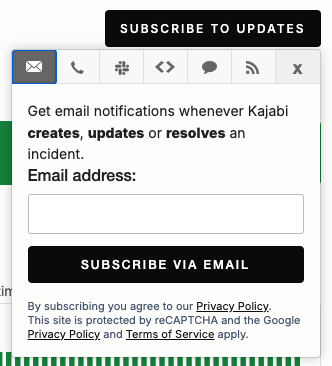
Subscribe by email
Email notifications are sent whenever Kajabi creates, updates, or resolves an incident.- Select the email icon.
- Enter your Email address.
- Enter the one-time passcode sent to that address to confirm your subscription.
Note: A short countdown runs before a replacement code can be sent. If the passcode does not arrive, wait for the countdown to finish and then click Resend OTP.
Subscribe by text message
Text message notifications are sent whenever Kajabi creates or resolves an incident. This is the narrowest option, since it skips the interim updates posted while an incident is being worked on.- Select the text message icon.
- Choose your Country code.
- Enter your Phone number.
- Enter the one-time passcode sent to that number to confirm your subscription.
Subscribe in Slack
Slack delivers incident updates and maintenance status messages into a channel in your workspace.- Select the Slack icon.
- Click Subscribe via Slack.
- Complete the authorization in Slack.
Subscribe by webhook
Webhook notifications are sent whenever Kajabi creates, updates, or resolves an incident, or changes a component status. Use this option to feed status events into your own monitoring or alerting tools.- Select the webhook icon.
- Enter the Webhook URL the notifications should be sent to.
- Enter an Email address. Kajabi emails this address if your endpoint fails.