

Grant access to one or more Offers for multiple users that belong to the same company by creating an Offer, importing a CSV file of contacts, and granting the Offer to all contacts on the imported list.Documentation Index
Fetch the complete documentation index at: https://help.kajabi.com/llms.txt
Use this file to discover all available pages before exploring further.
Create an Offer or duplicate an existing Offer
Learn how to create a new Offer or duplicate an existing one.Import CSV file
Once you have created the Offer, ask the company for a CSV file that contains the Names and Email Addresses of the people who will be granted access to the course, and any Tags or Notes.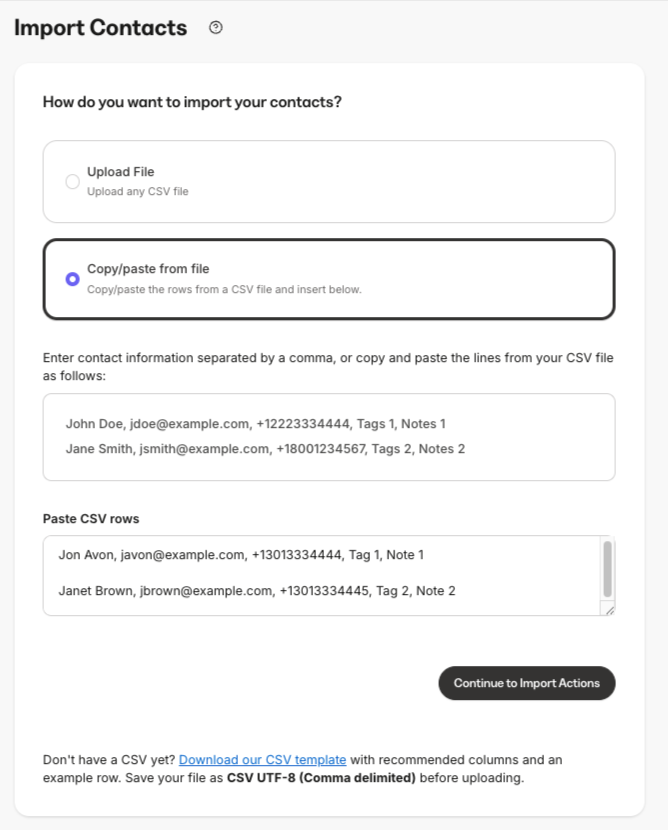
Import CSV File
- Open the Contacts tab from the Dashboard.
- Click +Add contacts, then Import CSV
- Select your preferred importing method, Upload file or Copy/paste from file.
- Click Continue to Import Actions
- Follow the on-screen instructions to properly Map columns.
Grant the company list the Offer
After importing the CSV file, proceed to grant them the Offer.- Click Continue to Import Actions.
- Select how you otherwise want to import your contacts, including Subscribe to marketing emails, Subscribe to newsletters, or Add tags.
- Then, select Grant offers.
- Select the newly created Offer and/or any other Offers as desired from the dropdown.
- Select any additional actions.
- Click Continue to Summary.
- Confirm the Import Summary and click Confirm Import.
Note: If any of the contacts included with the company list are existing site customers, they will receive the Offer Grant Confirmation email sent by your site.
All customers imported onto your site with a granted Offer will receive the Offer Grant Confirmation email (if they are subscribed to receive your marketing emails) along with the Member Welcome Email.
All customers imported onto your site with a granted Offer will receive the Offer Grant Confirmation email (if they are subscribed to receive your marketing emails) along with the Member Welcome Email.
Check: The Offer Grant Email is categorized as a bulk email. If your customers have unsubscribed from similar Offer Grant Emails from you in the past, they may not receive it.If you need additional assistance sending this to your customers, reach out to our support team.