Note: MFA is only available for Kajabi account owners or users. It’s not currently available for customers of websites powered by Kajabi.
Share account access by adding account users
Kajabi allows you to securely collaborate with others by adding them as Account Users. This means that your team members can have individual logins, eliminating the need to share your credentials or MFA codes. By assigning each user a unique login, access to your account is streamlined and secure, reducing the risk of any login complications.Set up two-factor authentication (2FA)
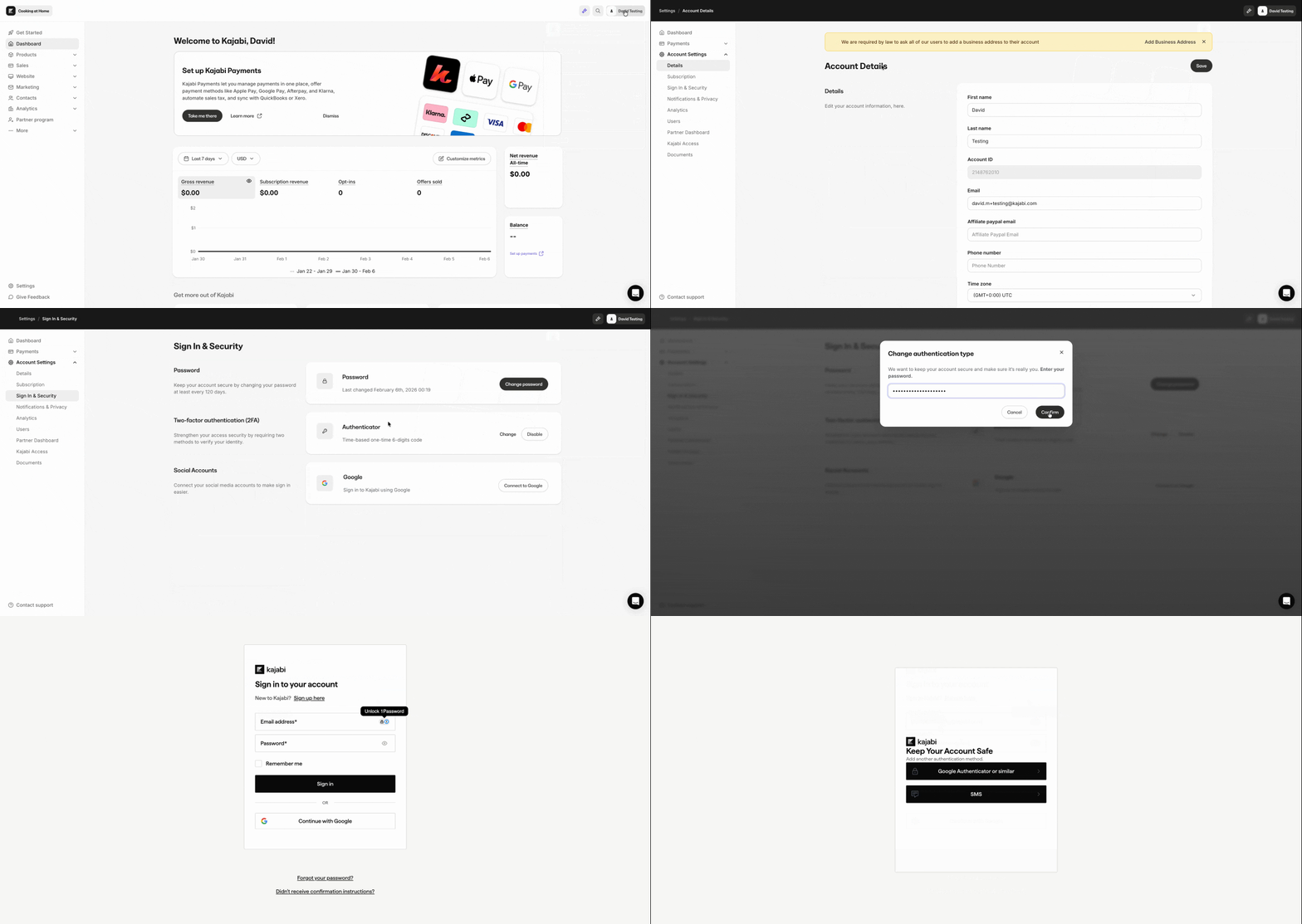
- From the Dashboard, click your Name in the top-right corner.
- Click Account settings.
- Click Sign In & Security in the left sidebar.
- In the two-factor authentication section, click Set up 2FA.
- Click Log out and continue.
- Sign in to Kajabi.
- Choose one of the following authentication methods and follow the steps listed in the sections below:
- Google Authenticator or similar authentication apps
- SMS
Add Kajabi to an authenticator app
Google Authenticator or similar authentication apps
- If you do not have an authenticator app on your mobile device already, download one. Here are some free options:
- To add Kajabi to your authenticator app, scan the QR code.
- Alternatively, you can click Trouble Scanning? to get a code that you can enter manually into the app.
- Enter the one-time code from your authenticator app and click Continue.
- Store your recovery code somewhere safe. You will need this code to log in if you lose access to your authenticator app.
SMS authentication
Note: SMS is not available in all countries.
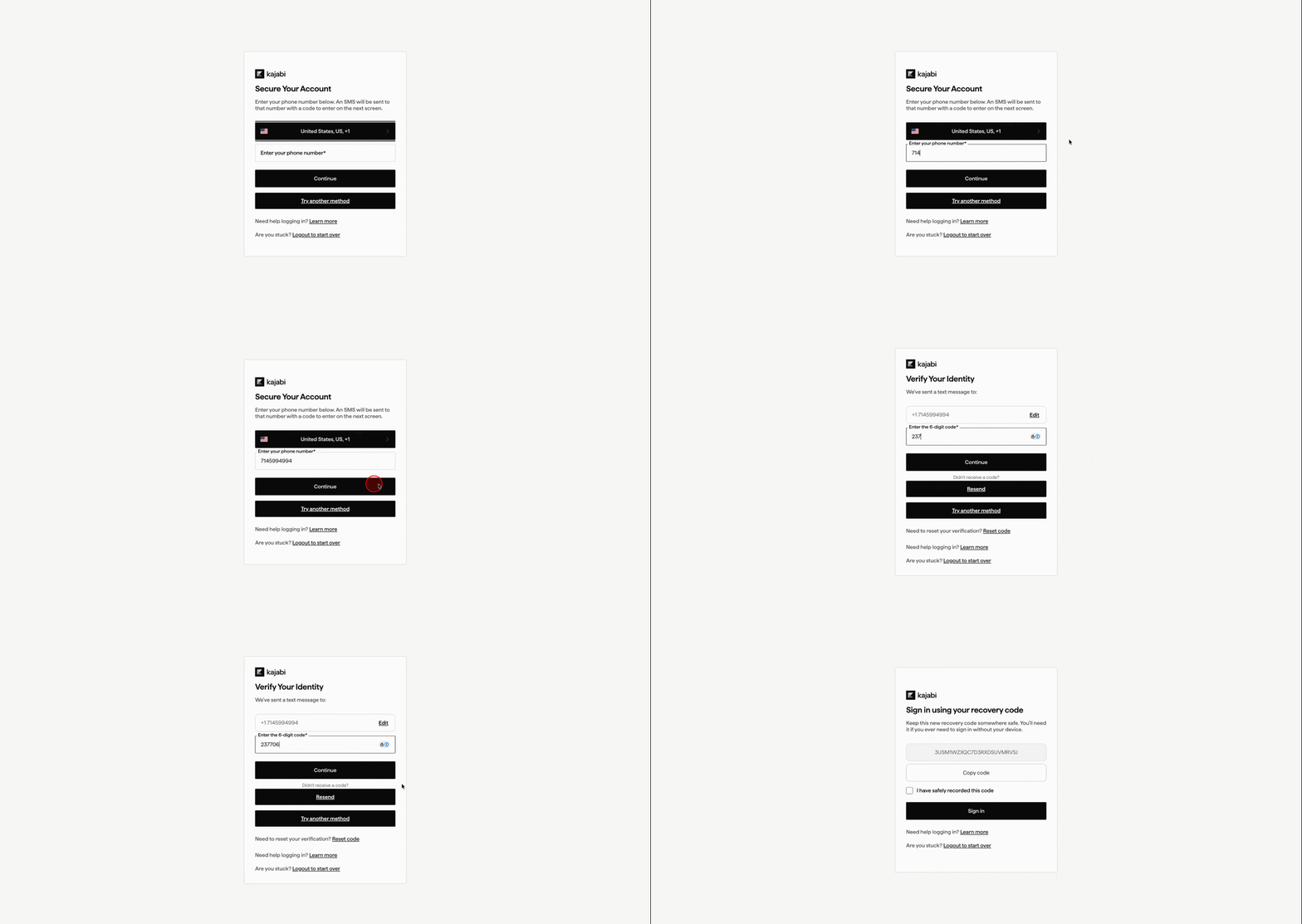
- If necessary, select the Country related to your phone number.
- Enter your Phone Number (without the country code) and click Continue.
- An SMS will be sent to your phone number. Enter the 6-digit code and click Continue.
- If you don’t receive the code, confirm your phone number is correct and click Resend.
- A recovery code will display. Store this code somewhere safe. You will need this code to log in if you ever lose access to your authenticator app. After storing this code, check the box I have safely recorded this code and click Sign in.
Note: If you enter an incorrect phone number multiple times, you must wait at least 10 minutes before trying again.
Troubleshoot 2FA code not received
If you are not receiving your 2FA verification code, try the following: SMS code not received:- Confirm your phone number is entered correctly, including the correct country.
- Check that your phone has signal or a data connection.
- Check if your carrier is blocking automated SMS messages.
- Wait at least 10 minutes before requesting a new code if you have entered an incorrect number multiple times.
- Click Resend on the 2FA screen to request a new code.
- Make sure the time on your mobile device is set to automatic. Authenticator apps rely on accurate device time to generate valid codes.
- Delete and re-add your Kajabi account in the authenticator app if the codes continue to fail.
- Use your recovery code to sign in. Learn how to use a recovery code.
- If you do not have your recovery code, contact Kajabi Support for account recovery assistance.
Disable 2FA
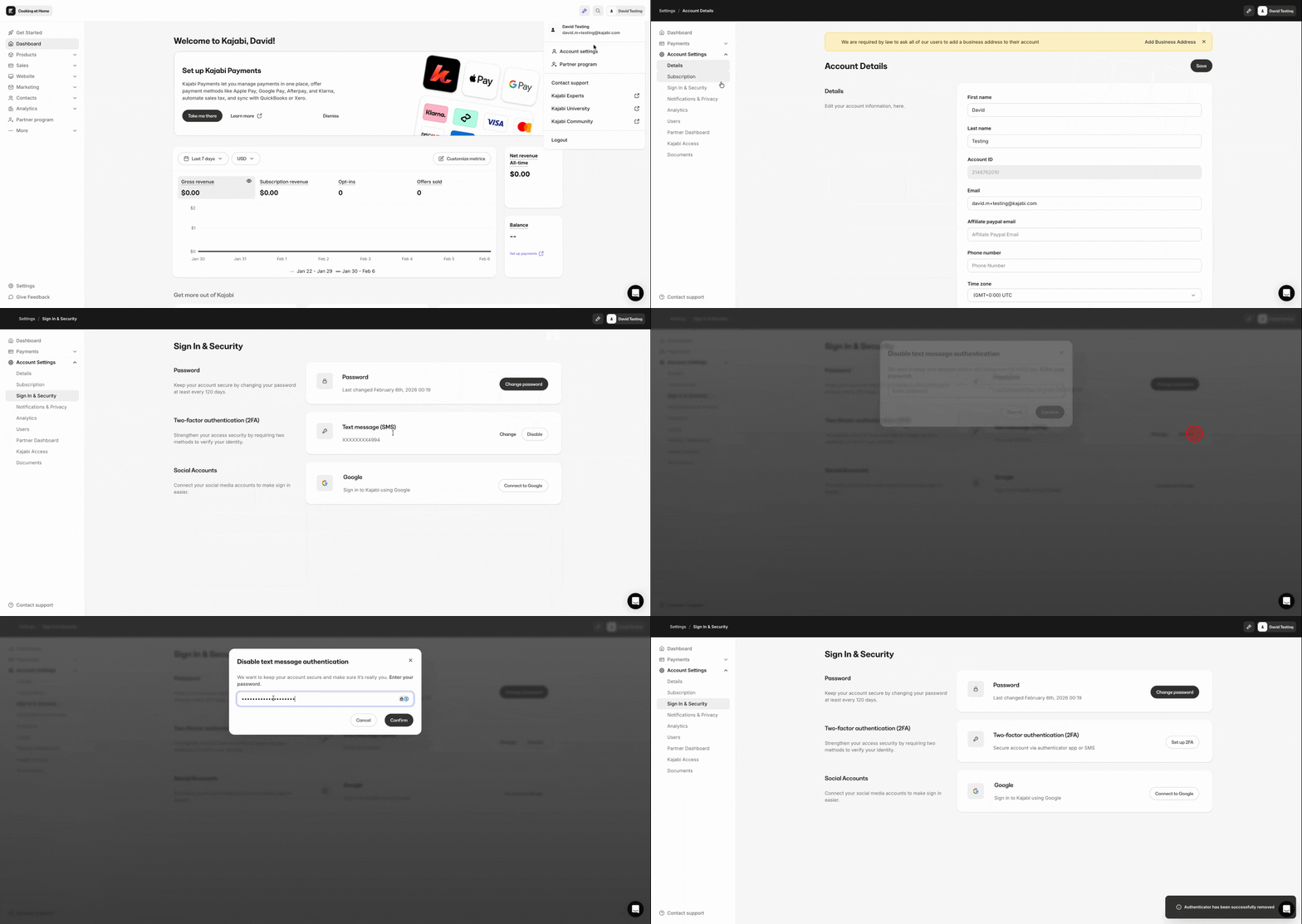
- From the Dashboard, click your Name in the top-right corner.
- Click Account settings.
- Click Sign In & Security in the left sidebar.
- In the two-factor authentication section, click Disable.
- Enter your Kajabi password and click Confirm.
Note: Depending on your account settings, you may not be able to disable 2FA.
Access, reset, or change a 2FA method
Use a recovery code
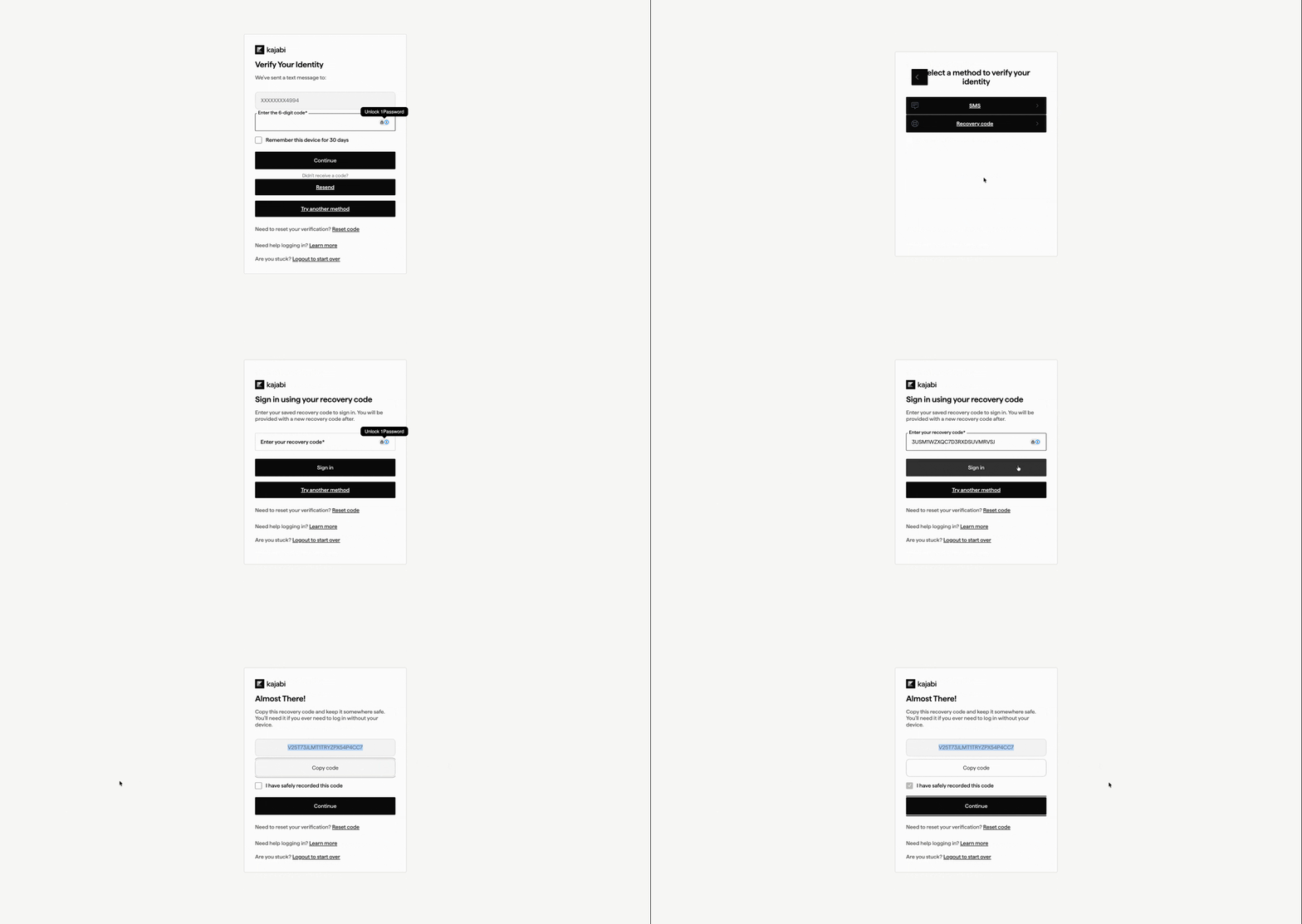
When you set up 2FA, you will be shown a recovery code. If you lose access to your authenticator app or phone number later, you can use this recovery code to sign in.- Sign in to Kajabi.
- When asked for your 2FA code, click Try another method (this also may be worded as Use recovery code).
- Click Recovery code.
- Enter your recovery code and click Sign in.
- A new recovery code will display. Store this code somewhere safe. You can use this code to log in to your account if you lose access to an authentication method. After storing this code, check the box “I have safely recorded this code” and click Continue.
How to reset 2FA
- On the login page, enter your email and password. Then, click Sign in.
- Under the “Try another method” button, click Reset code.
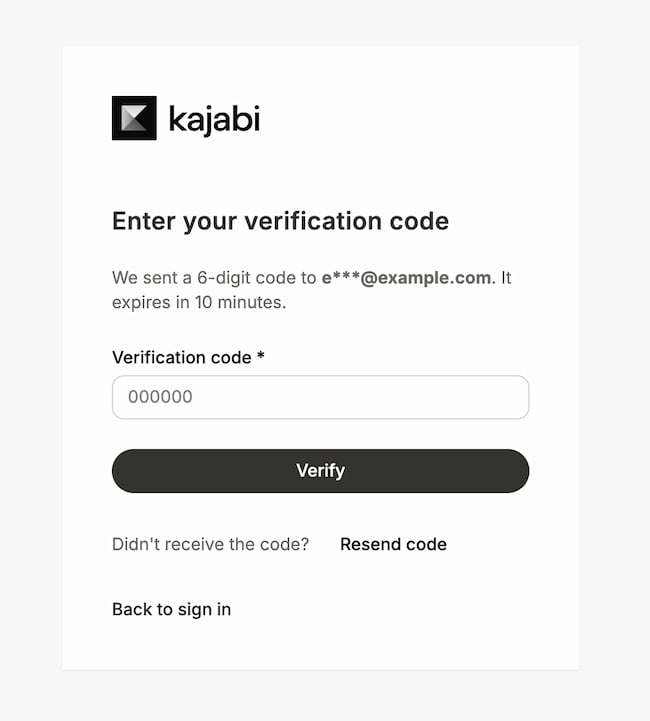
- A 6-digit code will be sent to your email. This code expires in 10 minutes. Enter the code and click Verify. If necessary, you can click Resend code. [SEE SCREENSHOT]
- Email subject: Your Kajabi verification code
- Email sender: support@m.kajabimail.net
- After entering the verification code correctly, you’ll be brought to the login page. Enter your email and password. Then, click Sign in.
- You can now choose a new 2FA method.
Change your 2FA method
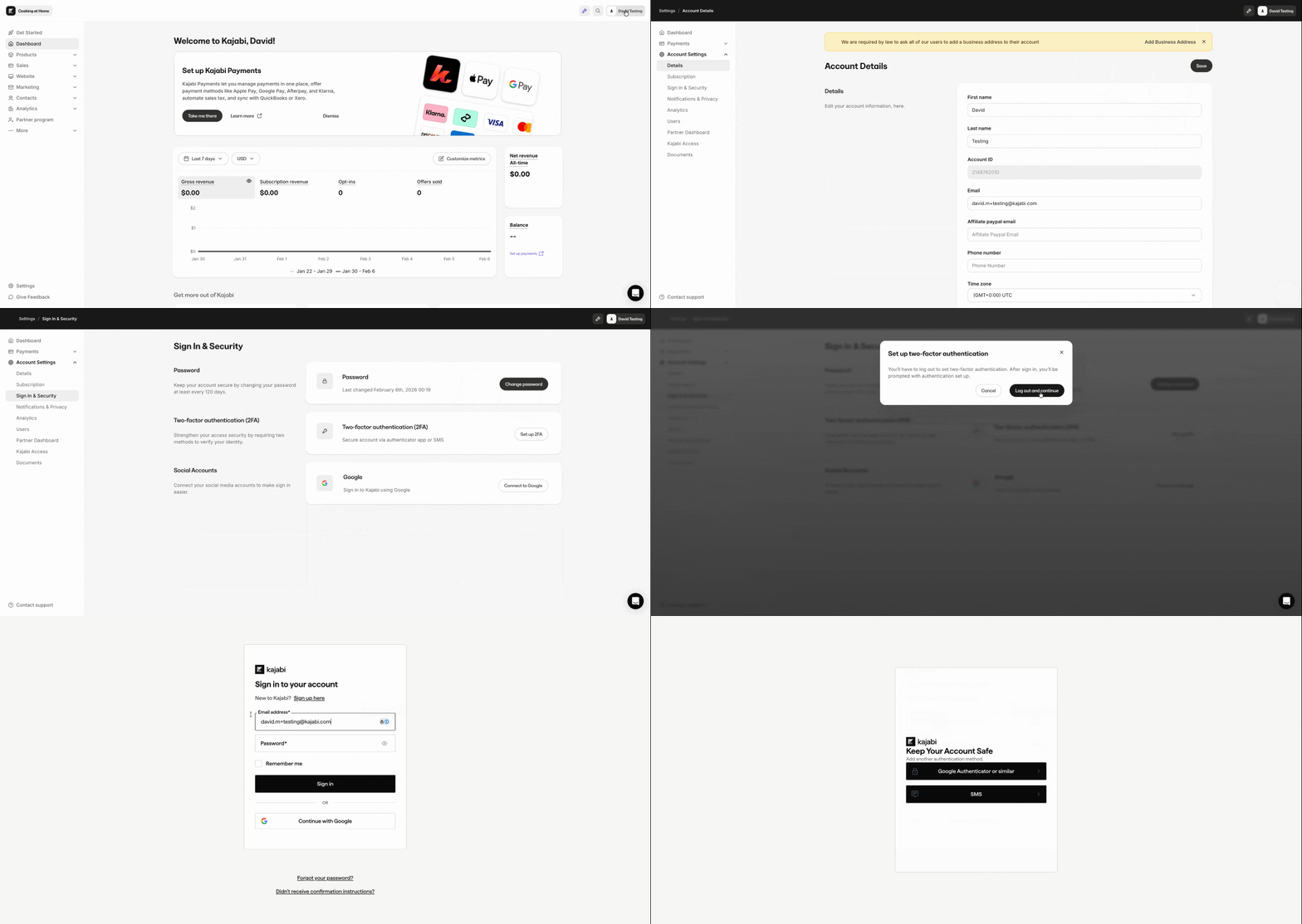
- From the Dashboard, click your Name in the top-right corner.
- Click Account settings.
- Click Sign In & Security in the left sidebar.
- In the two-factor authentication section, click Change.
- Enter your Kajabi password and click Confirm.
- Click Log out and continue.
- After signing in to Kajabi, you can choose a new 2FA method.