

View a coupon’s analytics
- Open the Sales tab from the Dashboard.
- Select Coupons.
- Click the coupon you want to review.
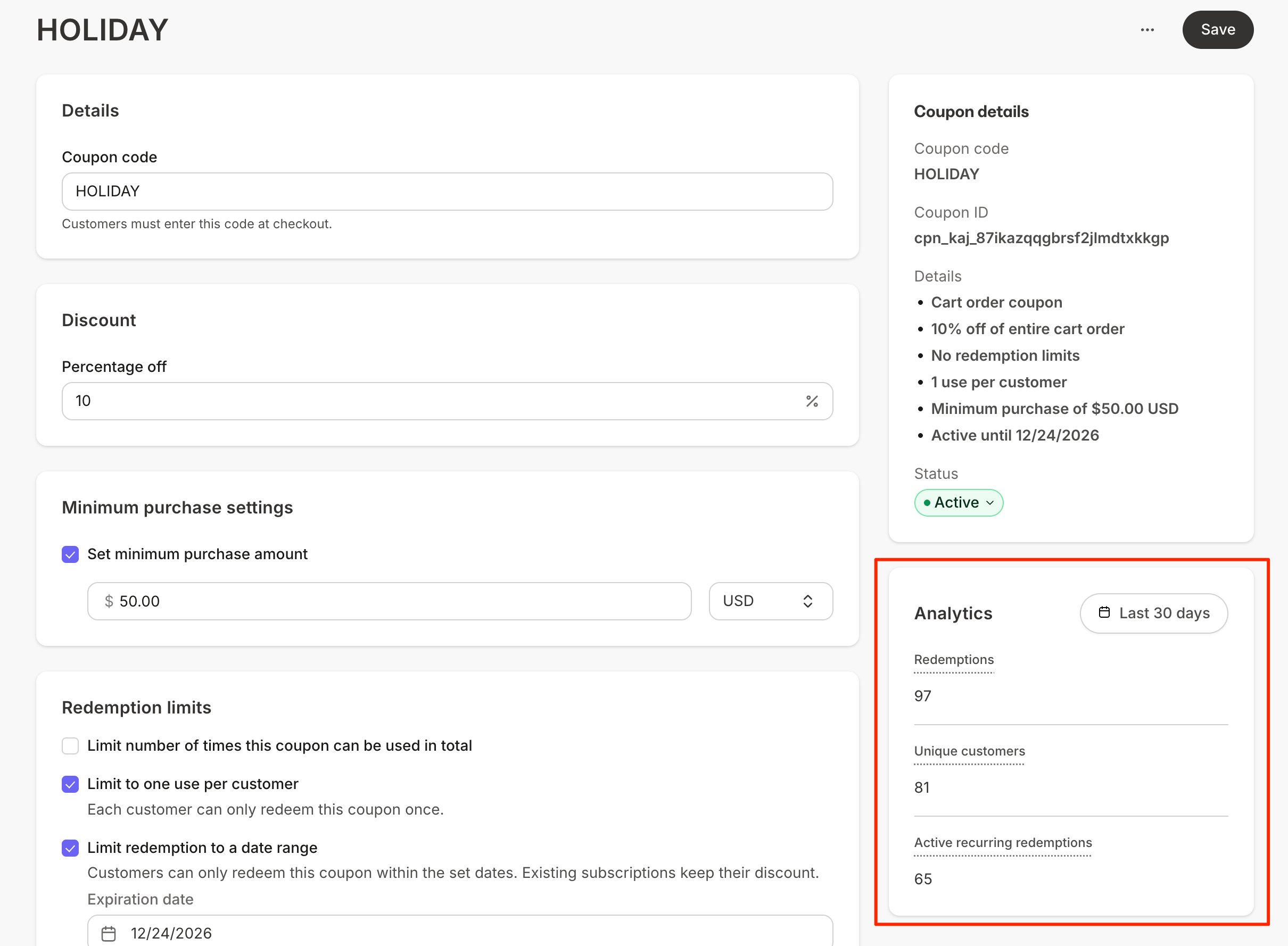
Understand the metrics
- Total redemptions: The number of times the coupon has been redeemed at checkout.
- Total unique customers: The number of individual customers who have redeemed the coupon. If the coupon allows multiple uses per customer, this number can be lower than total redemptions.
- Active recurring redemptions: The number of active subscriptions and payment plans the coupon is currently attached to. When a subscription is canceled or a payment plan completes, it no longer counts here.
Filter by date
Use the date filter at the top of the Analytics panel to change the reporting period. Analytics default to the last 30 days.Coupons without activity
The Analytics panel stays in a placeholder state until the coupon has at least one redemption. Draft coupons can’t be redeemed, so their analytics remain empty until the coupon is Active and a customer uses it.Find customers who used a coupon
To see which customers redeemed a specific coupon:- Open the Contacts tab from the Dashboard.
- Click Filters.
- Select Coupon from the Category dropdown.
- Select Coupon used as the conditional.
- Choose your coupon code as the value.