Coupon edits apply to new redemptions only. Anyone who already redeemed keeps the terms they signed up with, including subscriptions, payment plans, and one-time purchases. If a customer redeemed a 20% off Coupon on a subscription and you later change the discount to 10%, that customer keeps their 20% discount.
Edit a Coupon
- Open the Sales tab from your Dashboard.
- Choose Coupons, then click the Coupon you want to update.
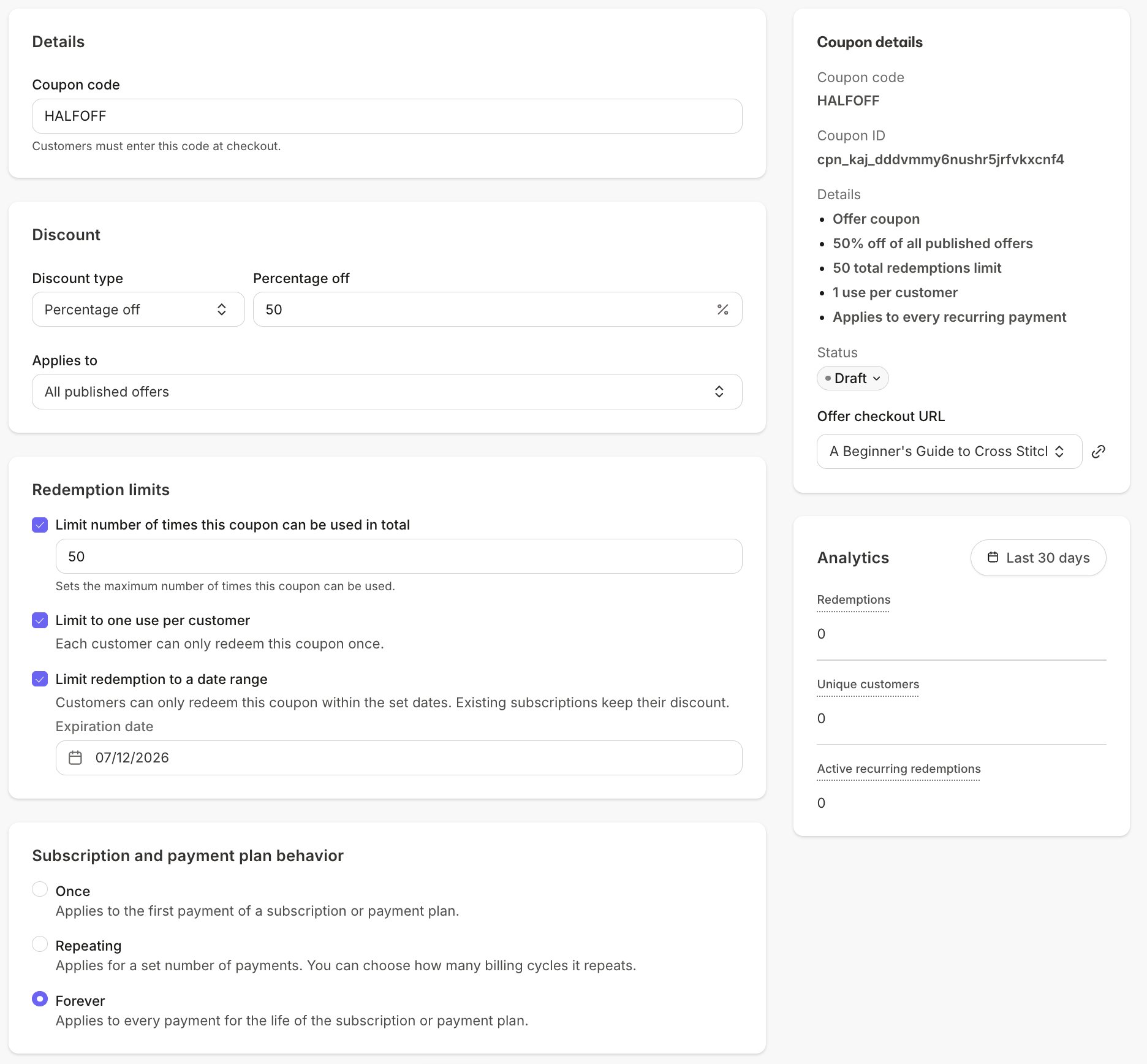
- Update any of the Coupon’s settings, including the Coupon code, Discount, Applies to Offers, Redemption limits, and Subscription and payment plan behavior.
- Click Save, then confirm your changes.
For Bulk Coupons, the number of codes can be increased but not decreased, and discount changes apply immediately to all unredeemed codes.
Change a Coupon’s status
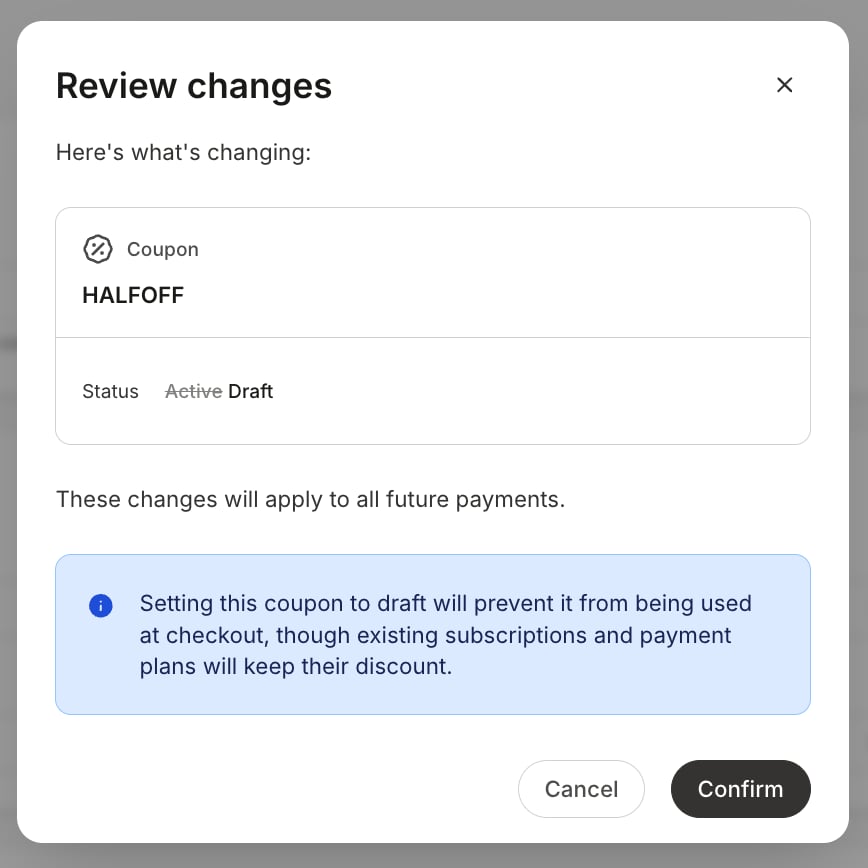
New Coupons start as a Draft, and only Active Coupons can be redeemed at checkout.- Open the Coupon from Sales > Coupons.
- In the Coupon details panel, click the Status dropdown.
- Select the new status.
Add or remove Offers on a Coupon
The Coupon only applies to the Offers attached to it.- Open the Coupon from Sales > Coupons.
- Under Applies to, add or remove Offers, or select All published offers.
- Click Save.
Delete a Coupon
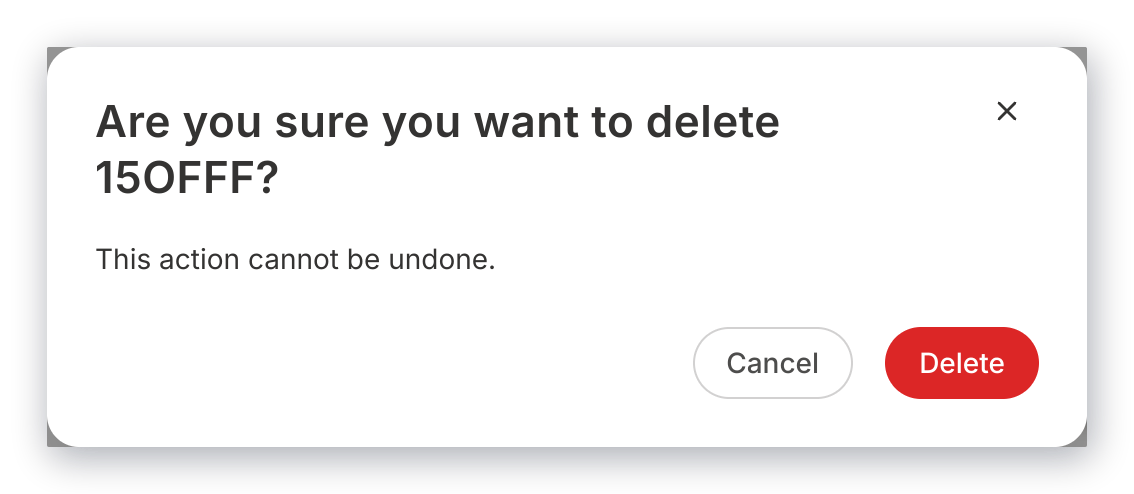
Deleting a Coupon permanently retires it. The code can never be used or restored.- Open the Coupon from Sales > Coupons.
- Click the ”…” overflow menu in the upper right, then select Delete.
- Review the confirmation message and confirm.
Share a Coupon
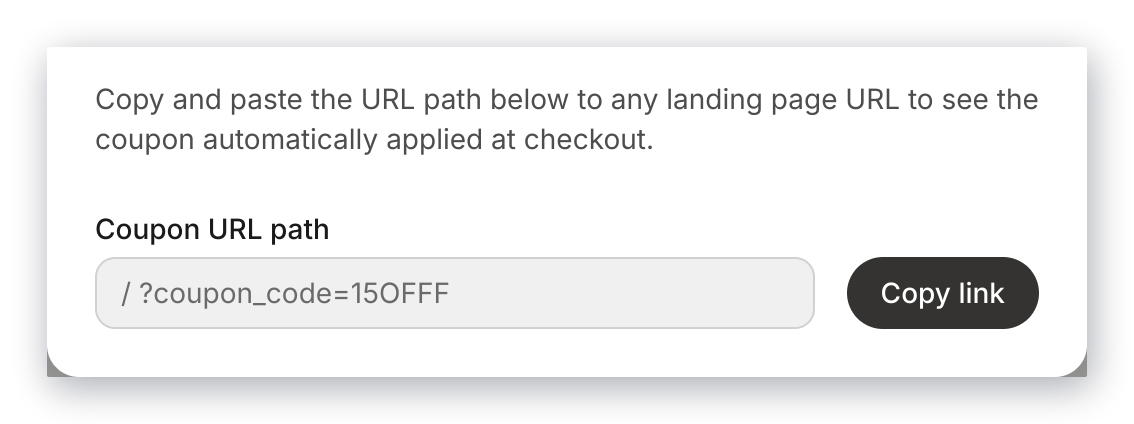
Each Offer attached to a Coupon has an Offer checkout URL in the Coupon details panel, and the Share Coupon option in the overflow menu provides the Coupon URL for popup checkout. See Create Coupons for steps and examples.