

A Course paywall for a Course and Modules provides potential customers with a preview of your Course, while encouraging them to purchase and unlock all the valuable lessons you have to offer.Documentation Index
Fetch the complete documentation index at: https://help.kajabi.com/llms.txt
Use this file to discover all available pages before exploring further.
Power of the paywall
Setting up a paywall for your Course content allows you to offer a sneak peek at what’s inside, while still encouraging people to purchase the full course. A paywall is like a gateway: it gives potential customers the opportunity to experience a portion of your content, but they’ll need to purchase the full course to access the rest. This method not only helps you convert free users into paying customers, but it also creates a sense of urgency and exclusivity. With this approach, you can:- Increase conversions: Offering a preview of your Course helps build trust and demonstrates the value of your content. When customers see how much value you provide in just a preview, they’re more likely to buy the full course.
- Leverage lead magnets: By offering a free or discounted portion of your Course content as a lead magnet, you can capture potential customers’ interest and lead them down the sales funnel to purchasing the full course.
- Enhance accessibility: With a paywall, customers have the flexibility to access a portion of the content at no cost before deciding whether to make a full purchase.
How Course content is protected
Kajabi takes the security of your business seriously. We use protective measures to ensure your content stays secure and is only accessible to those who have purchased or been granted access.How Kajabi keeps Course content safe
- Paywall obscures content: Course content is hidden behind the paywall and remains secure before it’s rendered on-page.
-
Content protection: If a user tries to bypass the paywall or inspect the page’s code using technical methods, they won’t be able to view any content.
Restricted content includes:
- Videos and audios
- Written lesson content
- Comments
- Downloads
- Course progress integrity: We also disable actions like marking lessons as complete or favoriting, ensuring your course progress data stays accurate.
Add a paywall
- Click Products in the left sidebar
- Click Courses
- Select the Course you wish to update
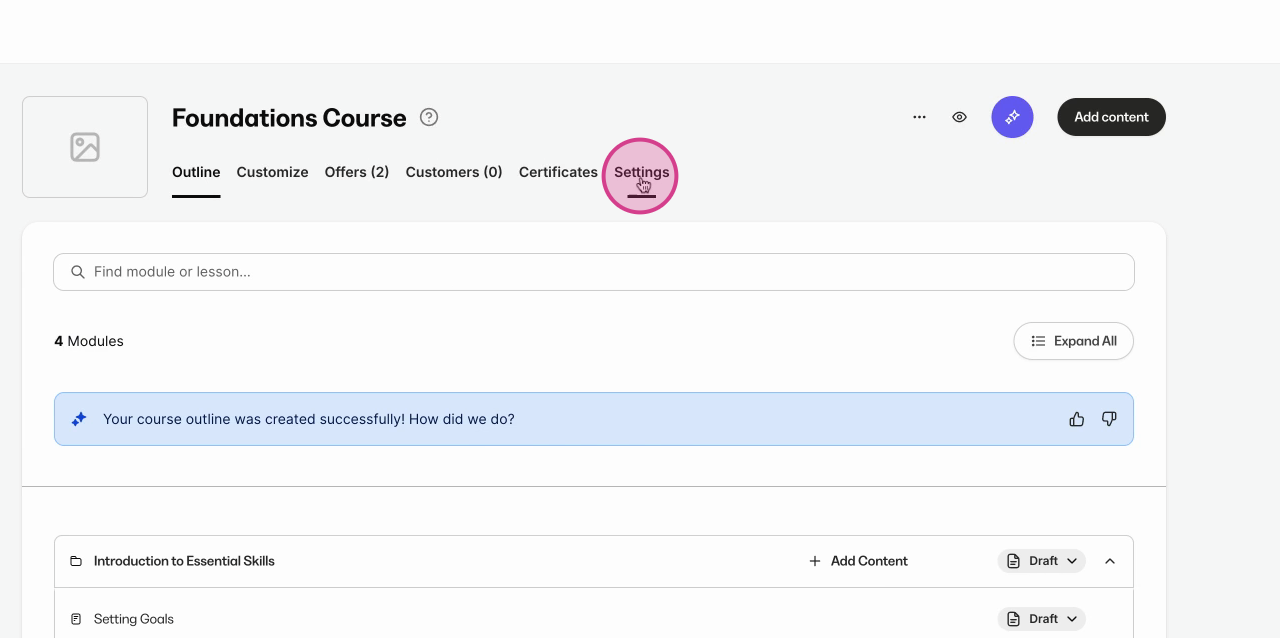
- Navigate to Settings
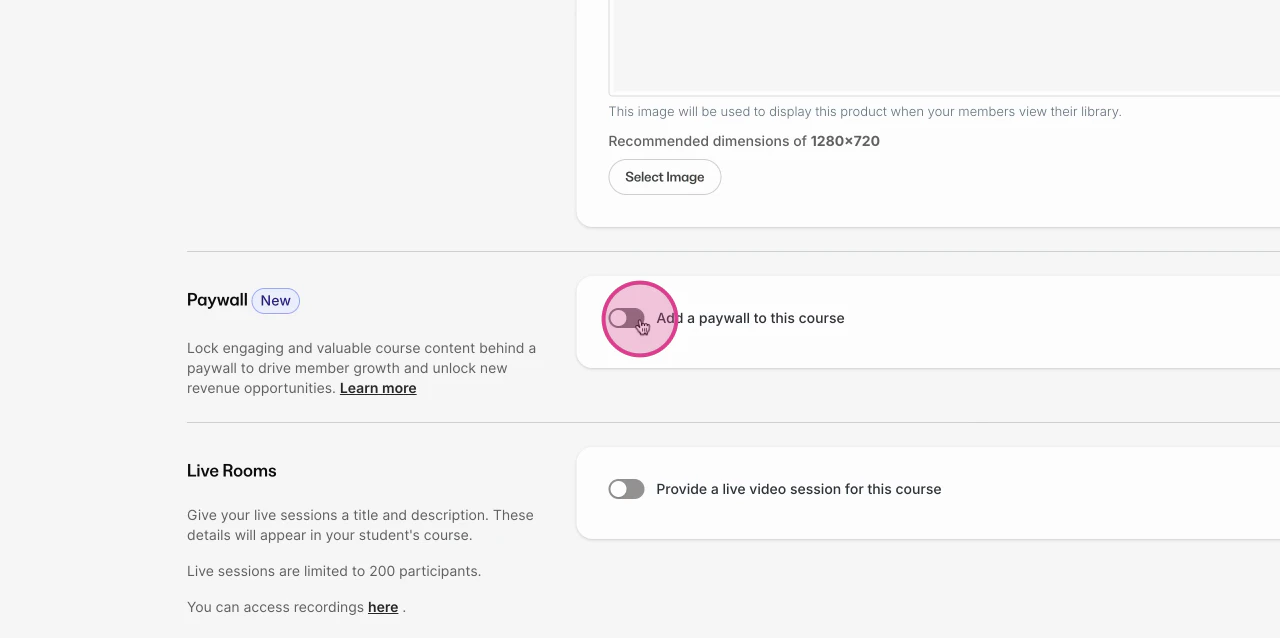
- Scroll down and toggle on Add a paywall to this course
- In the Title field, use the default name or create your own for the free Offer your customers can gain access to in order to preview your product. Kajabi creates this free Offer for you once you save
- Under Paywall offer, choose which Offer is shown to members when they try to access content behind your paywall
- Click Save changes to apply the paywall. When you enable the paywall, Kajabi automatically generates a limited-access version of your course, typically labeled as “[Course Name] - limited access”. This limited-access version is attached to the free Offer you titled so that customers can gain access
Note:
- Make sure the Offer you select is published and active so visitors see the correct pricing and access.
- Toggling the paywall affects who can open paywalled lessons — double-check your course Access Settings after saving.
- Ensure that the correct offer is selected in the original Course’s settings to make it visible in the paywall dropdown.
Manage a paywall
Managing transitions between access levels is crucial. Users with limited access can upgrade to full access by purchasing the full offer, ensuring a seamless experience. If adjustments are needed, create a new unrestricted offer rather than modifying existing restricted offers. Move your paywall from within your Course outline to customize your customers’ access to your course.- Open the Products tab from your Dashboard
- Click Courses
- Select the Course with the paywall enabled
- Hover your mouse over the Paywall indicator
- Then, drag and drop it to your desired location
Note: Paywalls can only be placed between modules.
Customize the paywall pop-up modal
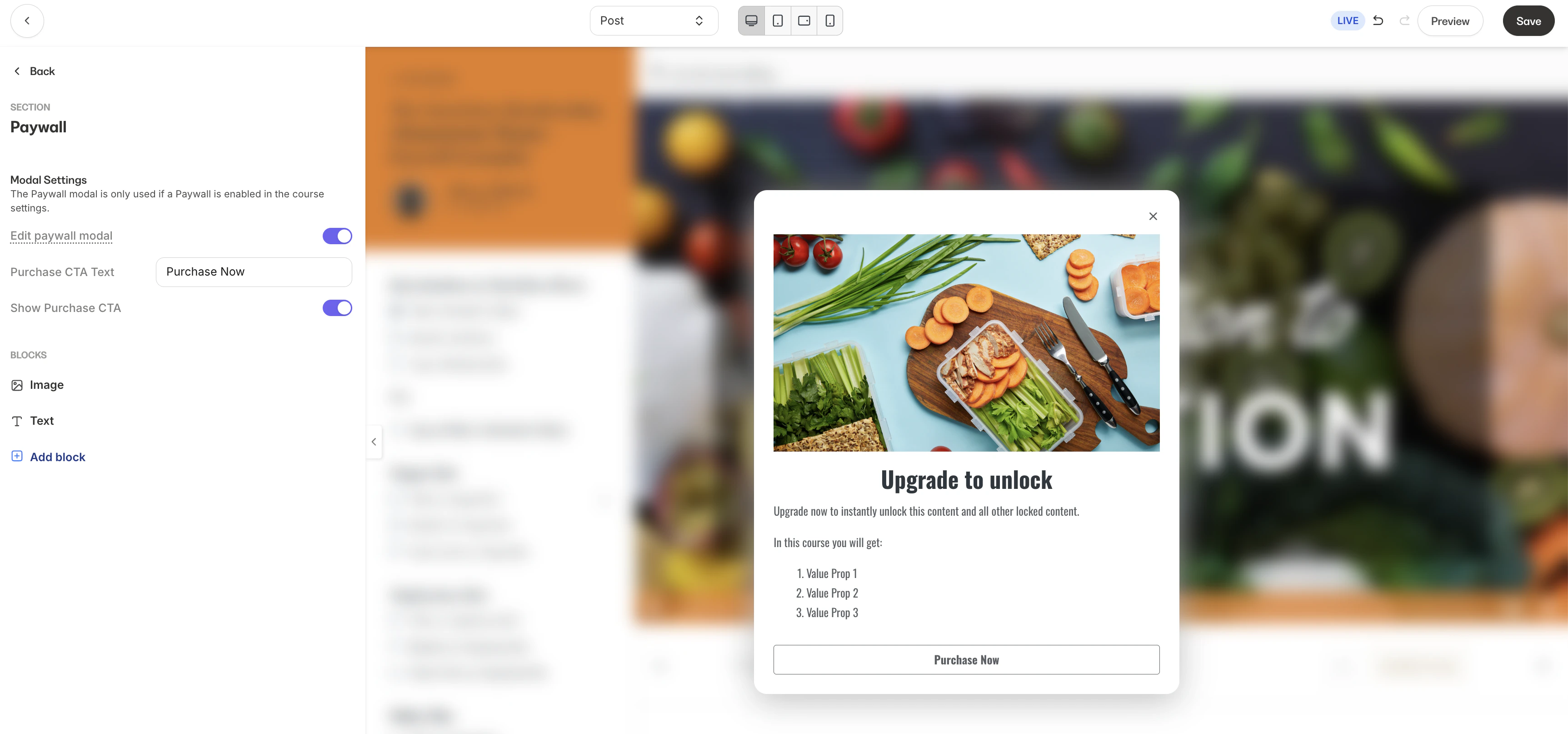
When a lesson is locked by a paywall, students will see a pop-up modal prompting them to purchase or upgrade their access. You can customize this modal within your Product theme editor.Note: Paywalls are only supported on the Premier and Momentum product themes.
Customize a paywall modal
- Open the Course you would like to edit
- Click Customize to open the product theme editor
- Confirm that your product is using either the Premier or Momentum theme
- If you are using a different theme, you will need to switch to Premier or Momentum to access and customize paywalls
- In the theme editor, use the dropdown at the top of the page and switch from Product to Post
- In the left sidebar, click Paywall
- Toggle on Edit Paywall Modal
- Add and arrange any custom blocks you would like to display in the modal
- When you are finished editing, toggle off Edit Paywall Modal
- Click Save to apply your changes
Preview the paywall modal
- Return to your Course outline
- In the top right corner, click the eye button to Preview
- Select Preview Limited Access
- Click into any locked lesson to view your paywall modal
Marketing with a Course paywall
Using a paywall as a lead magnet is an effective strategy for driving new customers to your Course. Here’s how you can use your paywall to capture interest and convert visitors into paying customers:- Offer a preview module or lesson: Allow potential customers to access the first module or a specific lesson in your Course for free. This allows them to experience a part of the value you provide without giving away everything.
- Create a sneak peek video: Provide a sneak peek video or webinar that introduces your course content. After the preview, prompt users to unlock the rest of the course by purchasing.
- Set up a limited-time Discount: Create urgency by offering a limited-time Discount for users who decide to purchase the full course after accessing the preview content. This can drive conversions and encourage users to take action quickly.
Paywall best practices & troubleshooting
Label your Offers clearly, such as using “Limited Access” for paywalled versions, to avoid confusion. Additionally, ensure that shareable links for limited access offers are easily accessible from the Offers section.- Place the paywall where it maximizes value — gate content after a free preview or introductory module
- Preview as a customer or use a test account to confirm the paywall works before publishing
- Name gated sections clearly so customers understand what they get after purchase