

Before you begin
Order bumps are available on all offers. To add up to six order bumps to a single offer, your offer must meet additional requirements. See Multiple order bumps below for details.Add or remove an order bump
- From your dashboard, navigate to Sales > Offers and open the offer you want to edit.
- Select Settings.
- Scroll to the Order bumps section.
- Click Add an order bump and search for the offer you want to add as a bump.
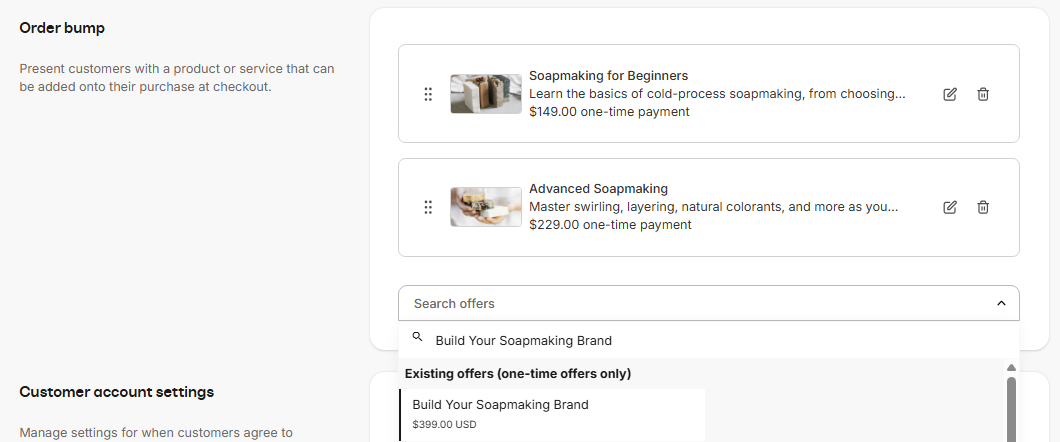
- To customize how the bump appears at checkout, click the pencil icon to edit its Title, override or expand the Description, and change the Image. These fields are pre-filled from the selected offer but can be overridden.
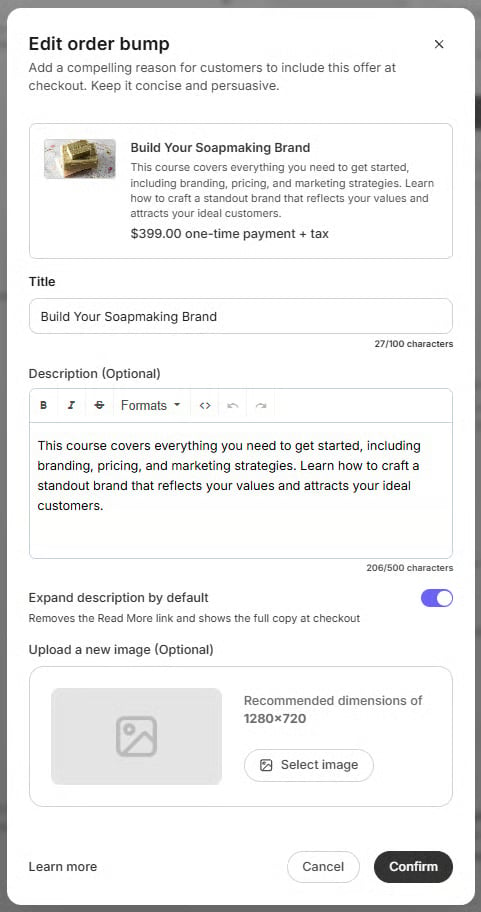
- Click Confirm to save.
Multiple order bumps
With Enhanced Checkout, you can add up to six order bumps to a single offer. Each bump appears as a selectable card in the checkout summary, and customers can choose any combination before paying..png?fit=max&auto=format&n=aybVP8ozAZZ_XXgD&q=85&s=999274a14bdb2cada286a38988894ab4)
Reorder bumps
Drag and drop bumps to change the order they appear at checkout. The first bump in the list is also the one displayed on legacy checkouts that do not support multiple bumps.Requirements for multiple order bumps
To support more than one order bump, the primary offer must:- Use Enhanced Checkout
- Be a paid, one-time payment offer. Subscriptions, payment plans, and free offers support only one order bump at this time.
- Have no pricing options
- Be a one-time payment type
- Have no pricing options
- Use the same currency as the primary offer
Mixed Pricing Support for Order Bumps is currently in closed beta. If enabled for your account and you run into any issues, contact payments.support@kajabi.com.
How multiple order bumps affect Webhooks
With multiple order bumps, one-time primary offers and one-time order bumps are now grouped into a single payment transaction, rather than each being charged as a separate transaction. Customers see the full price in one place at checkout and are charged a single amount, which helps improve authorization rates and reduce payment processing costs since the fixed per-transaction fee is only applied once. If your workflows rely on the Payment Succeeded or Purchase Created webhooks through a Zapier integration or other, review the changes below to ensure your automations continue to work as expected. For more information, see Webhook Changes with the Introduction of Multiple Order Bumps.Payment Succeeded / New Payment
Previously, each offer in a checkout, including the primary offer and any order bump, was charged as its own separate transaction, and each transaction fired its own Payment Succeeded event. Now, all one-time items in the checkout are grouped into a single transaction, so only one Payment Succeeded event fires per checkout, regardless of how many one-time bumps were selected. The offer fields in that event, including offer ID, title, and pricing type, will contain comma-separated values when the order includes more than one offer. If your workflow references any of those offer fields, you may need to update it to handle comma-separated values where you previously received a single value.Purchase Created / New Purchase
The Purchase Created webhook still fires once per offer purchased, the same behavior as before. If a customer’s order includes the primary offer and two bumps, you receive three separate events. What has changed is the transaction amount fields. Each event now reflects the total value of the entire order, not the price of the individual offer in that event. Each event also includes an offer-level amount specific to that offer. Example: A customer purchases a $50 primary offer and two $20 order bumps. Total transaction: $90. You receive three Purchase Created events. All three share the sametransaction_id and the same amount_paid of $90. The offer’s total_amount on each event reflects that individual offer’s price: $50, $20, and $20 respectively.