

Documentation Index
Fetch the complete documentation index at: https://help.kajabi.com/llms.txt
Use this file to discover all available pages before exploring further.
Overview
Include downloadable files in your Email Broadcasts and Email Sequences to share resources, flyers, and additional information with your recipients.Note: The maximum file size for any downloadable attachment in an Email Campaign is 1GB.
Email Broadcast
Include a downloadable file in your Email Broadcast with both the Classic Email Editor and Email Visual Editor.Classic Editor
- Create your Email Broadcast.
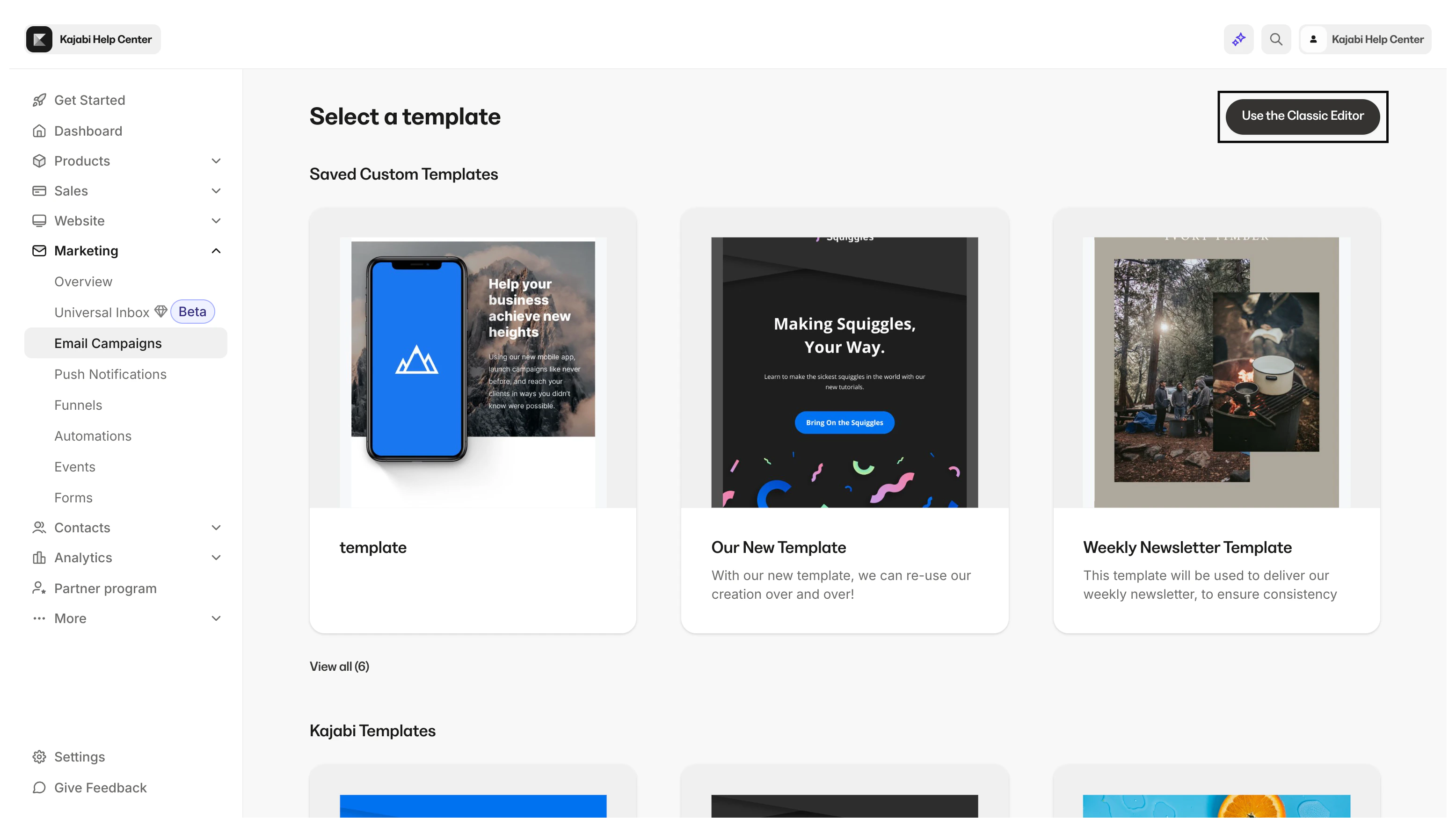
- Select Use the Classic Editor:
- Enter an Internal Title for your Email Broadcast when prompted.
- In Step 2 of your Email Broadcast, select the paper clip icon:
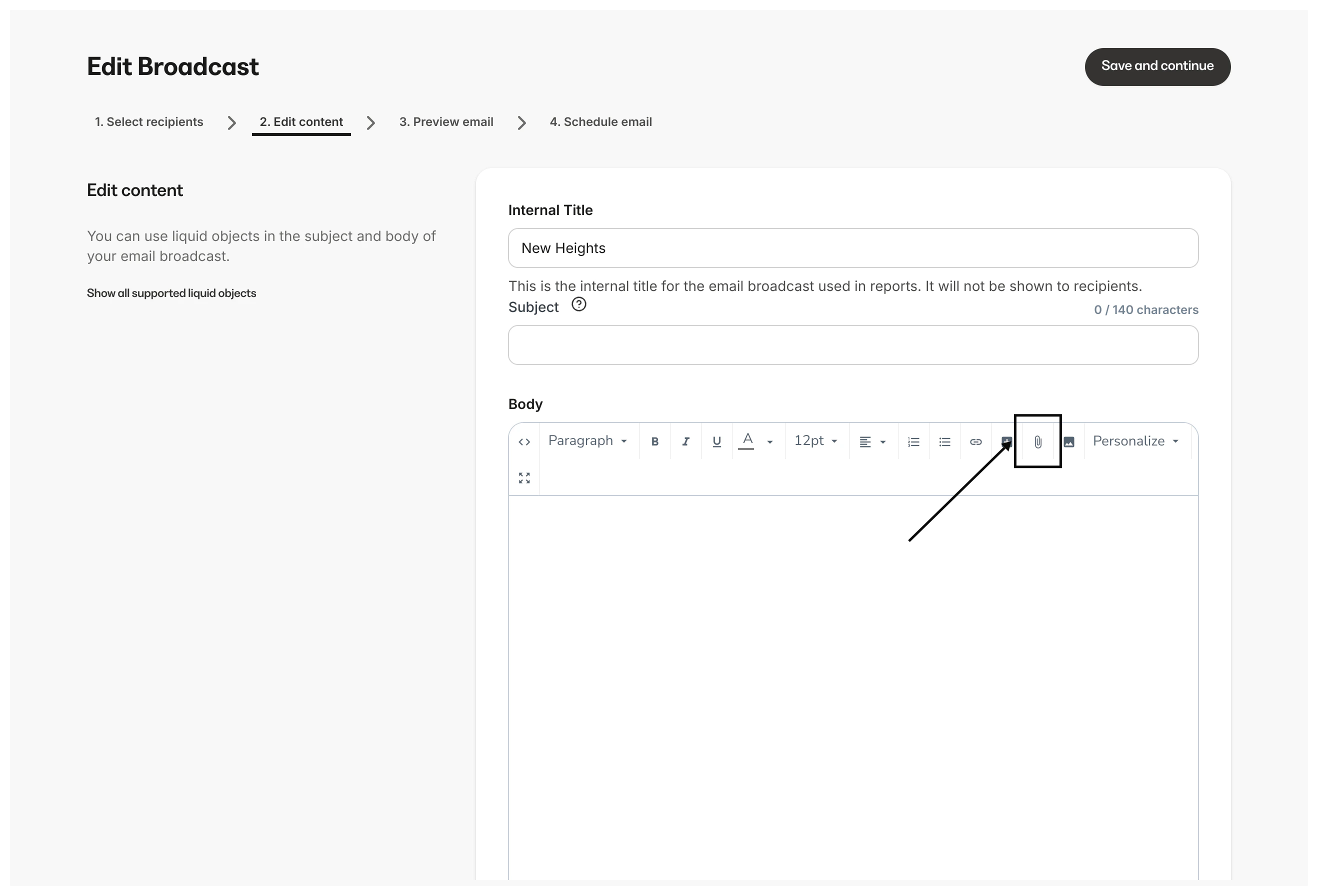
- Choose File from your computer or drag and drop.
- Click Open to add your downloadable file to your Email Broadcast.
Visual Editor
The Email Visual Editor gives you the flexibility and control to design your Email Broadcasts with your branding and design vision. Add downloadable files within a variety of sections available with the Email Visual Editor:- Add a Text Section
- Add a Button
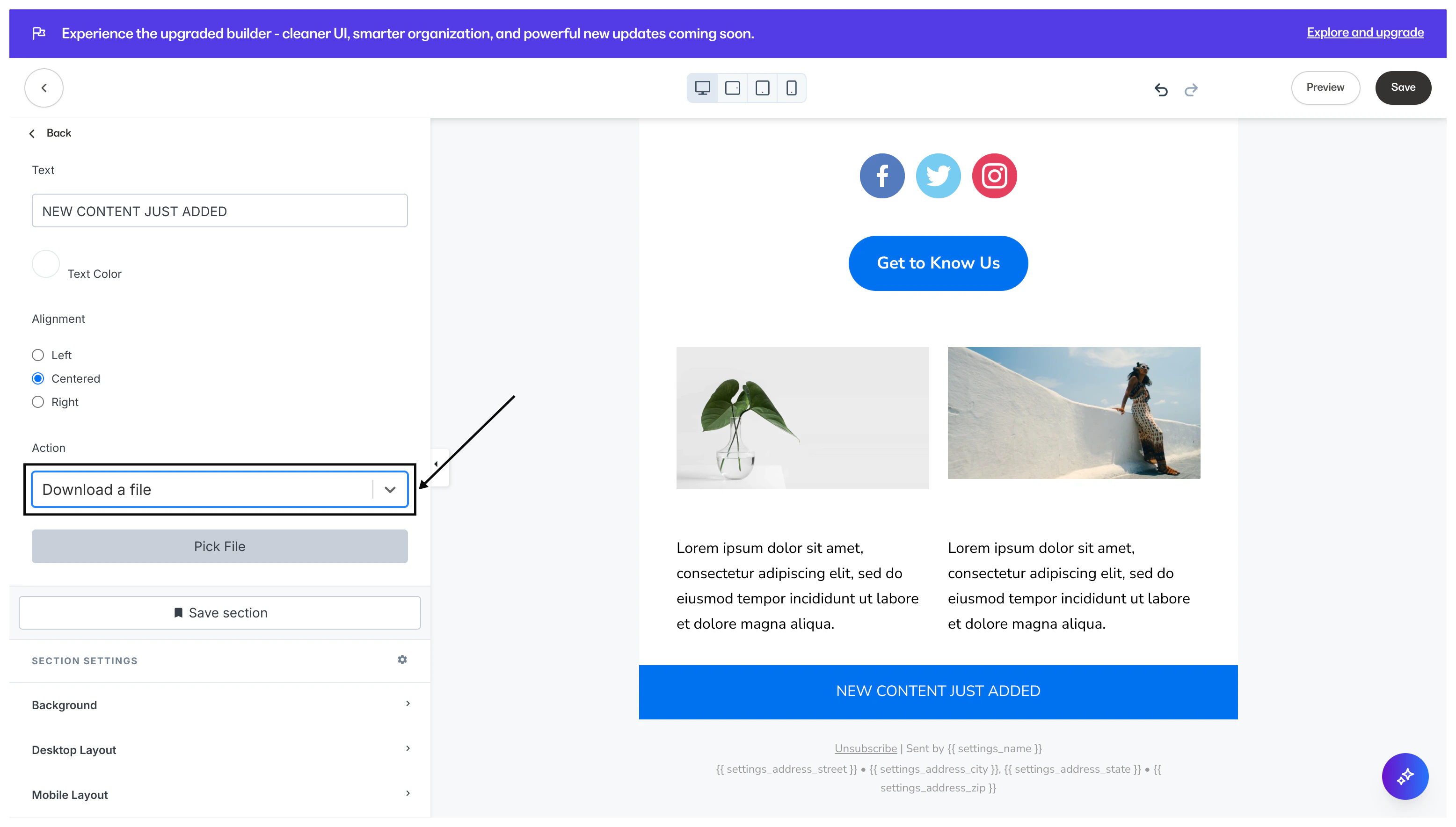
- Add an Announcement
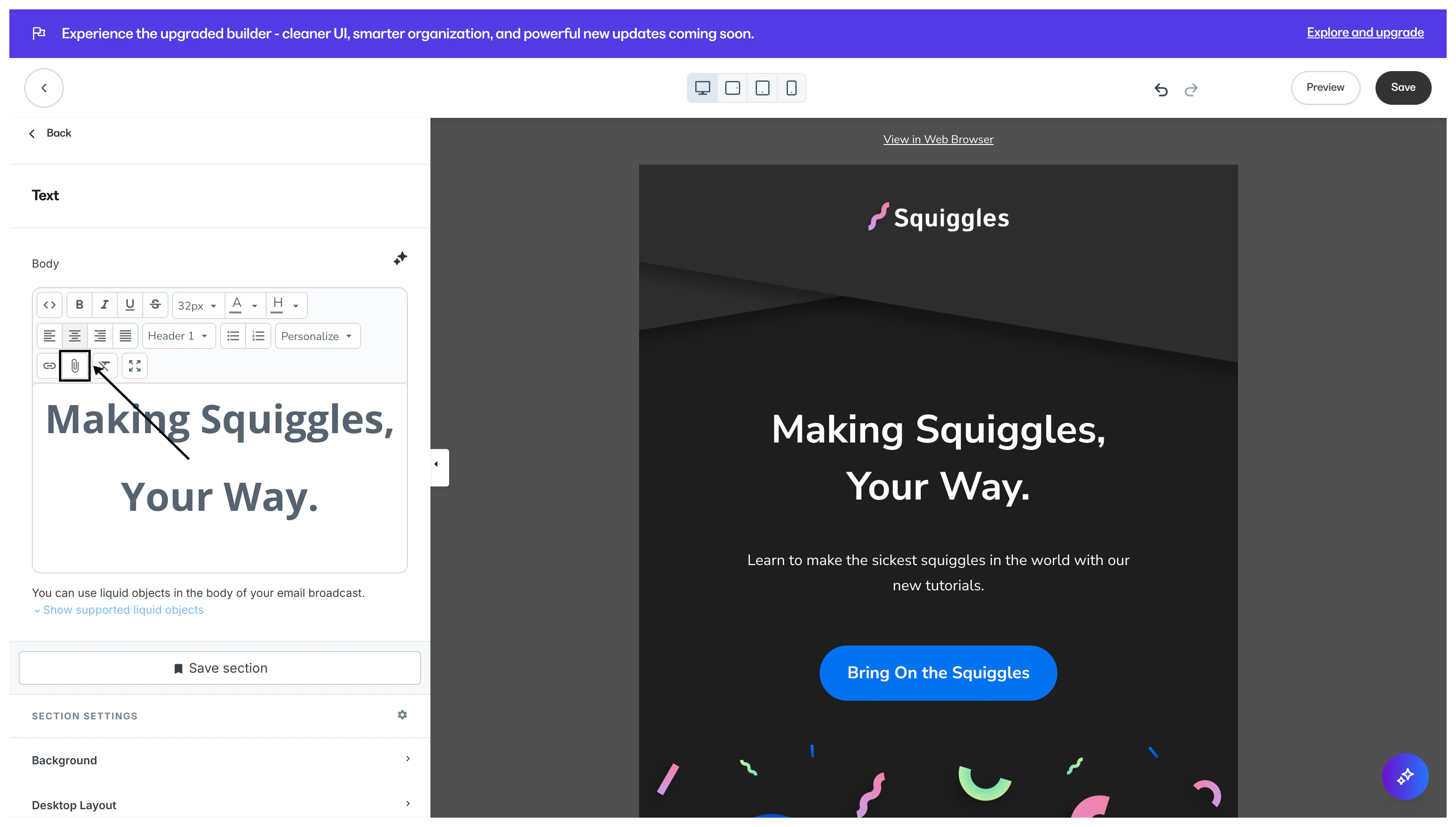
Add a Text Section to a broadcast
- Click the Paper Clip icon to upload your file. This allows your recipients to select the text containing your file to download:
Add a Button to a broadcast
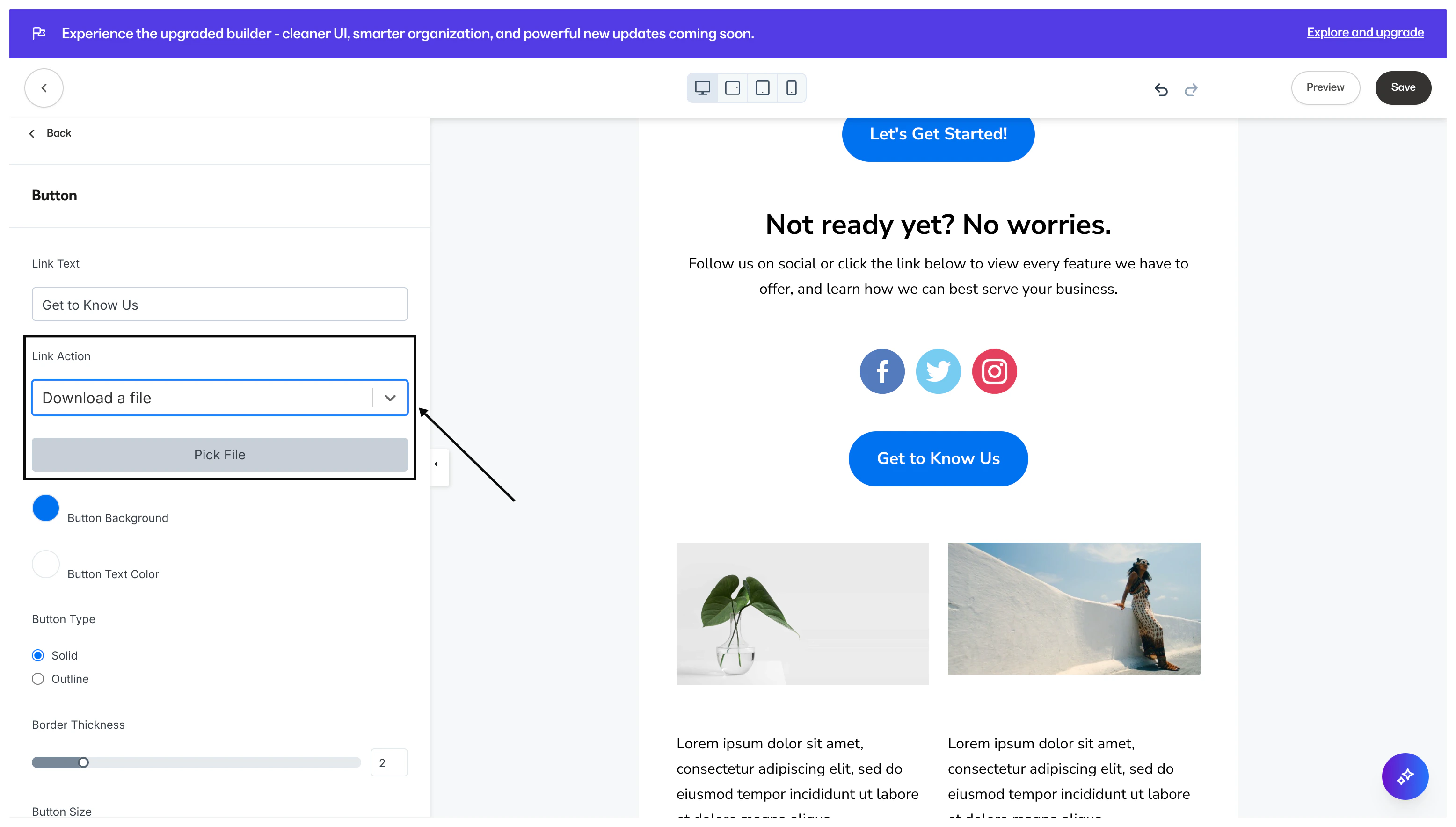
- Open the Link Action dropdown menu and select Download a file to upload your file. This lets your recipients click a button to download your file:
Add an Announcement to a broadcast
- Open the Action dropdown menu and select Download a file to upload your file. This lets your recipients click on the Announcement to download your file:
Email Sequence
Add a downloadable file to an email sequence
- Create your Email Sequence or select an existing one. Read Create an Email Sequence for details.
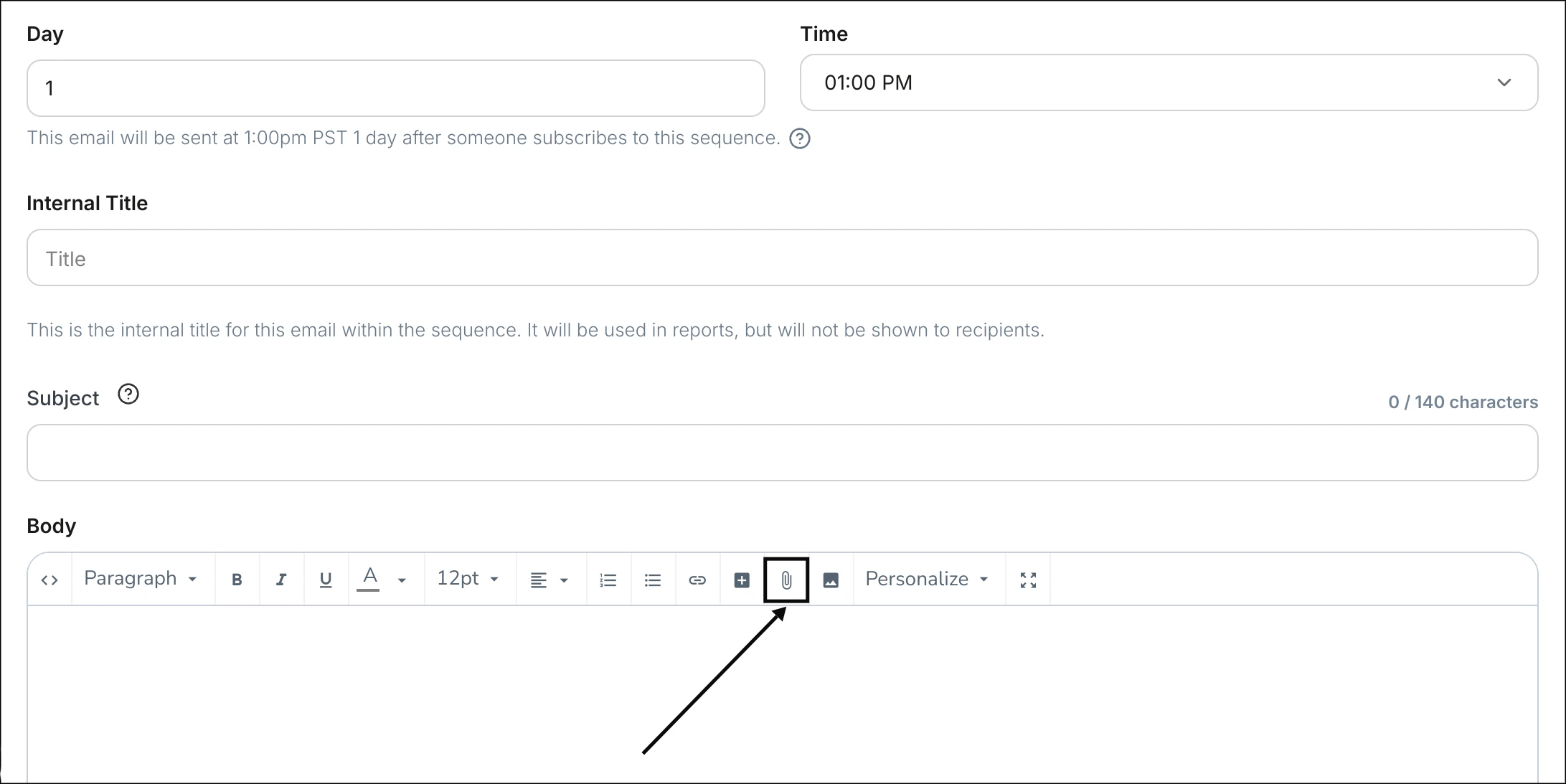
- In the Email Editor for an individual email, select the paper clip icon:
- Select Choose File from your computer or drag and drop your file into the file picker.
- Click Open to add your downloadable file to your Email Sequence.
- Edit Text to display in the Insert Link prompt.
- Click Ok to apply your downloadable file to the email.
Display your download link as a Button
- After adding your downloadable file, click on the newly created Download link.
- Click the + insert/edit button icon in the toolbar.
- The download URL will automatically populate with the selected download link.
- In the Insert Button prompt, customize the Text to Display, the Title, and the Button Color.