

Create an Email Broadcast
- Open the Marketing tab from your Dashboard.
- Select Email Campaigns.
- Click + New Email Campaign on the Email Campaigns dashboard.
- Select Create Email Broadcast.
Note: You can A/B Test your Email Broadcasts. Learn more about Email A/B Testing.
Select the Email Editor
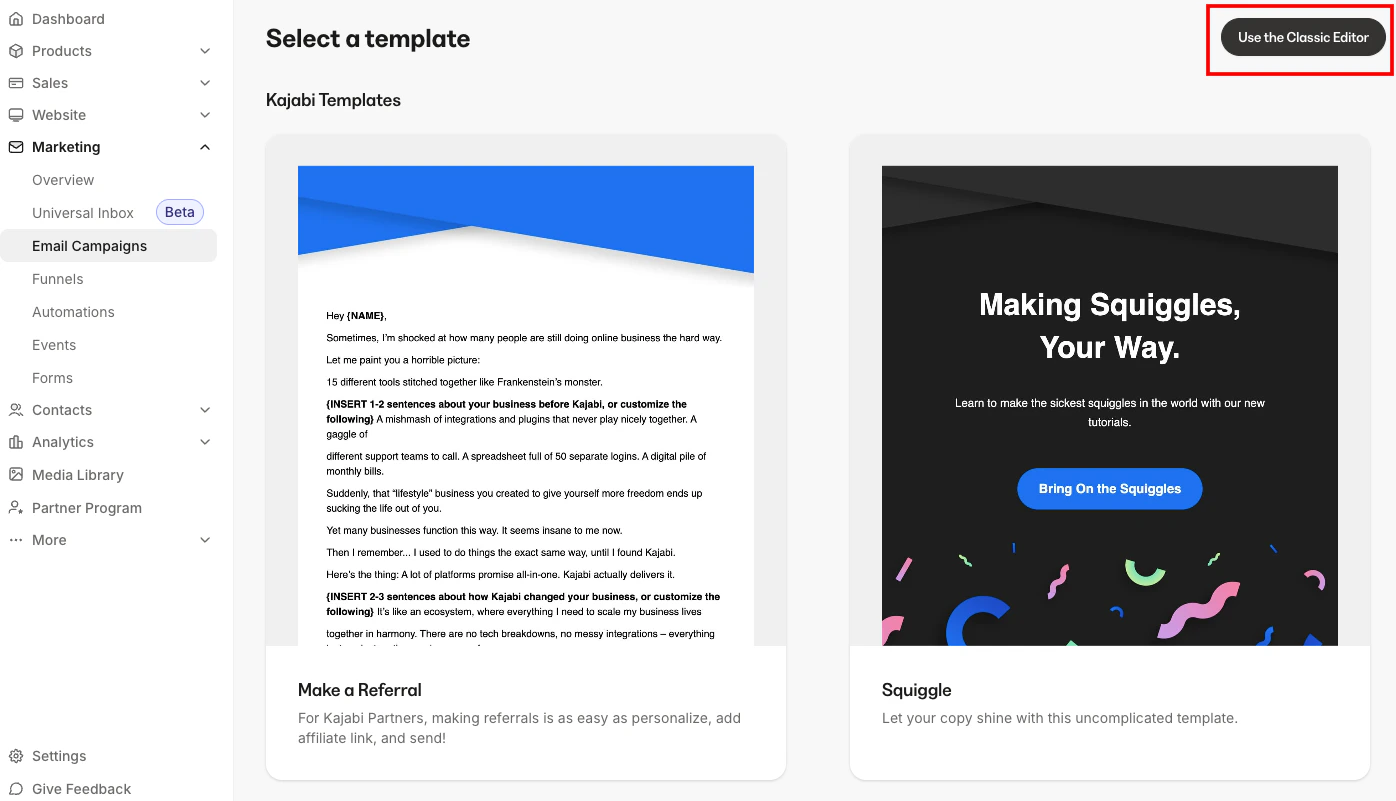
Next, you can choose to create your Email Broadcast with the:- Visual Email Editor by selecting a Kajabi Template or a custom Email Template, or the
- Classic Email Editor by selecting Classic Editor in the top right corner or the bottom of the template list:
Select recipients
Next, you will need to choose who will receive the Email Broadcast. You can choose to send the Email Broadcast to all of your contacts, or a segmented list. If a user has not opted in to receive marketing emails, they will not be added to the recipient list when creating your Email Broadcast. If you add a filtered selection of 200 people from your list to an Email Broadcast and only 98 recipients were added, the reason is most likely that more than half of those users did not opt in to receive marketing emails.Note: The preview email will be sent to the email address of the currently logged-in admin.