

Documentation Index
Fetch the complete documentation index at: https://help.kajabi.com/llms.txt
Use this file to discover all available pages before exploring further.
Modify your page details
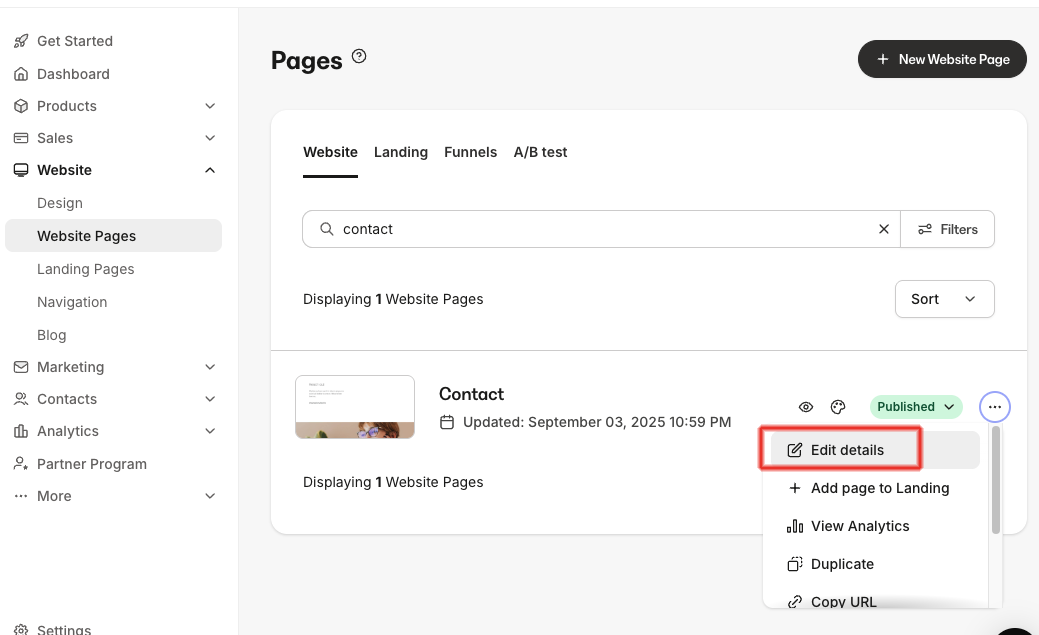
- Open the Website tab from your Dashboard.
- Select Website Pages.
- Click the ellipsis
…menu to the right of the Page title and select Edit details. - Change the Page title, URL slug, or edit SEO and social sharing settings:
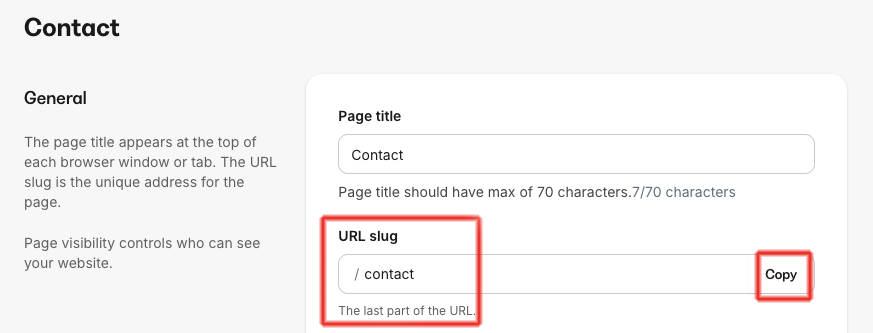
Landing Page details
The title of your Page displays on your viewer’s web browser tab. Edit this under Page title.URL slug
Visibility
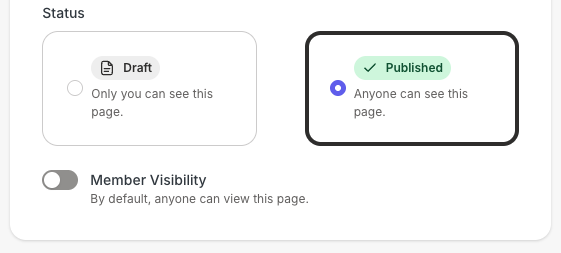
- Published Pages are viewable and accessible to visitors who have the Page URL.
- Draft Pages are not accessible to visitors, regardless of whether they have the URL. Use Draft Pages to prepare for your site launch, add Products, and more.
SEO and sharing
SEO and social sharing settings for your Page make it easier for people to find your Page on search engines and social media sites, and improve your ranking in search results. These values may display when your Page URL is shared by text or email.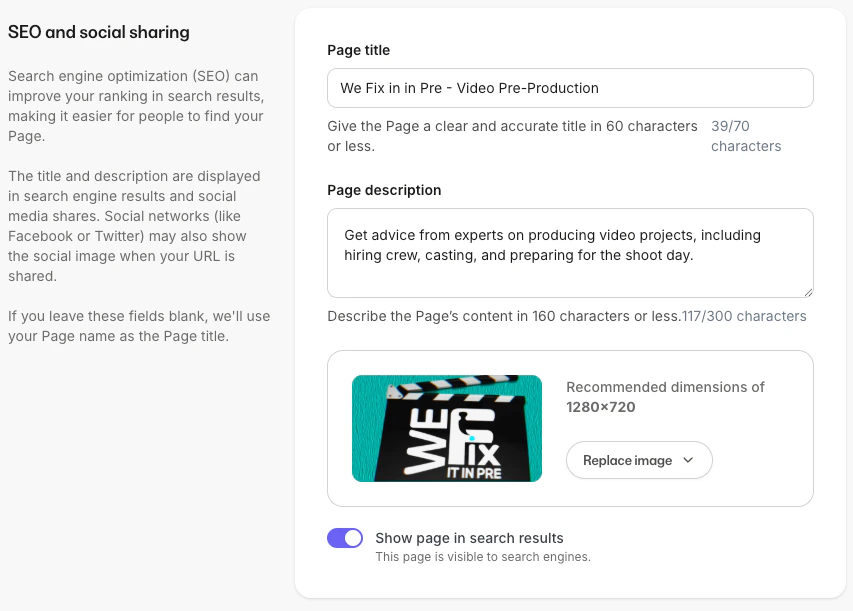
- Page title: Describe your Page content to a max of 70 characters. Learn how to optimize your Page title.
- Page description: Summarize your Page content in 1-2 sentences, up to a max of 300 characters. Set a Page description in the SEO and social sharing section of a Page or Blog post. Learn how to optimize your Page description.
- Show page in search results: Toggling this off will prevent search engines from showing the Page in their results or following any links on the Page.
- Page image: You can set a social image in the SEO and social sharing section of a Page or Blog post. This may display when your link is shared by text, email, or social media.