Documentation Index
Fetch the complete documentation index at: https://help.kajabi.com/llms.txt
Use this file to discover all available pages before exploring further.
Overview
When someone visits your site for the first time, how can you encourage them to return? One proven, effective method is to build your email list. An Exit Popup can help you do just that by appearing on your page visitor’s screen when they attempt to leave your site. On this popup, you can include a message, an email opt-in, a coupon code, and more. Enabling an Exit Popup will display your customized popup when a visitor shows intent to leave the page.Note: This guide refers to the latest page editor available with the Website Builder and Kajabi Pages. If you are using the Premier Legacy Templates, see this article.
How to enable an Exit Popup
- Open the Website tab from the Dashboard.
- Select Website Pages or Landing Pages.
- Click the Page Title or the Customize icon to open the Page Editor, or click the ellipsis … icon and select Edit Details.
- Click Exit Popup in the sidebar panel.
- Check Edit Exit Popup to preview it while editing.
- Check Enable Exit Popup to enable it on your page:
Note: Remember to uncheck Edit Exit Popup when you are finished editing the Exit Popup. Then, click Save to keep your changes.
How to customize an Exit Popup
Add content blocks
- In the Exit Popup section, click Add Content:
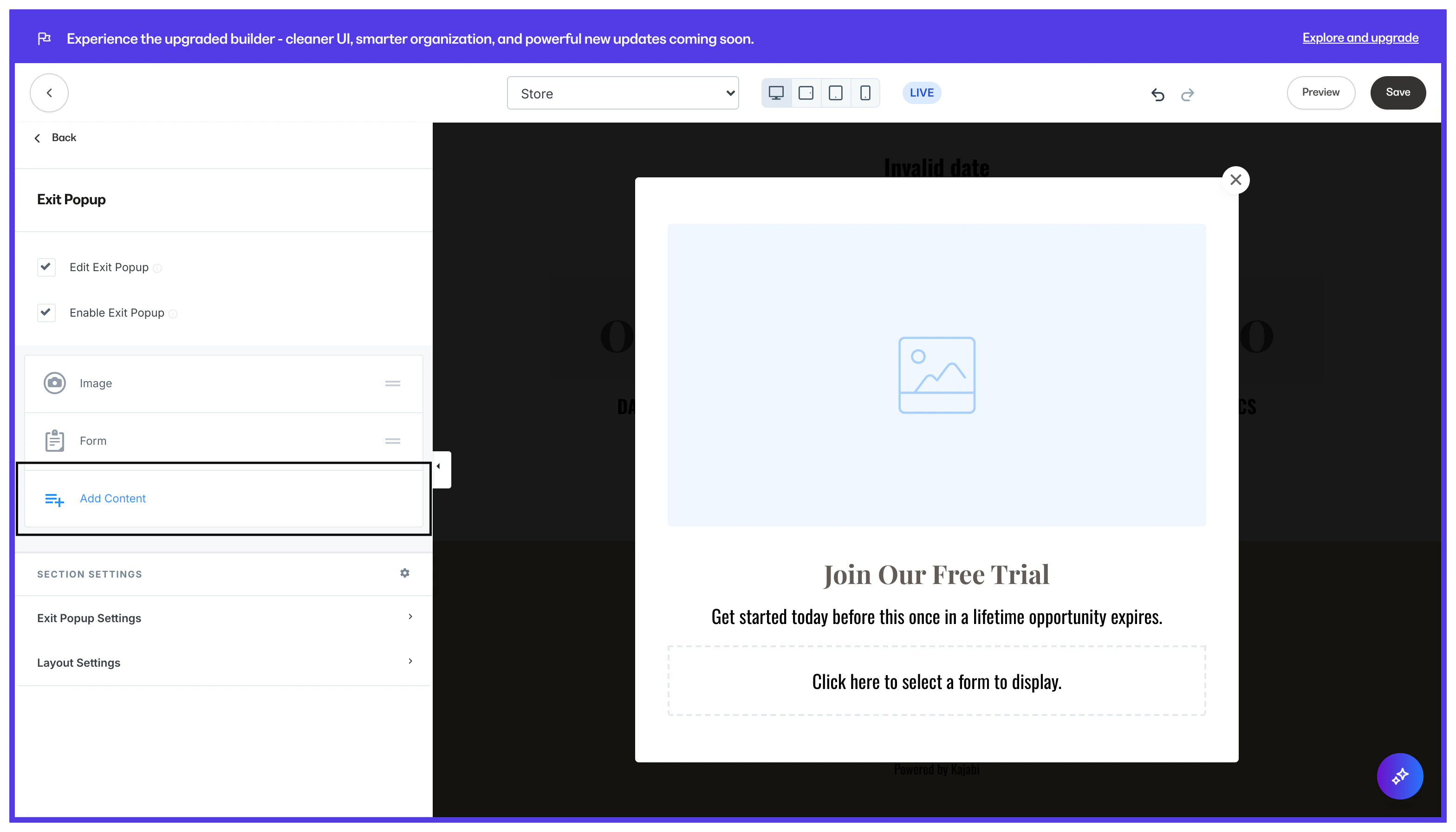
- Select a Content Block.
- Rearrange blocks by holding the
=icon and dragging to your desired location. - Click Save to keep your changes.
Exit Popup settings
Frequency
Customize the Frequency of the popup to only show it to returning visitors after a selected amount of days. Because the Exit Popup is cookie-based, the most it will appear is once per day when viewed from the same device, unless the cookies are cleared every time. If you want the Exit Popup to appear regardless of how often your visitor attempts to leave the page, we recommend setting its Frequency to 1 to be triggered every 24 hours.Timed reveal
Customize the Timed Reveal to have the popup show after the visitor has viewed your page for a select number of seconds. The popup will show on intent to exit the page or when the timer finishes, whichever occurs first. On mobile devices, the Exit Popup appears only if the Timed Reveal for the Exit Popup has been configured.Popup layout settings
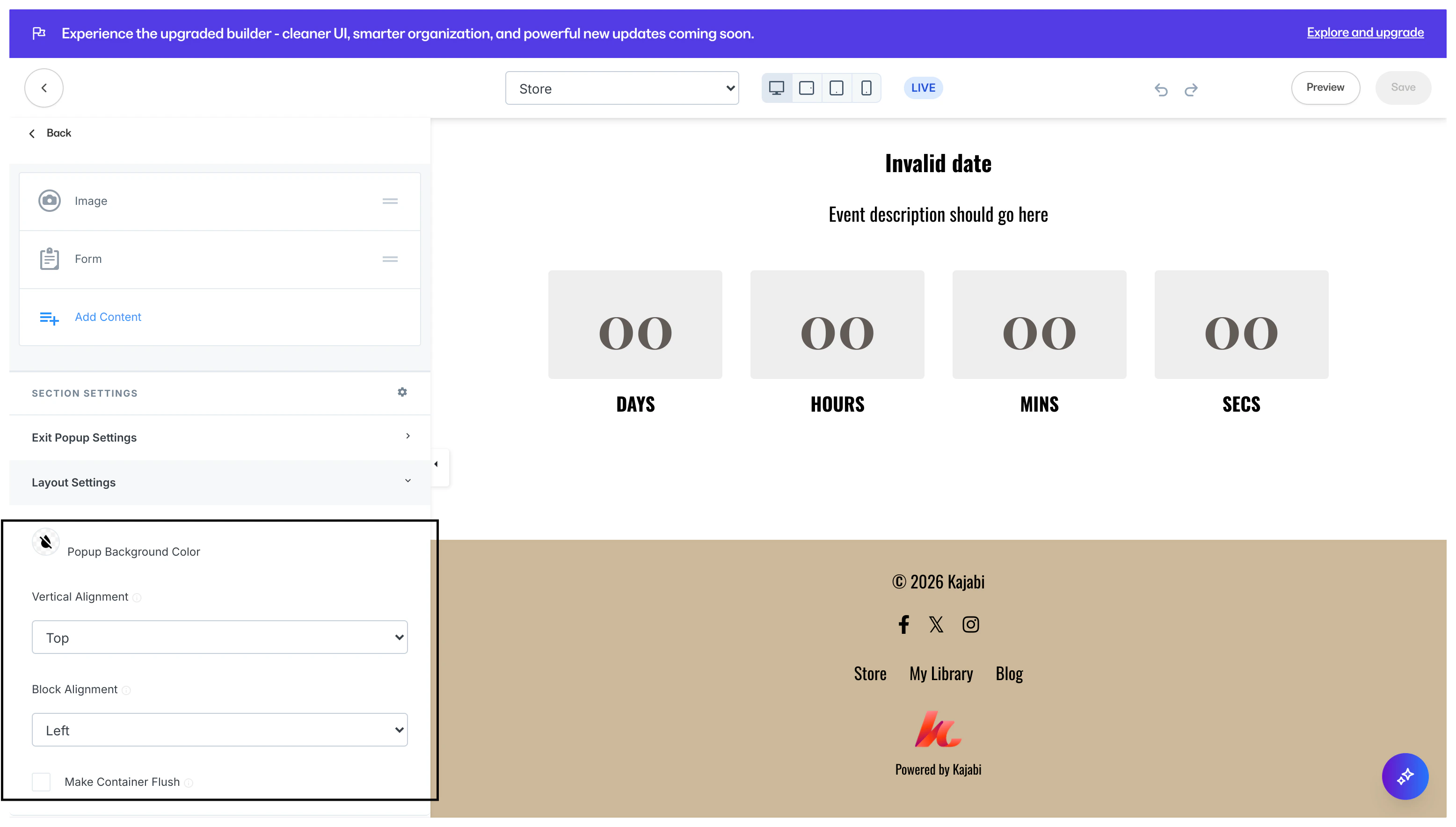
- Customize the Popup Background Color.
- Configure the Vertical and Horizontal alignment of blocks in the section.
- Check Make Container Flush to remove the padding surrounding the blocks in the Exit Popup.